
Documentation
Set up Syndie.io and get your first campaign live: lead lists, campaigns, the flow builder, the unified inbox, approvals and integrations.
Getting Started
Quick Start
What Syndie does, where everything is in the app, and the steps from sign-up to your first live campaign.
What Syndie Does
Syndie runs your outbound sales on LinkedIn and email. You pick who to reach, write a short sequence (an invite, a follow-up, an email), and Syndie sends it for you, a little each day, inside LinkedIn's limits. Every reply lands in one inbox, so you only step in when a real person answers.
The built-in assistant is called Syd. Syd can build a prospect list, set up a campaign, write messages and explain what is going on. On the Growth plan, Syd can also answer your prospects' replies: as drafts you approve, or, once it unlocks, on its own. Nothing that changes what is running happens without your OK.
Everything lives inside a workspace: your accounts, lists, campaigns, team and plan. See Your Workspace.
The Main Areas of the App
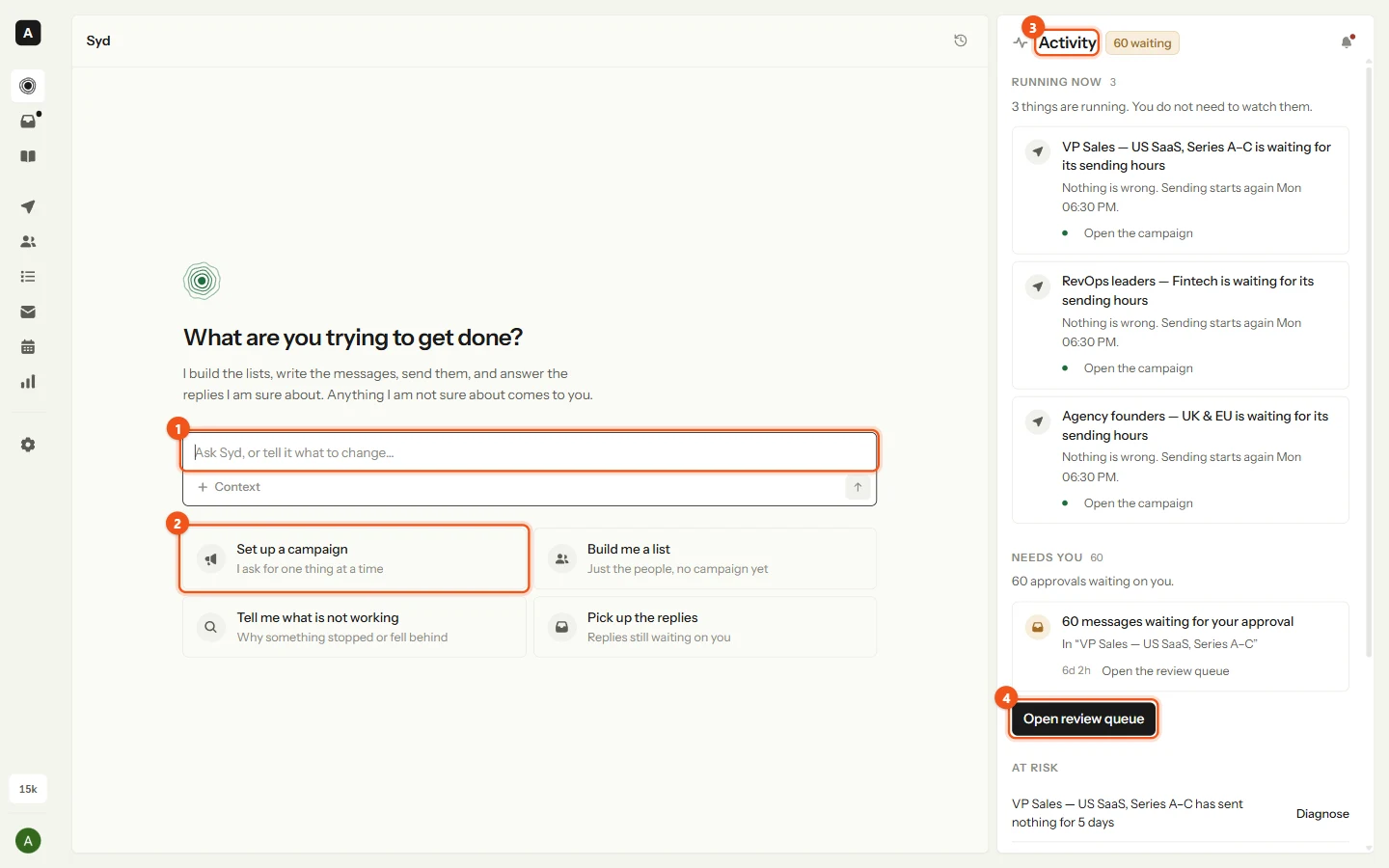
The left menu is how you move around. From top to bottom:
| Menu item | What it is for |
|---|---|
| Workspace switcher (top left) | Shows your workspace, plan and seats. Switch workspaces or add a new one. See Your Workspace. |
| Assistant (named Syd) | The home screen. A chat where you tell Syd what you want done. See Syd. |
| Review queue | Anything waiting for your decision, such as a drafted reply to approve or a conversation that needs a person. See Approvals. |
| Knowledge base | The facts Syd quotes from: pricing, case studies, policies. See Knowledge Base. |
| Campaigns (under Outreach) | Your sequences. Create, launch, pause and review them. See Campaigns. |
| Contacts | Every person your campaigns have reached or will reach. See Contacts. |
| Prospect lists | Saved groups of people to feed into campaigns. See Prospect Lists. |
| Unibox | Every LinkedIn and email conversation in one place. See Unibox. |
| Meetings | Booked meetings and booking links. See Meetings. |
| Analytics | How your campaigns perform. See Analytics. |
| Settings | Workspace, team, billing, accounts, integrations and your own profile. |
| Credits card (bottom left) | Your credit balance. Click it for a breakdown, then View usage for the full page. |
| Your name (bottom left) | A menu with Your profile, Notifications, Workspace settings, Team & roles, Seats & channels, Integrations, Billing & plan, Help & docs and Sign out. |
Two shortcuts help: press Ctrl+K (Cmd+K on a Mac) to search and jump to any screen, and Ctrl+/ (Cmd+/ on a Mac) to open or close Syd from any page.
Inside Settings, the left list is grouped as Workspace (General, Team & roles, Billing & plan, Usage & credits), Syd's rules and autonomy, Channels (Seats & channels, Integrations, Blacklist) and You (Your profile, Notifications).
What You Need Before You Launch
To send anything, a campaign needs four things:
- A plan with at least one seat. A seat is one LinkedIn account plus one mailbox. You pay per seat.
- A connected LinkedIn account. Without one, campaigns cannot send.
- A prospect list to work through.
- A sequence of steps (or Syd planning the steps for you).
A mailbox is only needed if your campaign has email steps. Without one, email steps simply wait.
Starter and Growth. Both plans include campaigns, contacts, prospect lists, one inbox for LinkedIn and email replies, and Syd writing your messages and helping in chat. Growth adds Syd answering your prospects' replies (as drafts you approve, or on its own once unlocked), AI-planned sequences where Syd picks the next step for each person, and priority support. Each seat also brings credits every month. Syd's answers in chat use 1 credit each.
Step 1: Create Your Account
- Open the sign-up page and fill in First Name, Last Name, Email and Password (at least 8 characters). Or choose Continue with Google, where that option is shown.
- Tick the box to accept the Terms & Conditions and the Privacy Policy. The Create account button stays off until you do.
- Click Create account. We email you a 6-digit code.
- On Verify your email address, type the code and click Verify Email. If the email does not arrive, use Resend code and check your spam folder.
When the code is accepted you land in the app. A workspace is already created for you, and you are its owner.
If a teammate invited you instead, open the link in the invitation email. The email address is filled in and cannot be changed, because the invitation belongs to that address.
Step 2: Get a Plan and a Seat
Only the workspace owner can pay.
- Go to Settings → Billing & plan.
- On Choose a plan, set the number of seats, pick a billing period (Monthly or Yearly; yearly costs less per month) and choose Starter or Growth.
- Continue to the secure payment page. You see the exact amount there before anything is charged.
If your account manager set up a free trial, a banner at the top says so. Click Activate now.
No plan means no sending: the campaign's launch check says "Campaigns do not send without a subscription." See Billing.
Step 3: Connect Your LinkedIn Account (and a Mailbox)
- Go to Settings → Seats & channels.
- Click Connect an account, then choose LinkedIn account. Sign in to LinkedIn in the window that opens.
- For email, click Connect an account again, choose Mailbox, then pick Gmail or Outlook. Each one signs you in on its own secure page.
Each seat holds one LinkedIn account and one mailbox. If every seat is full, the dialog tells you to add a seat from Billing.
How much each account can send per day depends on the account, so a newer account sends less than a settled one. The Seats & channels screen shows how many invites and emails are left today. See Accounts and Sending Limits.
Step 4: Build a Prospect List
Go to Prospect lists. You have two ways in:
- Describe a list: Syd opens with "Build me a list of" ready for you to finish. Say who you want, for example the job titles, the industry and the country, and Syd builds the list.
- New list: set the list up yourself. Lists can come from a search, a post's reactions, job applicants, a CSV upload or your own contacts.
See Prospect Lists for every option.
Step 5: Create a Campaign
You have two ways in. Go to Campaigns.
Ask Syd. Click Describe a campaign, finish the sentence "Build me a campaign that" and send it. Syd asks one thing at a time. When the campaign is ready, Syd opens it for your review beside the chat, and it also appears in the Review queue. See Letting Syd Choose Each Step.
Build it yourself. Click New campaign, then:
- Under Outreach type, choose Single channel (LinkedIn only) or Multi channel (LinkedIn and email in one sequence). You cannot change this once the flow exists.
- Give it a Campaign name (optional; you can rename it any time).
- Under LinkedIn account, pick the account it sends from. Pick several to share the load; the first is the main one. For Multi channel, pick a Mailbox too.
- Click Create campaign.
The campaign opens as a Draft with two steps at the top: Flow and Review. On Flow, build the sequence from Actions, Conditions and Integrations, or click Use a template or Import Flow. On the Growth plan you can also click Let Syd plan it, and Syd picks each person's next step as the campaign runs.
A new campaign starts at 25 people a day (less if the account has less room), Monday to Friday, 9:00 to 17:00 in your browser's timezone. Change this under Sending schedule (the gear icon). See Campaigns and Flow Builder.
Step 6: Launch
Click Launch, which opens the Review step. It checks the campaign and lists what is still needed:
| Check | What it needs |
|---|---|
| Audience | A prospect list attached (Choose a prospect list). |
| LinkedIn account | A connected account (Choose a LinkedIn account or Reconnect). |
| Mailbox | Only for email campaigns. |
| Sequence | At least one complete step, unless Syd plans the steps. |
| Subscription | An active plan on the workspace. |
| Schedule | Room on the account: one account can run at most 3 campaigns at once, and the daily number must fit. |
When nothing is left, the screen says Ready to launch. Click Launch campaign. The first steps go out in the next sending window. You can Pause and Resume a campaign any time from the campaign or from the Campaigns list.
Step 7: Watch the Replies
- Unibox shows every reply as it arrives, across LinkedIn and email. See Unibox.
- The bell icon and Settings → Notifications tell you about replies, bookings and problems. See Profile.
- Each campaign has Performance, Health and Contacts tabs. Analytics shows all campaigns together.
- Anything that needs you appears in the Review queue.
Common Problems
| Problem | What to do |
|---|---|
| Launch says something is still needed | Open the Review step and fix each item marked Needed. |
| A LinkedIn account shows Disconnected | Go to Settings → Seats & channels and click Reconnect. Nothing sends from it until you do. |
| The campaign does not start sending | It only sends inside its sending window and daily limit. Ask Syd "Why did my campaign stop?". |
| Let Syd plan it is locked | It needs the Growth plan. |
| You cannot find a setting | Press Ctrl+K (Cmd+K on a Mac) and type its name. |
Still stuck? See Support.
Your Workspace
Workspace
Switch, create and manage workspaces, invite your team, and understand roles, seat access, ownership and the Danger Zone.
What a Workspace Is
A workspace is the shared space your team works in on Syndie. It holds your connected LinkedIn accounts and mailboxes (seats), prospect lists, contacts, campaigns, plan, credits and people. Everyone you invite works in the same workspace.
You can belong to several workspaces, for example your own and a client's. Each one is separate: its own accounts, campaigns, people and plan. Your own login works in all of them.
When you sign up, a workspace is created for you and you are its owner. That first workspace is your default workspace. It cannot be deleted. When you sign in, you land in the workspace you used last.
Switching and Creating Workspaces
The workspace switcher is at the top of the left menu. It shows the logo, the name, your plan and your number of seats.
- Click it to see your Workspaces. The current one has a check mark. Click another to switch.
- If someone has invited you to a workspace, an Invitations section appears with Join and Decline buttons. A small dot on the switcher tells you an invitation is waiting.
- Click Add workspace to create a new one.
To create a workspace:
- In the Create Workspace window, optionally add a Logo (PNG or JPG, up to 5 MB).
- Type a Workspace name, between 2 and 50 characters. The Create button stays off until the name is valid.
- Click Create.
You become the owner and land inside the new workspace, with the invite window open so you can add people straight away. If the name is already taken, you are asked to pick another.
A new workspace has its own plan, seats and credits. Nothing is shared with your other workspaces.
Settings → General
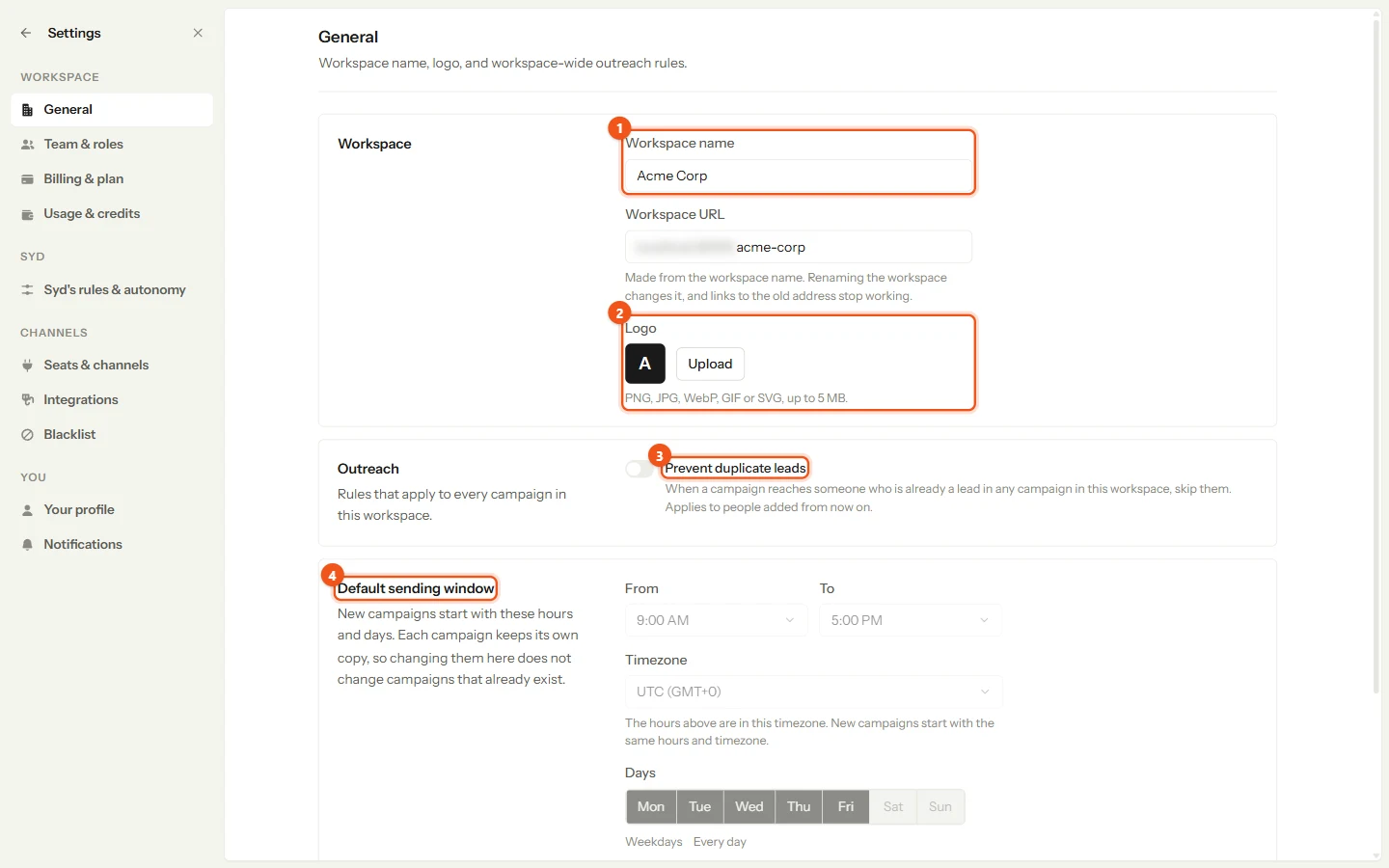
Open Settings and you land on General. Owners and admins can change everything here. Members can read it.
Workspace
| Field | What it does |
|---|---|
| Workspace name | Rename the workspace. Changes are saved with Save changes at the bottom (or Discard). |
| Workspace URL | The address of your workspace. You cannot type in it. It is made from the name, so renaming the workspace changes it, and links to the old address stop working. You are taken to the new address automatically. |
| Logo | Click Upload. PNG, JPG, WebP, GIF or SVG, up to 5 MB. |
Outreach
Prevent duplicate leads (off by default). When a campaign reaches someone who is already a lead in any campaign in this workspace, it skips them. It applies to people added from now on. This switch saves as soon as you flip it.
Default sending window
The hours and days campaigns send in: From, To, Timezone and Days. The starting values are 9:00 to 17:00, Monday to Friday, in your browser's timezone. The start and end cannot be the same, and at least one day must be picked. Click Save changes to apply.
This is the starting point for campaigns that do not set their own hours. A campaign made with the New campaign button starts with Monday to Friday, 9:00 to 17:00 and you change it in the campaign under Sending schedule. Changing the default here never changes campaigns that already exist.
At the bottom of the page you see when the workspace was created, and the Leave or Delete card (see below).
Inviting People
Only owners and admins can invite. Go to Settings → Team & roles and click Invite people. (The old Settings → Members address sends you to this page.)
- Type one or more Email addresses. Press Enter or comma after each one, or paste a whole list. A red address has a problem: Not a valid address, Already on the team, Already invited or Listed twice. Remove it to continue.
- Pick a Role: Member or Admin. The owner role cannot be given by invitation.
- Pick Seat access (members only, see below).
- Click Send invitation (or Send N invitations).
Each person gets an email with a link that works for 7 days.
What the invited person sees. If they have no account yet, the link asks them to create one; the email address is fixed to the one you invited. If they already have an account, they sign in and click Accept invitation. If they are signed in with a different email, they see Wrong account and can sign out and continue. Someone who is already signed in can also accept from their own workspace switcher under Invitations.
How many people fit
| Your workspace | People allowed |
|---|---|
| No plan | 5 |
| Starter | 15 |
| Growth | No limit |
Your account manager can set a custom limit. Pending invitations count toward the limit until they are accepted, revoked or expire. Owners and admins see the count above the people list, for example "3 of 15 places on the team used, pending invitations included". If the team is full, remove someone or revoke a pending invitation. Without a plan the error says to subscribe to invite more.
If a workspace is full at the moment someone accepts, they cannot join yet and need to ask you to free a place.
Managing People
Settings → Team & roles lists everyone in the People table: Person, Role, Seat access and Joined. Everyone in the workspace can open this page. Owners and admins also get these controls on each row (not on the owner, and not on yourself):
- Role menu: switch between Admin and Member.
- The actions menu: Make admin or Make member, Change seats (members only) and Remove from workspace.
Remove from workspace takes effect straight away. The person loses access, but campaigns, leads and connected accounts stay. You can invite them again later.
Below the table, Pending invitations shows each open invitation ("Invited as member, sent 2 days ago") with a Revoke link. Expired invitations disappear from the list, and you can send a new one.
Roles and What They Can Do
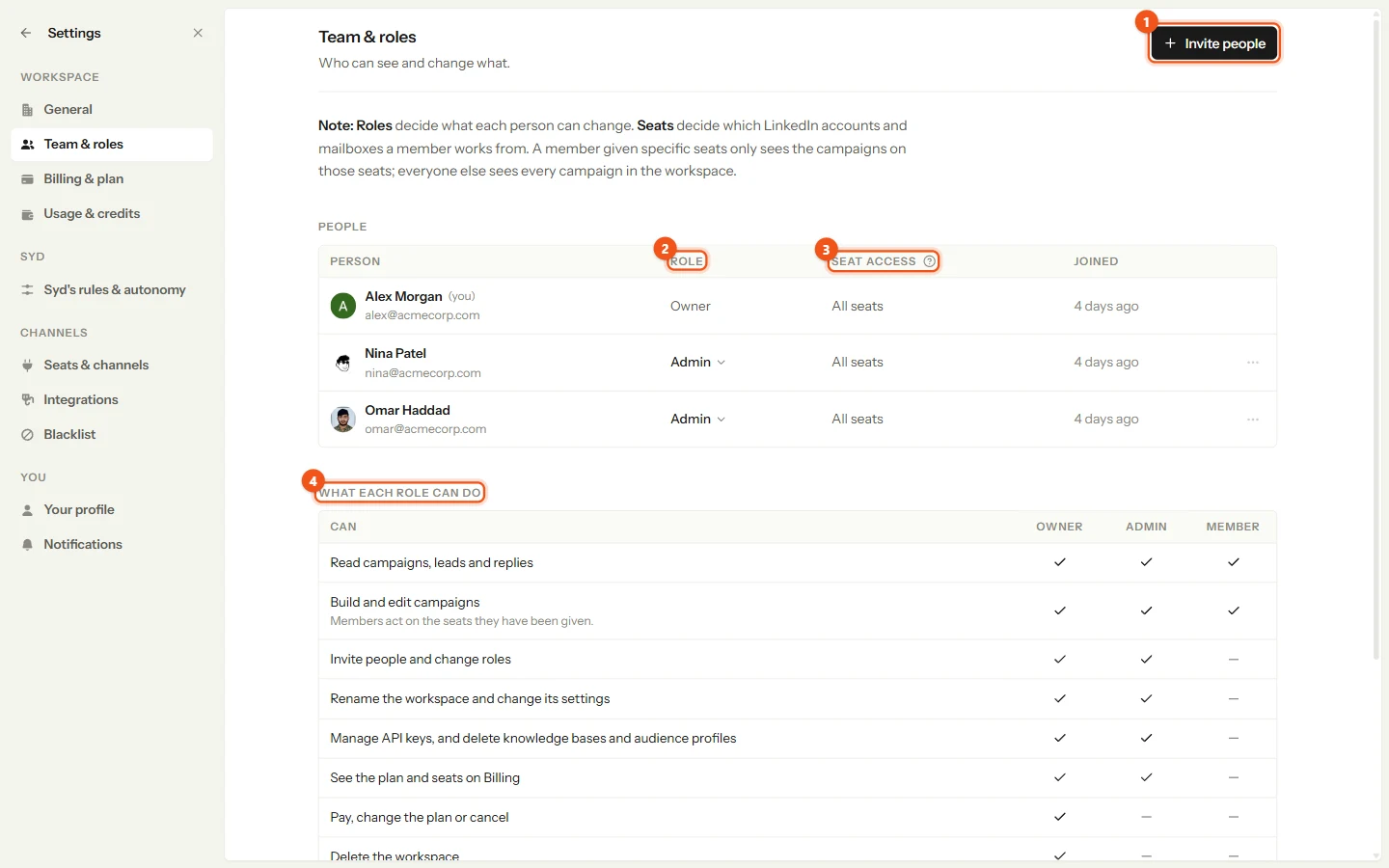
Each role has a fixed set of permissions. You can change someone's role, but you cannot switch single permissions on or off for one person.
| What | Owner | Admin | Member |
|---|---|---|---|
| Read campaigns, leads and replies | Yes | Yes | Yes |
| Build and edit campaigns (members act on the seats they have) | Yes | Yes | Yes |
| Invite people, change roles, remove people | Yes | Yes | No |
| Rename the workspace and change its settings | Yes | Yes | No |
| Connect or disconnect integrations, set up Syd's rules and autonomy, change notification settings | Yes | Yes | No |
| Disconnect a LinkedIn account or mailbox | Yes | Yes | No |
| Manage API keys, delete knowledge bases and audience profiles | Yes | Yes | No |
| Delete campaigns, prospect lists, tags and buying signals, remove someone from the Blacklist, approve messages in the Review queue | Yes | Yes | No |
| See the plan and seats on Billing & plan | Yes | Yes | No |
| Pay, change the plan, add or remove seats, cancel | Yes | No | No |
| Transfer ownership | Yes | No | No |
| Delete the workspace | Yes | No | No |
Syd and permissions. Syd acts with your permissions, and with fewer. Even when it works for an owner, Syd cannot change billing, delete or hand over the workspace, manage API keys, decide approvals or delete campaigns. Those you do yourself.
Seat Access
A seat is one LinkedIn account plus one mailbox. Seat access decides which seats a person works from.
| Seat access | What the person sees |
|---|---|
| All seats | Every seat in the workspace, including ones added later. This is the default. |
| Specific seats | Only the campaigns on the seats you pick, and the contacts sent from them. |
Owners and admins always have every seat. Seat access only applies to members.
To set it when inviting, use the Seat access menu in the invite window. To change it later, open the row's actions menu and choose Change seats, pick All seats or Specific seats, tick the seats (use Select all or Clear) and click Save seats. With Specific seats you must pick at least one. Each seat shows its account names, or Empty seat if no account is connected yet. An empty seat can be reserved for one person at a time.
Transferring Ownership
A workspace has exactly one owner. To hand it to someone else:
- Go to Settings → Team & roles and scroll to Ownership.
- Click Transfer ownership (owner only; there must be another person in the workspace).
- Choose the New owner and click Make NAME the owner.
The new owner takes over billing and is the only person who can delete the workspace. You stay on the team as an Admin. Only the new owner can give ownership back.
Leaving a Workspace
Members and admins can leave from Settings → General, in the Leave this workspace card:
- Click Leave workspace.
- Click Yes, leave NAME to confirm, or Stay.
You keep your account and only lose access to this workspace. To come back, someone has to invite you again.
An owner cannot leave. Transfer ownership first, then leave. This is also how you step away from your default workspace, since it cannot be deleted.
Deleting a Workspace
Only the owner can delete a workspace, from Settings → General in the Delete this workspace card. The screen warns that this removes all campaigns, leads and history, and that it cannot be undone.
- Pause every campaign that is still sending. If any are active, you get "Campaigns in this workspace are still sending. Pause them first, then delete the workspace."
- Click Delete workspace.
- Type the workspace name exactly as shown, then click Delete workspace again.
Deleting also cancels the workspace's subscription right away. Everyone in it loses access; their accounts are not deleted. You cannot delete your default workspace.
Common Problems
| Problem | Why and what to do |
|---|---|
| No Invite people button | Only owners and admins can invite. Ask one of them. |
| "Starter workspaces can have up to 15 people…" or "Without a subscription this workspace is limited to 5 people…" | The team is full, pending invitations included. Remove someone, revoke a pending invitation, or move to Growth. |
| Invitee says the link is no longer valid | It expired after 7 days, was revoked or was already used. Send a new invitation. |
| Invitee sees Wrong account | They are signed in with a different email. They should sign out and use the invited address. |
| A member cannot see an account or campaign | Their seat access is limited. Open Change seats and add the seat. |
| You cannot delete a workspace | You are not the owner, it is your default workspace or the only one you own, or a campaign is still active. |
Need help? See Support. For plans and seats, see Billing and Accounts.
Your Workspace
LinkedIn Accounts & Mailboxes
Connect LinkedIn accounts and mailboxes, fix disconnects, and understand how much each account can send.
What this page covers
Campaigns send from your own LinkedIn accounts and mailboxes. This page shows how to connect them, what to do when one drops, and how much each one can send every day.
You manage everything on one screen: Settings › Seats & channels.
Seats: one LinkedIn account plus one mailbox
A seat holds one LinkedIn account and one mailbox. Campaigns send from both. You buy seats with your plan (see Plans, Billing & Credits).
- A seat can hold only one LinkedIn account and one mailbox. It cannot hold two of either.
- A mailbox on a seat that already has a LinkedIn account costs nothing extra.
- Without a subscription you cannot connect any account, so nothing can send.
At the top of Seats & channels you see three counters:
| Counter | What it shows |
|---|---|
| Seats | How many seats you have. Owners and admins also see an Add seats link here. |
| LinkedIn accounts connected, out of your seats, and how many are free or disconnected. | |
| Mailboxes | Mailboxes connected, out of your seats, and how many are free or disconnected. |
Below the counters are two lists, LinkedIn and Email. The header of each list shows how many invites left today (LinkedIn) or sends left today (Email) all its connected accounts have together.
Connect a LinkedIn account
- Open Settings › Seats & channels.
- Click Connect an account.
- Choose LinkedIn account.
- A secure sign-in window opens. Sign in to LinkedIn there.
- When it finishes, the account appears in the LinkedIn list as Connected.
Allow pop-ups for Syndie. If the window is blocked or you close it half way, you see "The account could not be connected. Try again." Start again from step 2.
The choice is greyed out with "Every seat already has a LinkedIn account" when all your seats are full. Add a seat first.
Account types
Each row shows the account type. Syndie reads it from LinkedIn, and it decides what the account can do and how much it can send.
| Type | Notes |
|---|---|
| Standard | A free LinkedIn account. Lowest limits. |
| Premium | Higher invite limits and longer invite notes. |
| Sales Navigator | Higher invite and profile view limits. Needed to import from a Sales Navigator search. |
| Recruiter | Highest profile view limits. Needed to import from a Recruiter search. |
You cannot change the type here. If you upgrade LinkedIn, use Sync on the account row so Syndie picks it up.
Invite notes: free and paid accounts
| Free (Standard) | Paid (Premium, Sales Navigator, Recruiter) | |
|---|---|---|
| Invite note in a campaign | Left out: a plain invite is sent | Up to 280 characters |
| Invites with a note | Not sent by campaigns | Same limit as a plain invite |
LinkedIn lets free accounts send only about five invites with a note per month, so campaigns on a free account always send plain invites, even if the step has a note. Put your message in the first follow-up instead.
Connect a mailbox
- Open Settings › Seats & channels.
- Click Connect an account, then choose Mailbox.
- Pick the kind: Gmail or Outlook.
- Sign in on the secure page that opens.
A seat with no mailbox shows an Empty row with a Connect a mailbox button. If every seat already has a mailbox, the choices are greyed out with "Every seat already has a mailbox".
Can the mailbox take meetings?
The expanded row of a mailbox shows a Meetings status.
| Status | What it means | What to do |
|---|---|---|
| Takes meetings | Ready for booking links. | Nothing. You can also set the mailbox's meeting hours here. |
| Calendar not connected | The mailbox sends email, but its calendar is not connected yet. | Click Connect calendar and sign in with the same address. |
| Calendar needs reconnecting | The calendar stopped letting us in, so its links offer no times. | Click Reconnect calendar and sign in with the same address. |
| Calendar unchecked | We could not check right now. | Try again in a few minutes. |
| Cannot host meetings | This kind of mailbox has no calendar we can connect. | Use a Gmail or Outlook mailbox for meetings. |
| Disconnected | The mailbox lost its connection. | Reconnect it. |
Connecting the calendar adds a separate calendar to that account. Meetings booked through your links go there, and the invitations are sent from it. Disconnect calendar stops the mailbox's links offering times until you connect it again; meetings already booked stay where they are.
Sign in again
A mailbox marked Sign in again has to sign in once more to keep sending. Click Sign in again and use the same address. Its campaigns, history and limits stay as they are.
New mailboxes warm up
A mailbox connected in the last 14 days sends at most 30 emails a day. After that it moves to its normal limit. The 14 days count from the first time the mailbox was ever connected, so removing and reconnecting it does not restart the warm-up.
What each row shows
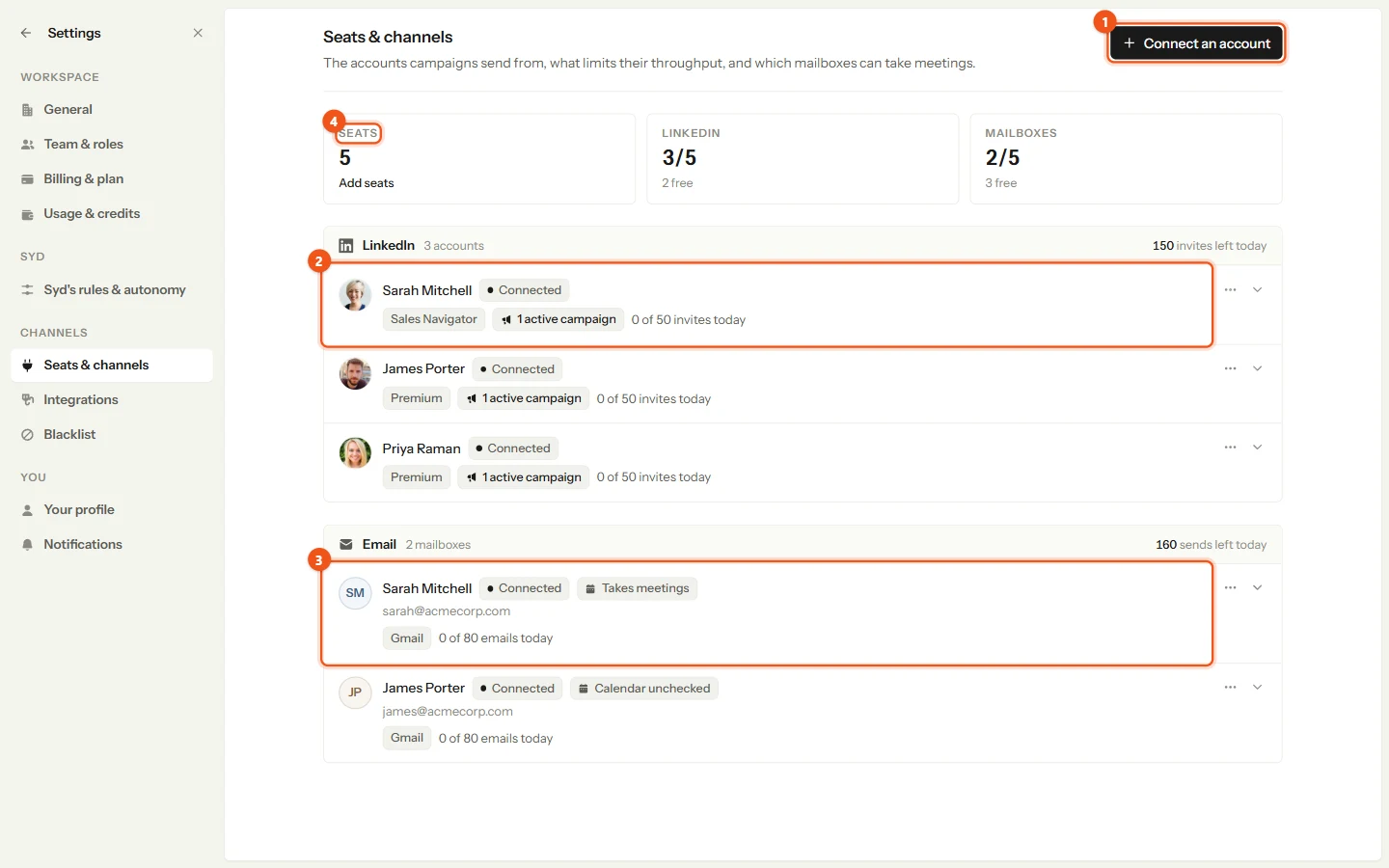
- Connected or Disconnected next to the name.
- The LinkedIn account type, or the mailbox provider (for example Gmail or Outlook).
- On a LinkedIn row: how many active campaigns use it, or No active campaigns, and how many invites it has sent today, for example "12 of 50 invites today". A mailbox row shows "12 of 80 emails today".
- Weekly limit reached when the week's allowance ran out, even if today still has room.
- "Invitations paused by LinkedIn until" and a time, when LinkedIn itself has paused the account's invitations.
Click a row to open its details. Under Today you see one meter for each kind of action (see the table below).
Sending limits
Every account has daily and weekly limits. They protect your account from LinkedIn restrictions. They are set by Syndie and you cannot raise, lower or switch them off.
A step that would go over its limit is not skipped. It waits and is sent when there is room again.
| Action | Per day | Per week |
|---|---|---|
| Invite, plain (Standard) | 20 | 150 |
| Invite with a note (Standard) | 1 | 2 |
| Invite (Premium, Sales Navigator, Recruiter) | 50 | 200 |
| Withdraw an invite | same as a plain invite | same as a plain invite |
| LinkedIn messages: follow-ups and Syd's replies together (Standard) | 40 | 200 |
| LinkedIn messages (Premium) | 80 | 400 |
| LinkedIn messages (Sales Navigator) | 100 | 500 |
| LinkedIn messages (Recruiter) | 150 | 750 |
| InMail | 30 | 150 |
| Comment on a post | 20 | 90 |
| Like a post | 50 | 250 |
| Follow a profile | 30 | 150 |
| Follow a company | 50 | 250 |
Profile views
Profile views are one shared count for the account. It counts every profile look-up, not only the visit step.
| Account | Per day | Per week |
|---|---|---|
| Standard or Premium | 100 | 500 |
| Sales Navigator | 300 | 1,200 |
| Recruiter | 1,000 | 3,000 |
Mailboxes
| Provider | Per day | Per week |
|---|---|---|
| Gmail | 80 | 400 |
| Outlook | 120 | 600 |
Replies Syd sends by email have their own limit: 80 a day and 400 a week per mailbox.
A new mailbox is lower for its first 14 days (see warm-up above).
Reading the meters
- A meter turns amber when it passes 80% of the day's limit.
- It turns red when the step is blocked. The line under it says why: the daily limit is reached and the steps wait until tomorrow, the weekly limit is reached, or LinkedIn has paused it.
- The weekly line shows how much was used in the last 7 days.
When LinkedIn pauses invitations
Sometimes LinkedIn refuses invitations from an account. The account's invitations then pause on their own and restart when the pause ends. The row shows the end time. Nothing needs fixing. Other actions on the account keep going, and you cannot end the pause early.
Sharing an account across campaigns
Several campaigns can send from the same account. They share its limits. Each campaign's own daily number is capped by what the account has left.
| Rule | Limit |
|---|---|
| Active campaigns on one LinkedIn account | 3 |
| New people one account starts per day, across all its active campaigns in the workspace | 75 |
| One campaign's daily number of new people | 50 by default, 75 at most |
| LinkedIn accounts one campaign can send from | up to 50 |
| Mailboxes one campaign can send from | up to 50 |
A campaign's daily number applies to each of its accounts. 50 a day with two accounts is up to 100 new people a day.
If you try to launch or resume a campaign that does not fit, you are told. Lower the daily number or pause another campaign on that account.
The same LinkedIn account or mailbox can be connected in more than one workspace. It then uses one seat in each, but it is still one account: its limits are shared across all of them, and a disconnect affects all of them.
When an account disconnects
An account shows Disconnected when its sign-in expired, you changed your password, or LinkedIn or the email provider cut the session.
What stops:
- Every active campaign that uses it is paused. A disconnected mailbox pauses the whole campaign, not only its email steps.
- Nothing is sent from that account. The row says "Nothing sends from this account until it is reconnected".
You also get a notification that says which account dropped.
Reconnect
- Open Settings › Seats & channels.
- Click Reconnect on the account row. It also sits in the ... menu.
- Sign in again. For a mailbox, use the same address. A different address is refused.
Reconnecting does not restart your campaigns. Open Campaigns and resume each paused campaign yourself. A campaign can be resumed only when every LinkedIn account it uses is connected, and every mailbox too if it sends email.
If you try to resume too early you see "Reconnect that LinkedIn account, then try again."
Sync
Sync in the ... menu refreshes an account's details, for example after you upgrade your LinkedIn plan.
Remove an account
Only owners and admins can remove accounts.
- Open the ... menu on the account row.
- Click Disconnect & remove.
- Read what will change, then click I understand, continue.
- Type the account's name (for a mailbox, its email address) to confirm, then click Disconnect & remove.
What happens:
- The account is signed out and removed from this workspace. Its seat becomes free.
- Every campaign sending from it is paused, and the people it was contacting are stopped.
- A campaign that also uses other accounts can be resumed and carries on with them.
- A campaign that used only this account cannot send again. Duplicate it and choose another account.
- Lead lists and campaign analytics tied to the account lose that link.
- A removed mailbox is taken off every booking link it hosted. A link it hosted alone can no longer take bookings.
- Contacts, past messages and results stay.
- This cannot be undone. Connecting the account again adds it as a new account, and you must point campaigns at it again by hand.
If the same account is connected in another workspace, it keeps working there.
When a subscription ends, every LinkedIn account and mailbox is removed from the workspace. After you subscribe again, connect them again.
Who sees which seats
Admins and owners see every seat. A member can be limited to Specific seats (set under Settings › Team & roles, in Seat access). That member sees only those seats' accounts, mailboxes and campaigns. All seats means the member can use every seat, including ones added later.
Common problems
| Problem | What to do |
|---|---|
| "The account could not be connected. Try again." | The sign-in window was blocked or closed early. Allow pop-ups and connect again. |
| Connect an account options are greyed out | Every seat already has one of that kind. Owners can add seats in Settings › Billing & plan. |
| "Nothing sends from this account until it is reconnected" | Click Reconnect, then resume your campaigns. |
| "This seat has no mailbox, so its email steps will not run" | Connect a mailbox to that seat before launching a campaign with email steps. |
| "No LinkedIn account is connected. Campaigns cannot send until one is." | Connect a LinkedIn account. |
| Account is connected but nothing sends | Open the row and look at the meters. A red meter means a limit is reached or LinkedIn paused it. Held steps go out when there is room. |
| Usage looks higher than this workspace sent | The account is probably also connected in another workspace, and the limits are shared. |
| An account removed here is still connected elsewhere | Expected. Removing it only takes it out of this workspace. |
Your Workspace
Plans, Billing & Credits
Starter and Growth plans, buying seats, how credits work, and what happens when you cancel or run out.
Two things you pay for
| What | Why you need it |
|---|---|
| Seats, on a subscription | A seat is one LinkedIn account plus one mailbox. Seats are what let campaigns send. |
| Credits | They pay for a few specific actions, such as finding an email address. Every seat brings credits each month, and you can buy more any time. |
Credits are never a subscription. Buying them is a one-off payment.
Billing lives in two places under Settings:
- Billing & plan: your plan, seats, billing period, payment details and cancellation.
- Usage & credits: your credit balance, what used it, and buying more.
Starter and Growth
Every seat in a workspace is on the same plan. You cannot mix Starter and Growth seats.
| Starter | Growth | |
|---|---|---|
| Campaigns, contacts and prospect lists | Yes | Yes |
| One inbox for LinkedIn and email replies | Yes | Yes |
| Syd writes your messages and helps in chat | Yes | Yes |
| Syd answers your prospects' replies, and you approve each one | No | Yes |
| AI-planned sequences: Syd picks the next step for each person | No | Yes |
| Plan credits per seat, each month | 500 | 1,000 |
| People on your team | Up to 15 | No limit |
| Priority support | No | Yes |
If you try to use a Growth feature on Starter, you see a message such as "Answering replies automatically is part of the Growth plan." The owner can upgrade in Settings › Billing & plan.
Without a subscription a workspace can have up to 5 people, and no LinkedIn account or mailbox can be connected, so nothing sends. A Starter workspace that hits its team limit sees "Starter workspaces can have up to 15 people. Upgrade to Growth for no limit, or contact us to raise it." Pending invitations count toward the limit.
Who can change billing
| Role | What they can do |
|---|---|
| Owner | Everything: choose a plan, add or remove seats, upgrade, change the billing period, open the payment page, cancel, resume and buy credits. |
| Admin | View billing only. |
| Member | No access to the billing page. |
The billing screens say "Only the workspace owner can change billing." to anyone else. To hand billing to someone else, the owner can use Transfer ownership in Settings › Team & roles.
If your workspace is billed by hand through an account manager, you see a banner: "Billing for this workspace is handled by your account manager, so plan and seat changes are made for you." Use Contact us about billing.
Trials
Trials are set up by our team, on Starter or Growth. You see a banner with Activate now. Activating asks for a card, but nothing is charged during the trial. When it ends, it either stops with no charge or becomes a paid plan, as agreed with our team. While it runs, the plan shows Trial.
Choose a plan and buy seats
If you have no subscription yet:
- Open Settings › Billing & plan. You see the heading Choose a plan.
- Pick a billing period with the Monthly or Yearly switch. Yearly shows a Save percentage. Only the periods your workspace offers appear.
- Use Seats to pick how many seats you want. Each plan card shows the price per seat / month and the total. At higher seat counts the price per seat drops. Click Price drops at on a card to see the steps.
- Click Choose Starter or Choose Growth.
- You are taken to a secure payment page. After you pay, the page says "You are subscribed. Your seats are ready to use." If it says the payment is still being processed, wait a minute and click Check again.
- Connect your accounts in Settings › Seats & channels. See LinkedIn Accounts & Mailboxes.
When you have a plan
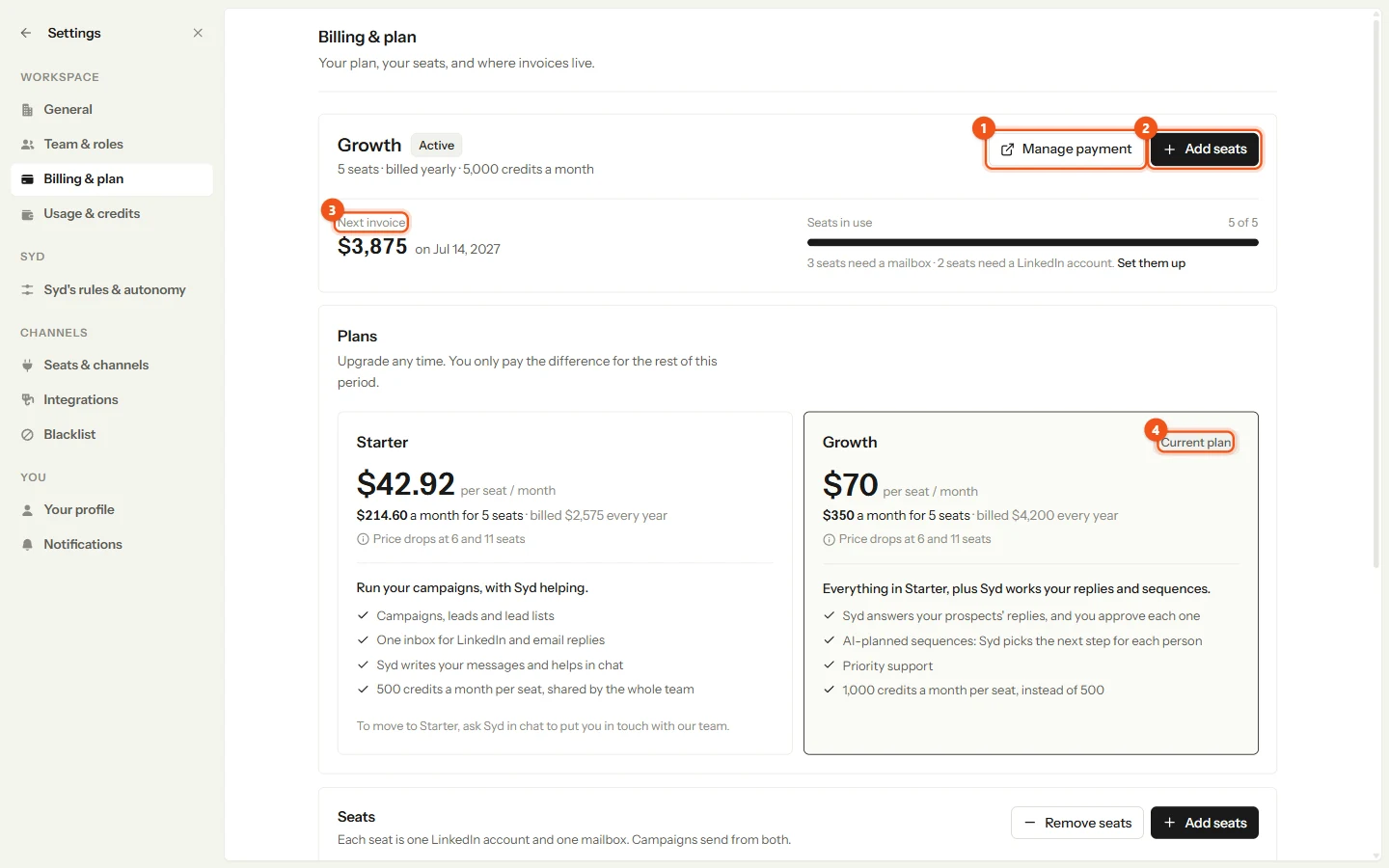
The top card shows your plan, a status (Active, Trial, Payment failed or Ends with a date), seat count, billing period, credits a month, your Next invoice amount and date, and Seats in use. If seats still need a LinkedIn account or mailbox, it says so and links to Set them up.
Upgrade to Growth
- Click Upgrade to Growth on the Growth card.
- Click Confirm upgrade.
Every seat switches now, and your card is charged only the difference for the rest of the period. Extra plan credits arrive straight away, in proportion to the days left.
Moving from Growth back to Starter is not done in the app. Click Talk to us about Starter.
The Growth offer
When your workspace can take it, a banner shows See the offer, and the Growth card shows the offer price.
- No plan yet: choose Growth on Monthly, and your first 3 monthly bills are at the Starter price.
- On Starter: click Upgrade to Growth, then Start Growth. Nothing is charged today, and your bills stay at your current price for 3 months. The page shows when your first bill at the Growth price is due.
- On a yearly plan, the box shows what you pay and when. Tick I agree first.
- A workspace can use the offer once. Switching to a longer billing period ends it, and the new period is charged at the full Growth price.
Add seats
- Click Add seats.
- Pick Seats to add. The box shows your seat count before and after, the price per seat, the extra plan credits and the New total.
- Click Continue to payment.
- A secure payment page shows the exact amount before anything is charged. You pay only for the time left in the period.
The new seats arrive empty. Connect accounts to them in Seats & channels.
If some seats are set to be removed, the box asks you to keep them first (Keep it or Keep all).
Remove seats
- Click Remove seats, or Remove on a seat's row.
- Tick the seats you want to remove and confirm.
Removed seats keep working until the period ends. Then their accounts are disconnected and you stop paying for them. Until then the row shows Removed on and the date, and Keep undoes it. At least one seat must stay. To stop paying completely, cancel the subscription instead.
Change the billing period
The Billing period card only offers longer periods. Click Switch to yearly. The new period starts today and the unused part of the old one is credited. Going back to a shorter period is arranged with support.
Payment details and invoices
- Manage payment opens the secure payment page, where you update your card and download invoices and receipts.
- If you have no live subscription but have past invoices, a Past invoices card with Open invoices does the same.
- If a payment fails, you see "Your last payment failed. Update your card to keep campaigns sending." Click Update payment method. Everything keeps working while the payment is retried. If it keeps failing, the subscription ends like a cancelled one.
Cancel
- Click Cancel subscription.
- Click Yes, cancel at period end.
Nothing stops right away. Campaigns keep sending until the period ends, and your contacts, replies and knowledge stay. Until that date, click Resume subscription to undo it. While a cancellation is waiting, you cannot add or remove seats, and an upgrade asks you to resume first.
When the period ends:
- Campaigns stop.
- Every LinkedIn account and mailbox is removed from the workspace. After you subscribe again, connect them again.
- Unused plan credits end.
- Bought credits are kept.
Credits
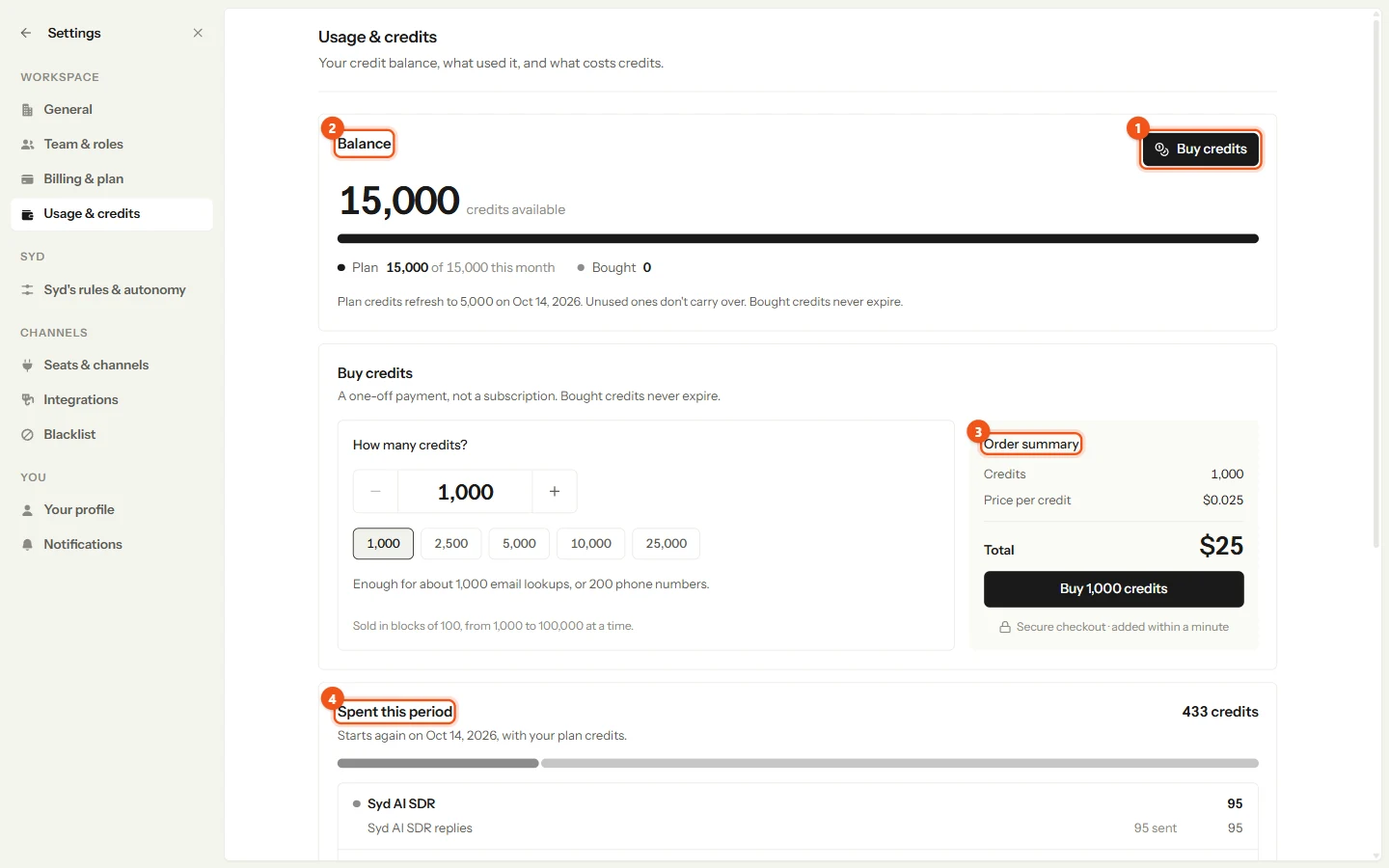
Open Settings › Usage & credits.
Where credits come from
| Source | How it behaves |
|---|---|
| Plan | Every seat adds 500 credits a month on Starter and 1,000 on Growth. The whole team shares them. They refresh every month, yearly plans included, and unused ones do not carry over. |
| Bought | One-off top-ups. They never expire. |
| Granted | Credits our team added to your workspace. |
| Free start | A workspace without a plan gets 50 credits once, to try things out. They never expire, and you never get them a second time. |
Credits that expire first are used first, so plan credits go before bought ones.
When plan credits refresh
Plan credits refresh at the exact time your subscription renews, on your billing day. The page says, for example, "Plan credits refresh to 1,000 on" and the date. If you used them all, it says when more arrive.
- If you upgrade or add seats in the middle of a month, extra credits arrive straight away, in proportion to the days left. The full new amount arrives at the next refresh. The page then says this month is prorated.
- Removing seats does not take back credits you already received. The next month is simply smaller.
What credits are spent on
| What | Credits |
|---|---|
| Finding an email address | 1, only when one is found |
| Finding a phone number | 5, only when one is found |
| Each answer Syd gives you in chat | 1, and nothing if Syd could not answer. Actions Syd takes inside that answer are included. |
| Each conversation Syd replies to a prospect in, on Growth | 1, charged when the first reply goes out (including one you approved). The rest of that conversation is free. |
Everything else is free, including writing and rewriting messages with AI, deciding who to contact and what to send next, and a lookup that finds nothing. Reply drafts in your inbox are free up to a daily number. After that each one costs 1 credit, and you are asked first.
The What costs credits card on Usage & credits always shows the current prices.
Read the page
- Balance: your total, then Plan (how many of this month's are left, and when they refresh), Bought, and Granted if you have some.
- Spent this period: what used credits since the last refresh, grouped as Finding emails and phones, Syd chat and Syd AI SDR. Use it to answer "why were we charged?"
- What costs credits: the price list.
You see a yellow notice under 50 credits ("Running low") and a red one at zero.
Buy credits
Only the owner can buy credits.
- Click Buy credits.
- Choose an amount with the + and - buttons, type one, or pick a quick amount (1,000, 2,500, 5,000, 10,000 or 25,000). Credits are sold in blocks of 100, from 1,000 to 100,000 at a time.
- The Order summary shows the price per credit and the Total. A hint shows roughly how many email or phone lookups the amount covers.
- Click Buy with your amount, for example Buy 5,000 credits.
- Pay on the secure payment page. Credits appear within a minute. If they do not, click Refresh.
There is no automatic top-up. Nothing buys credits for you.
When credits run out
You see "You are out of credits." and:
- Email and phone lookups stop.
- Syd does not start new reply conversations on Growth.
- Syd cannot answer new messages in chat.
- Campaigns keep running. Writing with AI is still free.
Add credits with Buy credits, or wait for your plan credits to refresh.
Common problems
| Problem | What to do |
|---|---|
| "Only the workspace owner can buy credits." | Ask the owner, or have them transfer ownership in Settings › Team & roles. |
| "Could not load billing" with "Only owners and admins can see billing for this workspace." | Your role cannot see billing. Ask an owner or admin. |
| Credits disappeared on the refresh date | Unused plan credits expire every month. Bought credits never do. |
| Campaigns stopped at the end of a period | The subscription was cancelled or payment failed. Subscribe again, then reconnect your accounts. |
| You cannot add or remove seats | A cancellation is waiting. Click Resume subscription first. |
| Seats you removed are still working | Expected. They work until the period ends. Click Keep to cancel the removal. |
Your Workspace
Profile
Your name and photo, email, password, sign-in methods, language, and the notifications you receive by bell and email.
What Your Profile Is
Your profile is about you, not about a workspace. It holds your name, photo, email and password, and it is the same in every workspace you belong to. Workspace settings such as the workspace name are on Your Workspace.
To open it, click your name at the bottom of the left menu and choose Your profile. Notifications are in the same menu. Both are also under Settings, in the You group. The old Settings → Account address sends you to Your profile.
Settings → Your Profile
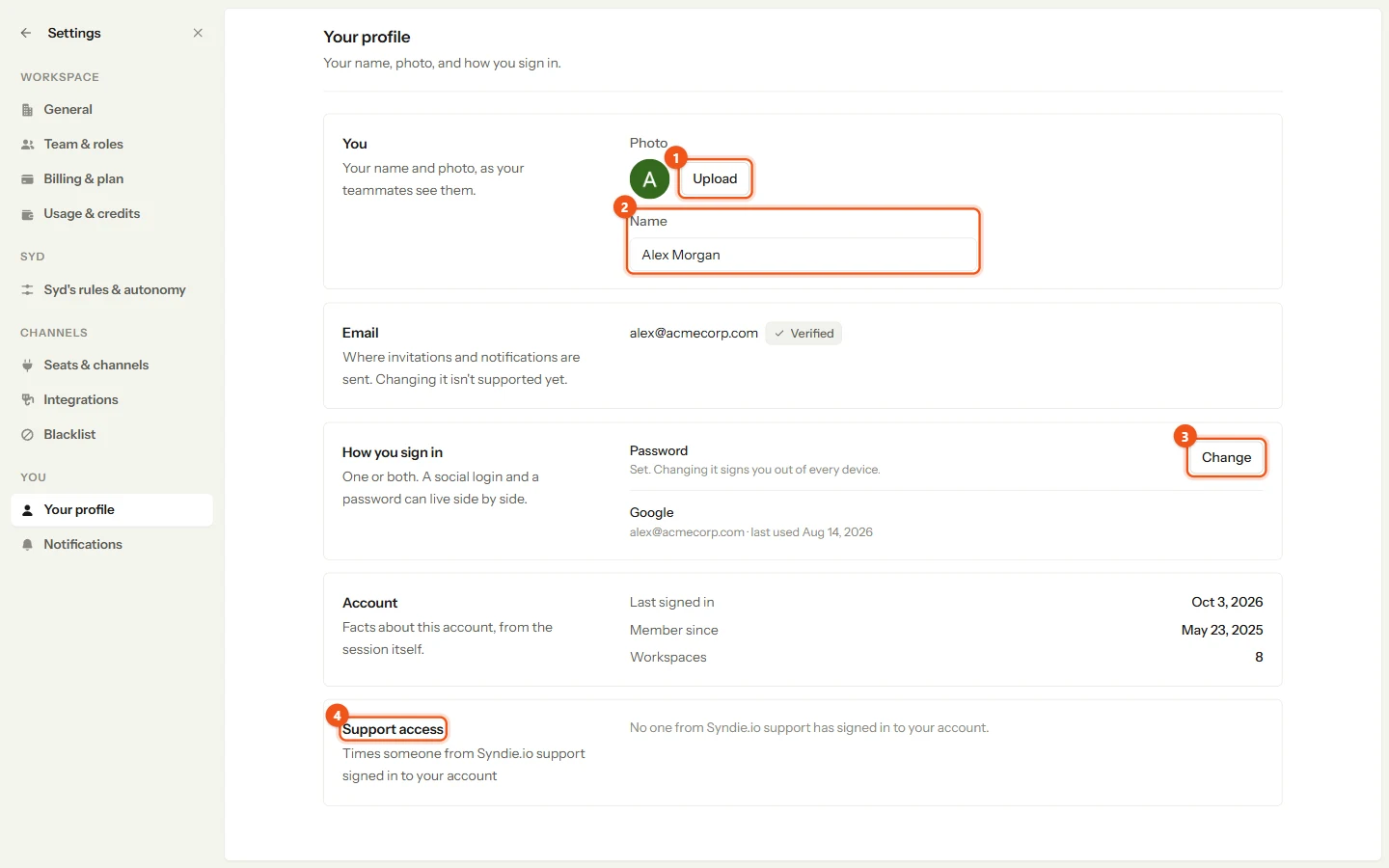
The page has these cards, top to bottom.
You
| Field | What it does |
|---|---|
| Photo | Click Upload and choose a PNG, JPG or WebP image, up to 5 MB. Until you add one, your initials are shown. |
| Name | One box for your full name. The first word becomes your first name and the rest your last name. Click Save changes at the bottom to apply, or Discard. |
Your name and photo are what your teammates see, for example in Team & roles.
Shows the email you signed up with and a Verified or Unverified tag. Invitations and notifications are sent to this address.
- You cannot change your email on this screen yet. If you need a different address, ask the team (see Support).
- If the tag says Unverified, some emails will not reach you. Look for the message we sent when you signed up. If you cannot find it, sign out and sign in again: we send a new 6-digit code and take you to Verify your email address, where you type it and click Verify Email.
How You Sign In
You can sign in with a password, with Google, or both. They can live side by side.
Password. It says Set or Not set.
- Click Change.
- Type your Current password and a New password (at least 8 characters).
- Click Change password.
Changing your password signs you out of every device, and you sign in again with the new one. This is also how to sign out everywhere. To sign out of just this device, use Sign out in the menu at the bottom of the left menu.
If you only ever signed in with Google, the password shows Not set. To create one, go to the sign-in page, click Forgot password?, enter your email, then type the 6-digit code we send and choose a password.
Google. Shows Linked with the Google email and when it was last used, or Not linked. You cannot link or unlink it from here.
Forgot your password? On the sign-in page, click Forgot password?, enter your email, then enter the 6-digit reset code and a new password of at least 8 characters. All your other sessions are signed out.
Account
Read-only facts: Last signed in, Member since and Workspaces (how many you belong to).
Support Access
If someone from the support team ever signs in to your account to help you, each session is listed here with the date, how many minutes it lasted, and whether it was Full access or View only. A session still running shows In progress. If they created something while helping, such as an API key or an invitation, that is listed too. If nobody has, the card says so.
Language
There is no language setting on your profile. The app is shown in the language of the site you signed in on, English or Portuguese, and it is the same for everyone in the workspace.
Notifications
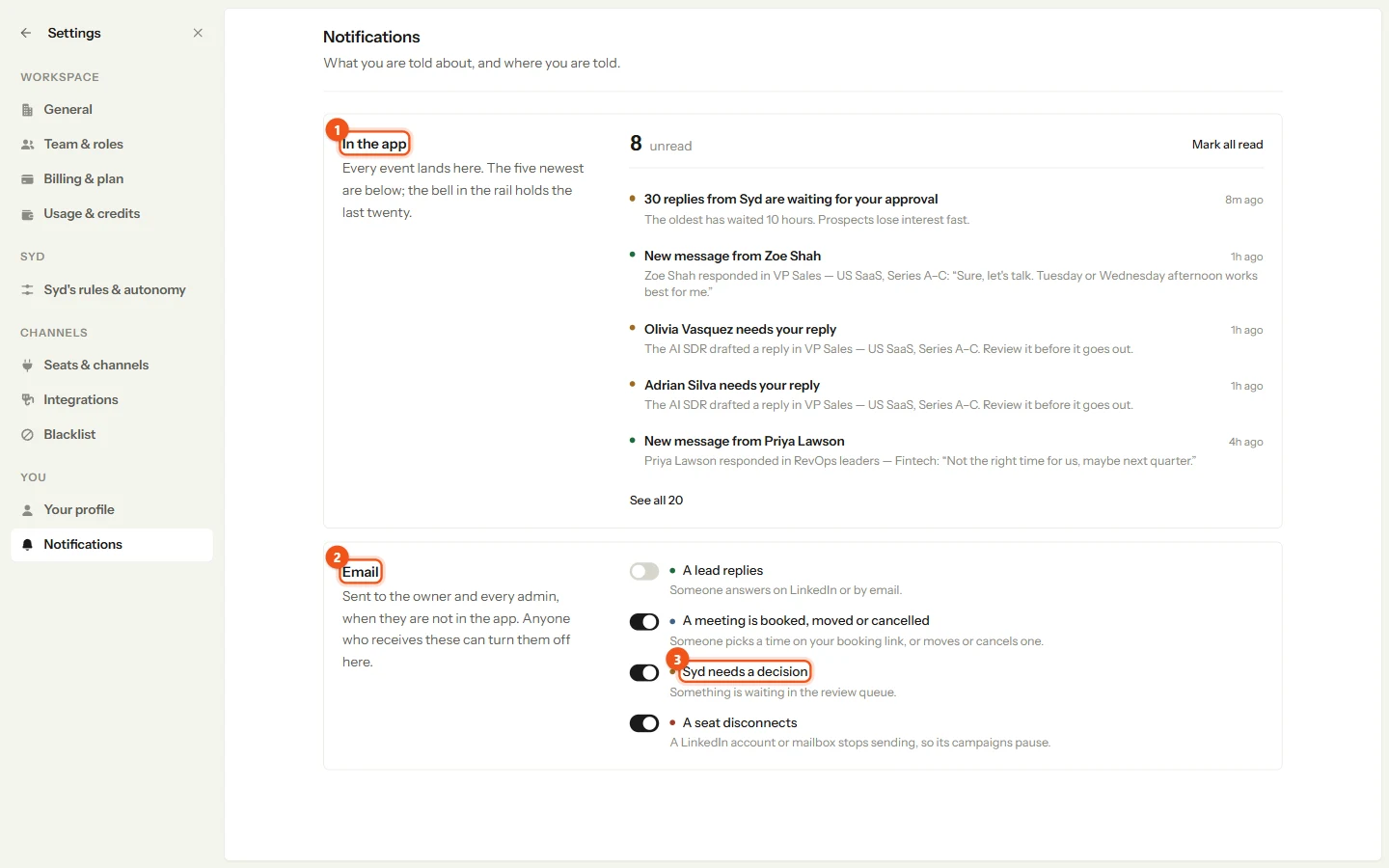
Open Notifications from your name menu or from Settings → Notifications. There are three places you get told about things.
In the App
Every event lands in the app. The top card shows how many are unread and the five newest. Click one to jump to the right screen (it is marked as read). Mark all read clears the count, and See all N (with the total in place of N) opens the full list. The bell icon opens the same list.
The list holds the 20 most recent items for the workspace, and items older than 30 days are removed.
What creates an in-app notification:
| Event | Example |
|---|---|
| A lead replies | Someone answers on LinkedIn or by email. |
| A meeting is booked, moved or cancelled | Someone picks, changes or cancels a time on your booking link. |
| A link is clicked | A prospect opens a tracked link. |
| A seat disconnects | A LinkedIn account or mailbox stops sending, so its campaigns pause. |
| Syd needs a decision | Something is waiting in the Review queue. |
| Syd's replies | A reply is waiting for you, Syd handed a conversation to you, a conversation is still waiting, or its autonomy changed (the "on its own" level became available, Syd paused, or Syd went back to asking for your approval). |
| An integration disconnects | A connected app stops working. |
| Credits reset | Your monthly credits renewed. |
Four events can also send an email. Each has a switch:
| Switch | Default |
|---|---|
| A lead replies | Off |
| A meeting is booked, moved or cancelled | On |
| Syd needs a decision | On |
| A seat disconnects | On |
Who gets them: the owner and every admin of the workspace. Members do not receive these emails.
These switches belong to the workspace, not to you. Only the owner and admins can change them, and turning one off turns it off for every owner and admin.
Slack
The Slack notifications card appears only when Slack can be connected for your workspace, or is already connected. It has the same four switches as email, all on at the start, and only owners and admins can change them.
Deleting Your Account
There is no button to delete your account yourself. If you want it removed, ask the team (see Support).
If you own a workspace, decide what happens to it first: transfer ownership to someone else, or delete it. See Your Workspace.
Common Problems
| Problem | What to do |
|---|---|
| I do not get notification emails | Only owners and admins get them. Check Settings → Notifications that the switch is on, that your email shows Verified, and your spam folder. A lead replies is off until someone turns it on. |
| The switches are greyed out | You are a member. Ask an owner or admin. |
| I want to change my email | Not possible on this screen yet. Ask the team. |
| I changed my password and was signed out | That is expected. Sign in with the new password. |
| I forgot my password | Use Forgot password? on the sign-in page. |
Find People
Prospect Lists
Build lists of the people you want to reach, from a LinkedIn search, Sales Navigator, a CSV file, your own contacts, example profiles, buying signals, or by describing them to Syd.
What a prospect list is
A prospect list is a saved group of people you want to reach. A campaign needs one, because the list tells Syndie who to contact.
Open Prospect lists in the sidebar to see all your lists, build new ones, and manage the old ones.
A list stores the search you set up, not a frozen copy of the people. The people are added to the list gradually, while a campaign that uses it is sending. See the section "How a list fills up" below.
The Prospect lists page
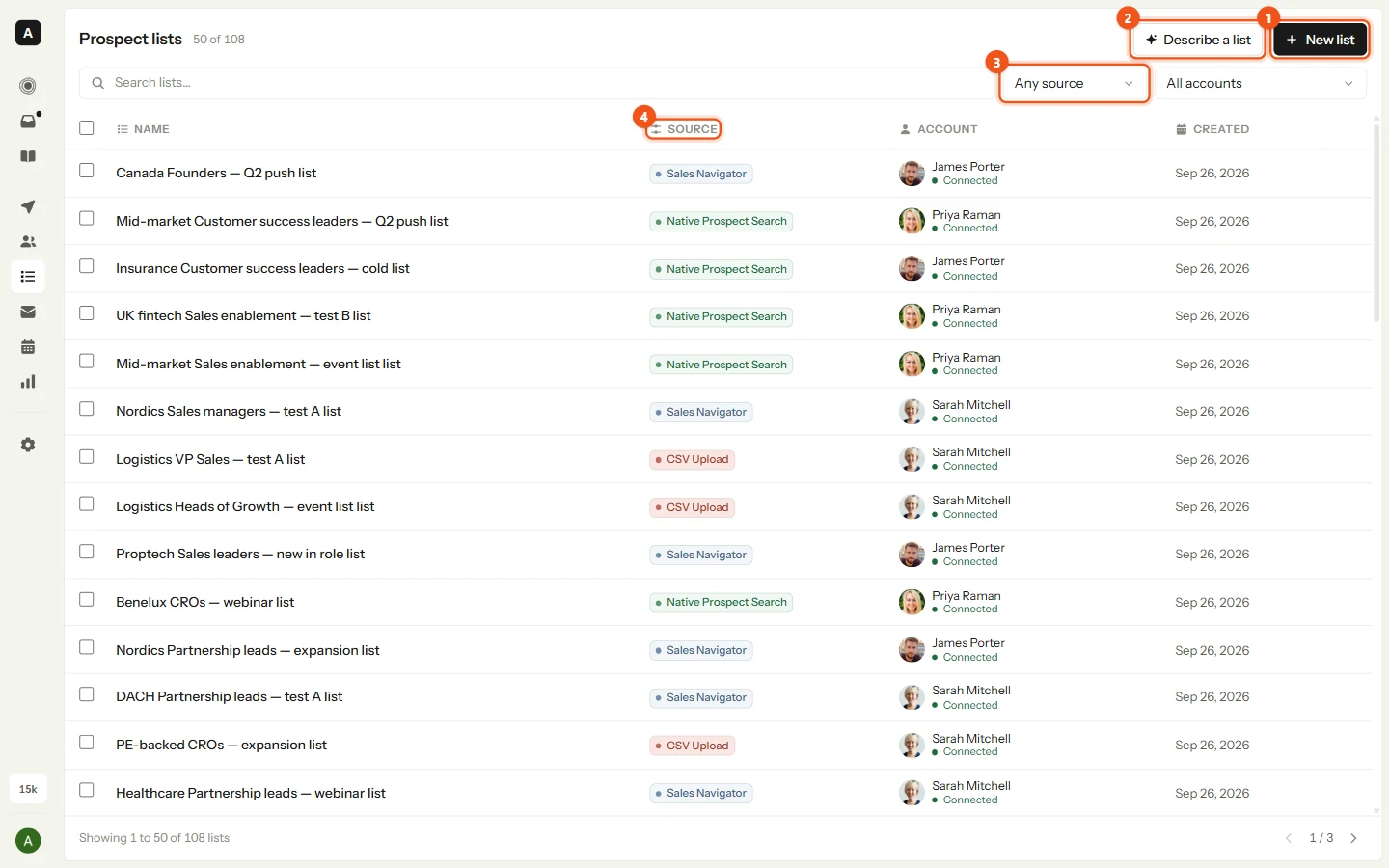
Each row shows:
| Column | What it means |
|---|---|
| Name | The list name. Click it to open the list. |
| Source | How the list was built, for example Sales Navigator or CSV Upload. |
| Account | The LinkedIn account used to fill the list, with a green Connected or red Disconnected mark. Lists built with Native Prospect Search, Lookalike Prospects or a company buying signal show Searched for you instead. |
| Created | The date you made the list. |
At the top you can:
- Click New list to build a list yourself.
- Click Describe a list to ask Syd to build it for you.
- Type in Search lists... to find a list by name.
- Filter by Source (Any source, Native Prospect Search, Sales Navigator, LinkedIn Search, LinkedIn Recruiter, Post Engagement, Job Applicants, CSV Upload, Your Contacts, Buying signals) or by account (All accounts or one account).
The page shows 50 lists at a time. The three-dot menu on a row opens Open list, Edit list (or Edit search), New search from filters (Native Prospect Search lists only) and Delete. On a Buying signals list, Edit list opens that list's own page, like Native Prospect Search (see "Buying signals" below).
A list has no status column. To see how a list is doing, open it and read the Results box, or look at the campaign that uses it.
Ways to build a list
Click New list and choose one method.
| Method | What you give | Which LinkedIn account it needs |
|---|---|---|
| LinkedIn Search URL | The link of a LinkedIn people search | Any LinkedIn account |
| Sales Navigator URL | The link of a Sales Navigator search | A Sales Navigator account |
| LinkedIn Recruiter URL | The link of a Recruiter search | A LinkedIn Recruiter account |
| Job Applicants URL | The link of a job post you own | Standard, Premium or Recruiter. Not Sales Navigator. |
| Post Commentors & Reactors | The link of one LinkedIn post | Any LinkedIn account |
| CSV File Upload | A CSV file with LinkedIn profile links | Any LinkedIn account |
| Your Contacts | Filters on people already in your workspace | Any LinkedIn account |
| Native Prospect Search | Filters you set inside Syndie | None. Syndie runs the search for you. |
| Lookalike Prospects | 3 to 10 LinkedIn profiles of people you want more of | None to pick. One of your connected accounts reads the examples. |
| Buying signals | A sign of buying you want to find, such as companies hiring an SDR | None to pick, except for Posting about a topic, where you pick any connected account. |
Your Contacts, Native Prospect Search, Lookalike Prospects and Buying signals have their own screens, described below. The other methods share the steps that follow.
You can also describe the list to Syd instead of filling a form. See the section "Ask Syd to build a list" below.
Steps that every method shares
- Choose the method.
- Type a List Name.
- Choose a LinkedIn Account. Only accounts that fit the method are offered. If you have none, click Add LinkedIn Account.
- Fill in the method details (link, file or filters).
- Click Preview Contacts to see a sample of who the list will find.
- Click Publish. The button stays grey until the preview has found at least one person.
A checklist on screen shows what is still missing. If a link has the wrong shape, you see a message that tells you what kind of link to paste.
LinkedIn Search URL, Sales Navigator URL and LinkedIn Recruiter URL
- Run the search on LinkedIn, Sales Navigator or Recruiter.
- Copy the address from your browser.
- Paste it into the link box. The How to get this link beside the box shows where to find it, and opens the right LinkedIn page.
The link has to look like the right kind of search:
- LinkedIn search: a people search such as
linkedin.com/search/results/people/?keywords=founder. - Sales Navigator: a link that starts with
linkedin.com/sales/. - Recruiter: a link that contains
/talent/or/recruiter/.
If the link is not on LinkedIn, or is the wrong kind, you are told before you can continue.
Job Applicants URL
Paste the link of a job post, like linkedin.com/hiring/jobs/1234567890/. It only works with the LinkedIn account that posted the job. Two extra fields help you narrow the list:
- Keywords
- Rating Filter: choose any of Unrated, Good Fit, May Be, Not a Fit.
Post Commentors & Reactors
Paste the link of one post. Then choose Engagement Type:
- Reactors Only
- Commentors Only
- Both (Reactors & Commentors)
CSV File Upload
- Click Choose File or drag a file into the box. You can click Download Sample to get an example file.
- The file must be a
.csvand smaller than 10 MB. It must have a header row. - Syndie reads the column names and shows Map Your CSV Columns to System Fields. For each field, pick the column from your file, or leave -- None --.
- Click Preview Contacts, then Publish.
The fields you can map:
| Field | Required |
|---|---|
| LinkedIn profile URL | Yes. Without it you cannot preview. |
| First name, Last name | No |
| Current job title | No |
| Location (City, State, Country) | No |
| Company name, Company website, Company size, Company industry | No |
| Work email, Personal email | No |
You can also click Add custom field to keep an extra column from your file.
The screen tells you when the LinkedIn URL is mapped (LinkedIn URL mapped) or still missing (LinkedIn URL required). If no usable LinkedIn links are found in the column you chose, you will be asked to check the mapping.
Common CSV problems:
| Message | What to do |
|---|---|
| That file is too large. Upload one under 10MB. | Split the file. |
| That file has no column headings. | Add a first row with column names. |
| That file has headings but no rows. | Add your contacts and upload again. |
| No usable LinkedIn profile links were found in that column. | Check which column you mapped to LinkedIn profile URL. |
| That file could not be read. | Save it as a plain CSV and upload again. |
Your Contacts
This builds a list from people already in your workspace. It is useful to send a new campaign to people you saved earlier. You can pick anyone, including people who are already in a campaign.
Set the filters, then press Preview. Everyone who matches is ticked, and you can untick anyone before you publish.
| Filter | What it does |
|---|---|
| Tags | Only contacts that carry every one of these tags. Empty means everyone. |
| Exclude tags | Leaves out anyone with one of these tags. |
| Status | Pending, Accepted, Replied, Withdrawn, Rejected. Empty means any. |
| Campaign | Only people in these campaigns. |
| Added on or after | Only contacts added since this date. |
People without a LinkedIn profile are left out. If nothing matches, you see "No contacts match these filters." In the preview you can search by name, email or company, and choose 25, 50 or 100 rows per page. A line under the table says how many contacts will go into the list.
Native Prospect Search
This is the most flexible method. You set the filters inside Syndie, and you do not paste any link or need a Sales Navigator account.
Open it from New list, then Native Prospect Search. The page has your filters on the left and a Preview on the right. The only required field is List Name. Add filters, click Preview Contacts to see a sample of the people who match, then click Create List.
Tip: start with a wide search, such as industry, job level and place, then add filters until the list size looks right.
Use filters from... (top right) copies the filters of a list you already saved, so you do not start from zero.
Filters
Most filters let you include values, and many also let you leave values out (see below).
Company
| Filter | Notes |
|---|---|
| Companies | Search and pick companies. |
| Past Companies | People who used to work there. |
| Industries | Search and pick industries. |
| Company Headcount | Min from 1+ up to 10001+. Max from 10 up to 10000, or No max. |
| Company Types | Public Company, Privately Held, Non Profit, Educational Institution, Partnership, Self Employed, Self Owned, Government Agency. |
| Company Locations | Where the company is based. |
Personal
| Filter | Notes |
|---|---|
| Keywords | Free words, separated by commas. |
| Locations | Where the person is based. |
| Location by Post Code | A postal code area. |
| Schools | Where they studied. |
| Profile Languages | English, Spanish, French, German, Italian, Portuguese, Chinese, Japanese, Korean, Arabic. |
| First Name, Last Name | Find a named person. |
| Tenure (Years) | Min and max range. |
Role
| Filter | Notes |
|---|---|
| Functions | The job area, such as Sales or Engineering. |
| Job Titles | Search and pick titles. |
| Seniority Levels | Owner/Partner, CXO, Vice President, Director, Experienced Manager, Entry Level Manager, Strategic, Senior, Entry Level, In Training. |
| Tenure at Company (Years) | Time at the current company. |
| Tenure at Position (Years) | Time in the current role. |
| Past Roles | Titles they held before. |
Recent Updates (timing signals)
| Filter | Notes |
|---|---|
| Changed Jobs | Switch on to find people who recently changed jobs. |
| Posted on LinkedIn | Switch on to find people who recently posted. |
The years ranges use these values: Min can be Any, 0, 1, 3, 6 or 10+ years. Max can be Any, 1, 2, 5 or 10 years.
Leave out industries, companies and more
You can exclude values for these filters: Locations, Location by Post Code, Industries, Companies, Past Companies, Company Locations, Functions, Job Titles, Past Roles, Seniority Levels and Schools. Excluded values show in red with a minus sign in the list details.
Limits of Native Prospect Search
- The preview is a sample of up to 50 people. It also shows the total found.
- A list built from a search can only ever bring in the first 2,500 people.
- If the search service cannot run right now, you see "This search can't run right now. Try again in a few minutes."
Lookalike Prospects
Build a list of people like the ones you already know are a good fit.
- Open New list, then Lookalike Prospects.
- Under Your examples, paste 3 to 10 LinkedIn profile links, one per line. 3 to 5 works best.
- Optionally, say who you want under What are you looking for? (optional), for example "only sales directors".
- Click Preview. Syd reads the examples, explains What Syd sees in common, and shows the search under What they share (job titles, industries, company size, locations). Remove anything that does not matter to you.
- Tick Leave out my examples’ companies if the examples are your customers.
- Click Preview again for a count and a sample. When the audience is very small or very large, the search is adjusted to reach roughly 300 to 2,500 people, and the page says so.
- Type a List name and click Publish list.
The list is saved as a Native Prospect Search list, and your example people are left out of it. Private profiles and profiles with no current job cannot be used as examples.
Buying signals
Find companies and people showing a sign they may be ready to buy right now, with proof for each one. The list keeps filling by itself while a campaign uses it.
| Signal | What it finds |
|---|---|
| Hiring for a role | Companies that just posted a job ad for a role you choose |
| Using a tool | Companies whose job ads name a tool you choose |
| Just raised funding | Companies that raised money in the last 12 months |
| New leader joined | Companies where a senior leader started in the last 3 months |
| Team growing fast | Companies where one team, such as Sales, is growing fast |
| Posting about a topic | People posting about a topic you choose |
- Open New list, then Buying signals, and choose a signal.
- Fill in the form. Fields marked with a star are required: for example the Roles to look for and the Company size. To use a role that is not in the list, type it and choose Use "…" as typed.
- Click Find companies (or Find people for a topic). This can take up to a couple of minutes.
- Check the matches on the right. Each shows the company logo or the person's photo and its proof (the job ad, the post or the news) with a View link to LinkedIn. Agencies, recruiters, the wrong company sizes, closed or old job ads, and posts that are not really about your topic are left out for you.
- Under Who to contact, keep or change the job titles to reach at each company (Founder, CEO, Director and VP to start). For a topic, choose the LinkedIn account that reads the authors' profiles.
- Click Preview people to see a sample, then Create list. The list name is optional.
Don't want a company? Before you create the list, choose Edit search and add it to Leave out these companies. After, use Edit list.
Edit list on a Buying signals list lets you change the name, Who to contact, the LinkedIn account (topic lists) and Leave out these companies. Who to contact and left-out companies work right away, even while a campaign uses the list. The search itself cannot change, and its filters show greyed out: click New search from this list to start a new one with the same settings filled in.
The list adds people only while its campaign is running, inside its sending hours and under its daily limit, and skips anyone your workspace already contacted. It stops by itself after 7 days with nothing new.
The 2,500 result ceiling
LinkedIn only returns a limited number of people for any saved search, however many match:
| Source | Most people one list can bring in |
|---|---|
| LinkedIn Search URL | 1,000 |
| Sales Navigator URL, LinkedIn Recruiter URL, Native Prospect Search | 2,500 |
When a list has used all of them, the campaign stops getting new people from it and tells you: "LinkedIn only returns the first 2,500 results of a saved search, and this list has used all of them. Add another source to keep sending."
To reach more people, narrow the search into several smaller lists, for example one list per country or per job level. CSV lists and Your Contacts lists are not capped this way.
Ask Syd to build a list
Click Describe a list. Syd opens with "Build me a list of " already typed, and you finish the sentence. For example: "Build me a list of heads of marketing at software companies in Germany".
Syd can also work from what it learns about your business, such as your website or a knowledge base, to suggest the audiences most likely to buy. You choose which one to build. Syd checks with you before it creates a list from a search. See Syd.
For a Buying signals list, one sentence is enough: "Find companies hiring SDRs in Brazil", "companies that just raised money", "companies with a new head of sales" or "people posting about cold calling". Syd searches, builds the list straight away (nobody is contacted) and shows what it built, with Looks good, Start a campaign, Change who to contact, Leave out companies and Change the search. If you only say "build me a list" and pick Buying signals, the moments that fit your business are suggested at the top. When nothing matches, Syd looks once more, a little wider, before telling you.
Lists Syd makes show up in Prospect lists like any other list.
Open a list
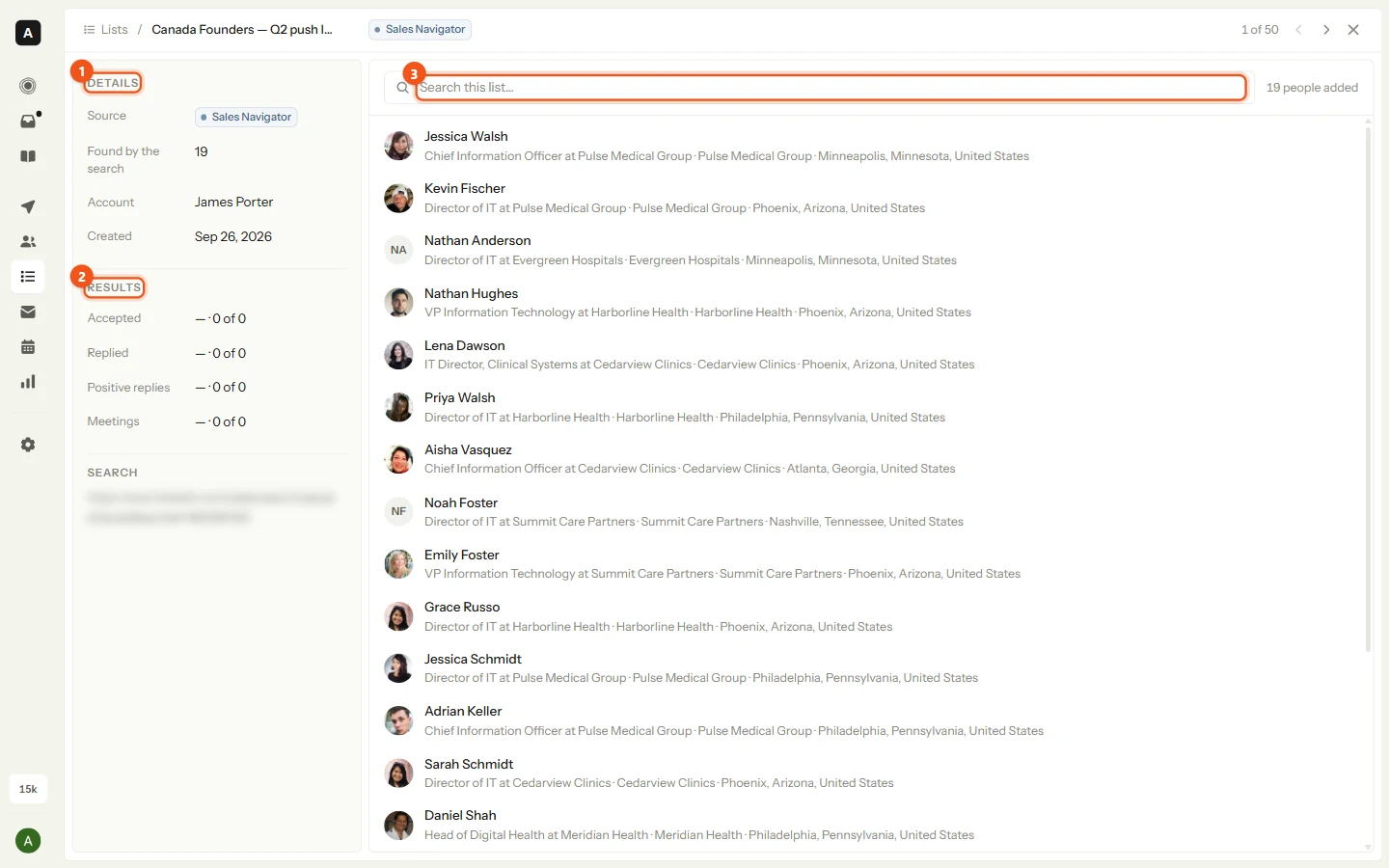
Click a list name, or choose Open list. You see:
- Details: Source, Found by the search (how many people the search found when the list was made), Account, Created.
- Results: how campaigns using this list perform. It shows Accepted, Replied, Positive replies, Meetings and, if emails were sent, Emails bounced. If no campaign uses the list, it says so. Short suggestions may appear, such as pausing a list when few invites are accepted. They are only advice. Nothing is paused for you.
- Tags, Filters (what the list searches for, with excluded values in red) and the Search link when the list came from a LinkedIn link.
- The people in the list, with search ("Search this list...") and a count such as "120 people added".
Use the arrows at the top to move to the previous or next list.
Rename a list: click its name at the top of the list page, type the new name and press Enter, or click the check mark.
Empty lists show a preview
Until a campaign starts sending, nobody is stored in the list yet. A new list instead shows Preview of who this list will reach, which is what the search finds right now. A Buying signals list also shows What this list looks for. CSV and Your Contacts lists have no search to preview, so they show "No one has been added to this list yet. People are added when a campaign using this list starts sending."
How a list fills up
- You publish the list. It saves the search and the account, not the people.
- You start a campaign that uses the list.
- While the campaign runs, Syndie reads small batches from the search and adds the people to the list, checking each one.
- The number in people added goes up as it goes.
While filling, Syndie skips people who are already in the list and people on your Blacklist. If a list runs out of people, the campaign says "This prospect list has no results left. Add a new source to keep sending."
A list can also stall if its LinkedIn account is disconnected. The Account column then shows Disconnected. Reconnect the account in Accounts.
Use a list in a campaign
When you create a campaign, pick a list with Select Prospect List. If you need to try other settings on the same audience, make a second list from the same link, file or filters.
Edit a list
| What you want to change | What to do |
|---|---|
| The name | Click the name when the list is open, or use Edit list. |
| The LinkedIn account | Edit list, then pick another account. |
| The link, file or contacts of a list | Not possible. Make a new list. |
| The filters of a Native Prospect Search list | Open the list menu and choose New search from filters. The filters are copied into a new search where you can change them. |
| Who to contact, or companies to leave out, on a Buying signals list | Edit list. Works even while a campaign uses the list. |
| The search of a Buying signals list | Edit list, then New search from this list. |
You cannot change a list while a campaign that uses it is active or paused, except who to contact and left-out companies on a Buying signals list. You will see: "A campaign is using this prospect list, so it cannot be changed." The filters of a Native Prospect Search list cannot change after it is created; use New search from filters.
Delete a list
- Choose Delete in the row menu, or tick several lists and click Delete in the bar at the bottom.
- Confirm. A list is gone for good: "This cannot be undone."
A list that an active campaign is using cannot be deleted. Pause or stop that campaign first. When you delete several at once, lists used by active campaigns are skipped.
Common problems
| Problem | Fix |
|---|---|
| Publish is grey | Click Preview Contacts first. It needs at least one person. |
| "That link does not look like..." | You pasted the wrong kind of link for the method. Check the method or the link. |
| No account to pick | The method needs a type you have not connected, such as Sales Navigator. Add it in Accounts, or use LinkedIn Search URL. |
| An account shows Disconnected | Reconnect it in Accounts. |
| The list never gets bigger | No campaign is running on it yet, or the account is disconnected. |
| The campaign says the list has no results left | The search is used up or reached 2,500. Add another list. |
| Cannot edit or delete | An active or paused campaign uses the list. Editing stays locked while the campaign is paused; to delete the list, pause the campaign first. |
| "LinkedIn asked your accounts to slow down…" (Buying signals) | Try the search again tomorrow. Lists already in a campaign keep filling on their own. |
| A Buying signals list adds nobody for a while | Its campaign is paused, outside its sending hours or at its daily limit, or nothing new turned up. It searches again when the campaign needs people. |
Find People
Contacts
See everyone you reach out to, open their record, tag them, add notes and tasks, find emails and phone numbers, import and export.
What Contacts is
Contacts is the list of every person in your workspace. People get here in three ways:
- A campaign picks them up from a prospect list and starts their sequence.
- You import them from a CSV file or a connected app.
- You add someone by hand with New contact.
A prospect list alone does not fill Contacts. A person becomes a contact when a campaign starts working on them, or when you import or add them.
Open Contacts in the sidebar.
The Contacts table
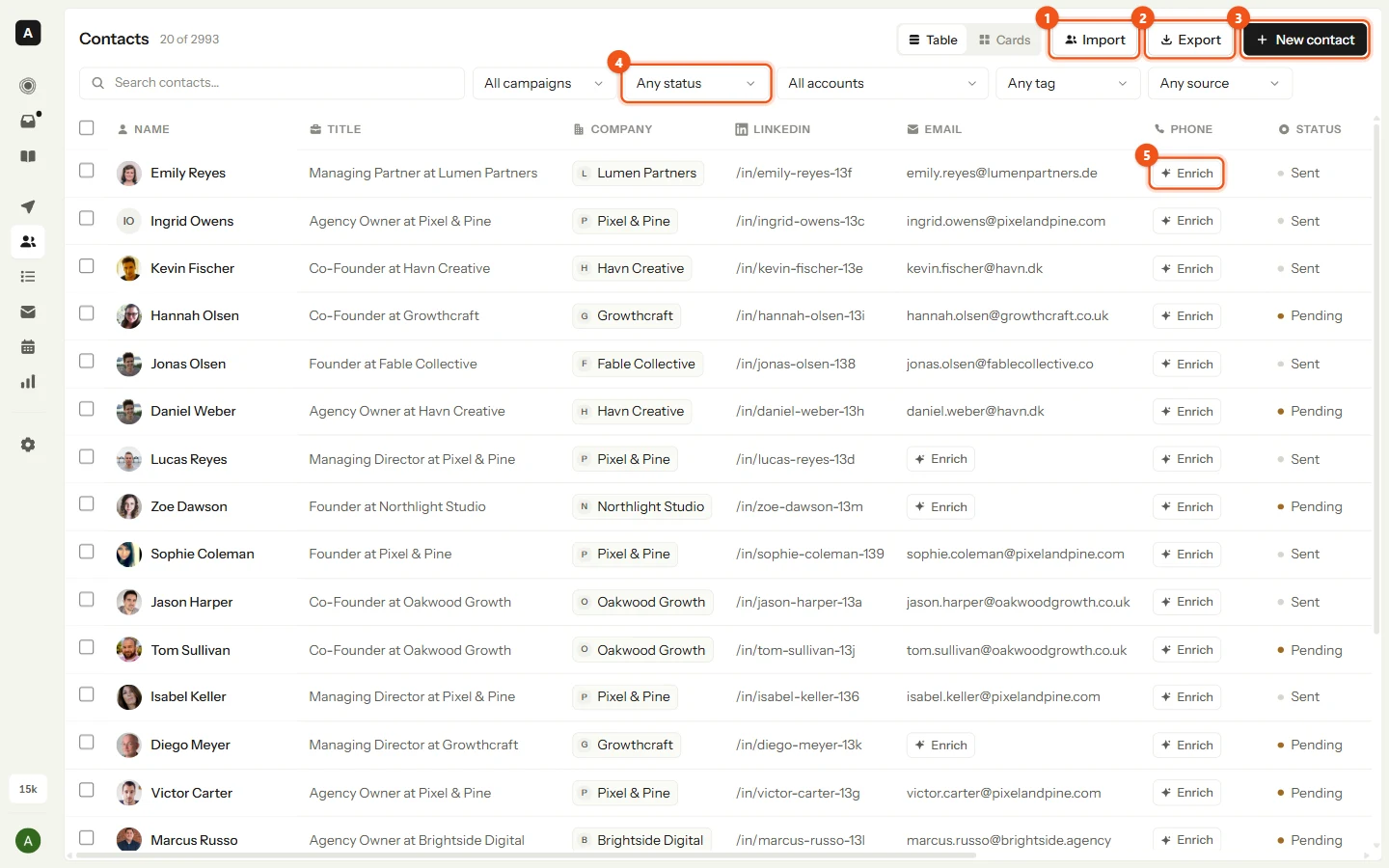
The page opens in Table view. Switch to Cards with the View buttons at the top. Syndie remembers your choice.
At the top you will see the number of contacts, then the buttons Import, Export and New contact.
Columns
| Column | What it shows |
|---|---|
| Name | The person's name and photo. This column always stays first. |
| Title | Job title or headline. |
| Company | Where they work. |
| A link to their LinkedIn profile. | |
| Their email address, or an Enrich button if there is none. | |
| Phone | Their phone number, or an Enrich button if there is none. |
| Status | Where they stand in your outreach. See the section "Statuses" below. |
| Tags | Their tags. Click to add or remove one. |
| Campaign | The campaign they are in. |
| Last active | When something last changed, such as "today" or "3d ago". |
| Source | The app they were imported from, if any. |
| Your own fields | One column for each custom field you created. |
Click a column title to sort by it. Click the columns button at the end of the header (Columns) to choose what to show. You can show between 5 and 9 columns at once besides Name. Drag columns to reorder them, or use the small arrows. Syndie keeps your layout in your browser.
Search and filters
| Control | What it does |
|---|---|
| Search contacts... | Finds people by name, title, location or company. |
| Campaign | All campaigns or one campaign. |
| Status | Any status, Invite pending, Accepted, Replied, Connected, Not contacted. |
| All accounts | One or several LinkedIn accounts. A contact matches if any chosen account sent to them. |
| Any tag | One tag. |
| Any source | Appears only when you have contacts imported from a connected app. |
| Any email | Has an email or No email. |
| Sent or not | Contacts already sent to a connected CRM, or not sent yet. Appears only when a CRM is connected. |
| Any date | A date range on when the contact was Added, or on their Last message. |
Filters stack. If nothing matches, you see "No contacts match" with a chip for each active filter. Click a chip's cross to remove it, or Clear all filters.
The table shows 20, 50 or 100 contacts per page. Choose it at the bottom.
Row actions
Hover a row and click the three dots. You get:
- Open: opens the contact record.
- Show in Unibox: opens the conversation with this person.
- Open LinkedIn profile: opens their profile in a new tab (only when they have one).
- Stop outreach: only appears while a campaign is still working on this person.
Statuses
Status describes the LinkedIn connection. Syndie updates it as your campaign runs.
| Status | Meaning |
|---|---|
| Not contacted | No invite has gone out yet. |
| Pending (Invite pending) | An invite is waiting for them to accept. |
| Sent | The invite has been sent. |
| Connected | They are a connection. |
| Accepted | They accepted your invite. |
| Replied | They answered. |
| Withdrawn | The invite was withdrawn. |
Open a contact
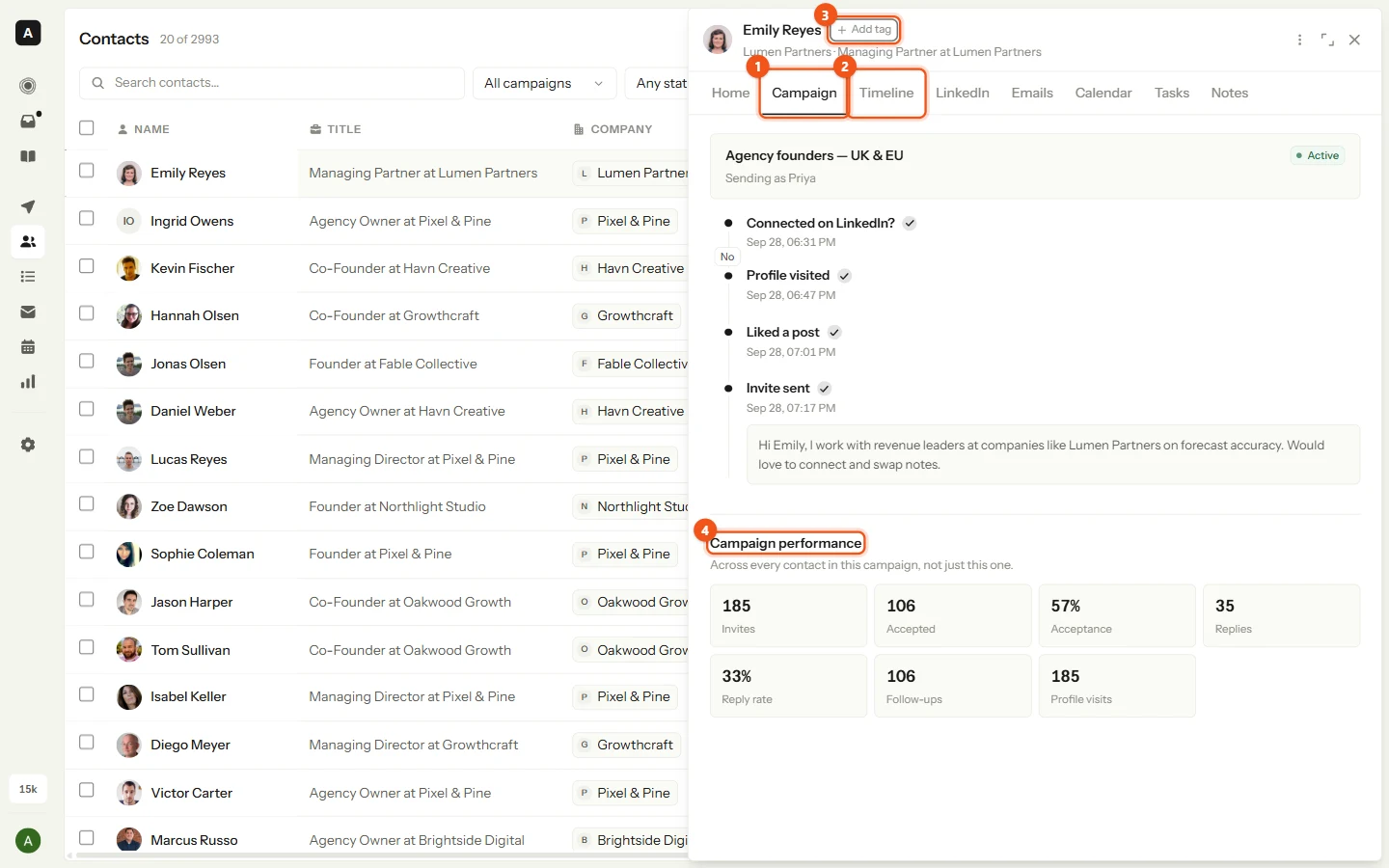
Click a row to open the contact in a side panel. Click the expand icon (Expand to full view) to use the full page, and the collapse icon to go back. In the full view you can step through contacts with the arrows and see "3 of 20".
The top of the record shows the name, title and company, their tags, and where they came from (for example "Imported from HubSpot"). The three-dot menu (Contact actions) has Show in Unibox, Open LinkedIn profile, and Send to each CRM you connected (HubSpot or GoHighLevel). Sending creates the person there, or updates them if they are already there.
The tabs
| Tab | What you find |
|---|---|
| Home | The contact's details, shown in the side panel. In the full view they sit in a column on the left. |
| Campaign | Every step the campaign ran for this person, and how the whole campaign is performing. |
| Timeline | Everything that happened with this contact, newest first, including changes, replies and meetings. |
| Their profile (about, experience, education, skills) and the LinkedIn messages you exchanged. | |
| Emails | Emails sent to and received from them. You can write a new email or a reply here. |
| Calendar | Meetings they booked with you. You can reschedule or cancel. |
| Tasks | Follow-ups for this contact. |
| Notes | Notes for your team. |
Details and fields
You can click any value to edit it. Press Enter to save, or Escape to cancel.
- Work: Company, Title.
- General: Email, Phone, Location.
- Links: LinkedIn (when the profile is not synced yet), Website, X / Twitter. Details that came from their LinkedIn profile show underneath as read-only.
- Tags: add or remove tags.
If a value comes from their LinkedIn profile or was found by enrichment, it shows in grey with a label such as "from LinkedIn" or "enriched" until you type your own.
Your own fields
Under Your fields, click Add a field to track anything you need, such as renewal month, account owner or deal size.
- Type a Name.
- Choose a Type: Text, Number, Date, Choice or Link.
- For Choice, type the options separated by commas, such as "Q1, Q2, Q3, Q4".
- Click Add field.
The field then shows on every contact and can be shown as a column in the table. To remove a field, hover it and click the bin, then Delete this field. Values already saved on contacts are kept.
Notes
In the Notes tab, write a note and click Add note. Notes are for the next person who opens this contact. You can edit or delete a note from its menu. Deleting cannot be undone.
Syd also reads the five newest notes on a person as private background when it writes them a campaign message or a reply, even when the notes sit on another record of the same person, such as a contact you imported. It never quotes a note, never says notes exist, and a message that repeats a note's words is not sent. A line under the note box says whether this is on. You can turn it off in Settings → Syd's rules & autonomy, under Contact notes.
Tasks
In Tasks, type "What needs doing?", add optional details and a due date, then click Add task. Quick due dates are Today, Tomorrow and Next week. Tasks are grouped as Overdue, Open and Done. Mark a task done or not done, edit it, or delete it. The Tasks tab shows the number of open tasks.
Tags
Tags are labels you put on contacts. They are shared across the workspace. A contact can carry several tags.
- Add a tag to one contact: click Add tag in the table or the record. Search, pick a tag, or type a new name and choose Create "name".
- Manage tags: in the same menu, choose Manage tags. You can create a tag with a name and one of 15 colours, rename it, recolour it, or delete it. Renaming changes it everywhere. Deleting takes it off every contact and cannot be undone.
- Add a tag to many contacts: tick the contacts, click Tag in the bar at the bottom and pick a tag. This replaces the tags those contacts already had: they keep only the tag you picked.
- Clear tags: tick contacts and click Clear tag. This removes the tags from those contacts.
Ready-made tags
New workspaces start with these tags. You can use them but not rename or delete them:
Hot Lead, Warm Lead, Cold Lead, Qualified, Unqualified, Meeting Booked, Meeting Completed, No Show, Reschedule Needed, High Value, Decision Maker, Influencer, Budget Confirmed, Replied Positive, Replied Negative, Out of Office, Follow Up Required, In Conversation, Do Not Contact, Referral, Wrong Person, Needs Human.
Tags can also be used to build a list. In a Your Contacts prospect list you can include or exclude people by tag.
Find an email or phone number
If a contact has no email or phone, the table and the record show a small Enrich button.
- Click Enrich. A window opens with Find email or Find phone.
- It tells you what it will Match on: their LinkedIn profile, or their name and company if there is no profile. Without either, you are asked to add a LinkedIn profile or a first name, last name and company.
- It shows the Cost. Confirm with Find email or Find phone.
You are only charged when something is found. If nothing is found, you see "No email found" or "No phone number found" and no credits are used. Typical prices are 1 credit for an email and 5 credits for a phone number. The window always shows the exact price for your workspace.
- A phone number written on their LinkedIn profile is used first and costs nothing.
- A phone number usually arrives within a few minutes. The contact shows Looking up... and updates by itself.
- If you connected your own data account for lookups, the window says "Your own key" and uses those credits instead of Syndie credits.
- If you do not have enough credits, you see "Not enough credits. This needs 5 and you have 2." Buy more in Billing.
- If the lookup service is busy, nothing is looked up and nothing is charged. Try again in a few minutes.
When a contact already has the value, you see "already has" and nothing is charged.
Add a contact by hand
Click New contact. This is for someone you already know, not for a prospect from a list.
- First name is required.
- You need a LinkedIn URL or an Email, or both. A contact with neither cannot be reached. The LinkedIn address must contain /in/.
- Last name and Company are optional.
If you give only one way to reach them, the contact saves as reachable on one channel. Steps for the other channel skip them until you add it. Click Create contact.
Import contacts
Click Import. The window title is Import contacts.
Upload a CSV
- Drag a file into Upload a CSV or choose it. A LinkedIn export works as it is.
- Map your columns: tell Syndie what each column holds. It guesses where it can. The fields are LinkedIn URL, Email, First name, Last name, Company, Job title, Location, Phone, Website, or Don't import.
- Every contact needs a LinkedIn URL or an Email. The window counts rows that will be left out.
- When at least 10 rows have a LinkedIn profile, Create a list from these contacts is already ticked. Give it a List name and pick the LinkedIn account it belongs to, or untick it to import only. Only people with a LinkedIn profile go into the list; everyone is still added to Contacts.
- Click Import N contacts.
Limits: a .csv file, with a header row, and up to 5,000 contacts at a time. For more, split the file.
People already in your workspace, with the same LinkedIn profile or email, are linked and not duplicated. When it finishes you see how many are new and how many were already there.
Import from a connected app
Under From your apps you see HubSpot, GoHighLevel and the other data tools you connected. Choose one, then an account, then what to import (for example every contact, a saved list or a search). Click Start import. You can close the window and the import keeps going. Stop import keeps what was already imported. If the connection stops working, reconnect it in Settings, Integrations.
Imported people appear in Contacts with their Source.
Export contacts
Click Export. A window opens and asks where the contacts should go:
- CSV file downloads a spreadsheet called leads-export.csv.
- HubSpot or GoHighLevel sends them to your connected CRM. This choice shows only if your workspace offers a CRM. See HubSpot for what the numbers mean.
Both choices cover the same people. If you ticked contacts, only those are exported. Otherwise it is every contact that matches your current search and filters, so clear the filters first if you want everyone. The first line of the window tells you which it is.
Stop outreach
To stop a campaign from contacting someone, use Stop outreach in the row menu. Confirm "Stop outreach to name?". No further steps run for them. Messages already sent stay where they are, and this cannot be undone.
To stop many at once, tick the contacts and click Stop in the bar at the bottom. It only appears when at least one of the ticked contacts is still moving through a campaign.
The next step of a contact in a campaign
Open the contact and go to Timeline. While a campaign is still working on the person, the top of the list has an Upcoming entry, such as "Follow-up scheduled". Click it to open the details:
- Campaign: which campaign.
- Status: In progress, Choosing the next step, Waiting, Waiting for approval, Completed or Stopped.
- Current step: what the campaign is on now.
- Next step: what comes after, such as a follow-up.
- Runs at: when that step is due.
Further down, the same timeline shows when the person was added to the campaign and, when the run ends, why. For example "Stopped: they replied", "Stopped: a meeting was booked" or "Completed all steps".
The Campaign tab lists each step that already ran, with the result. Steps that were skipped or failed say why. If the person is not in any campaign, it says "Not in a campaign yet".
Selecting several contacts
Tick the box beside a name, or the box in the header to select the page. A bar at the bottom shows how many are selected and offers Tag, Clear tag and Stop. Use Clear selection to untick everyone.
Common problems
| Problem | Fix |
|---|---|
| A prospect list shows people, but Contacts is empty | Contacts fills when a campaign using the list starts sending. |
| Enrich says it cannot look the person up | Add their LinkedIn profile, or first name, last name and company. |
| "Not enough credits" | Add credits in Billing. |
| Stop is missing | None of the ticked contacts is still in a campaign. |
| I cannot see some contacts | Your role may limit you to some LinkedIn accounts. Ask an owner or admin. |
| An import stopped | Open Import to read the reason. Reconnect the app if needed and start again. People already imported are skipped. |
| I cannot rename or delete a ready-made tag | Ready-made tags are fixed. Create your own tag instead. |
What the blacklist does
The Blacklist is the list of people and companies your workspace will never contact. Use it for customers, competitors, partners, or anyone who asked not to hear from you.
It covers the whole workspace: every campaign, every seat and every prospect list. One entry protects all of them.
Find it in Settings, on the Blacklist page. The card at the top is called Never contact.
What you can block
| Type | What it blocks | How it is matched |
|---|---|---|
| Company | Everyone whose current employer matches | The LinkedIn company, or the company name if you did not pick a LinkedIn company |
| Person | One person, wherever they appear | Their LinkedIn profile, not their name |
You cannot block a whole email domain or a single email address by hand on this page. There is no bulk upload either. Entries are added one at a time.
Block a company
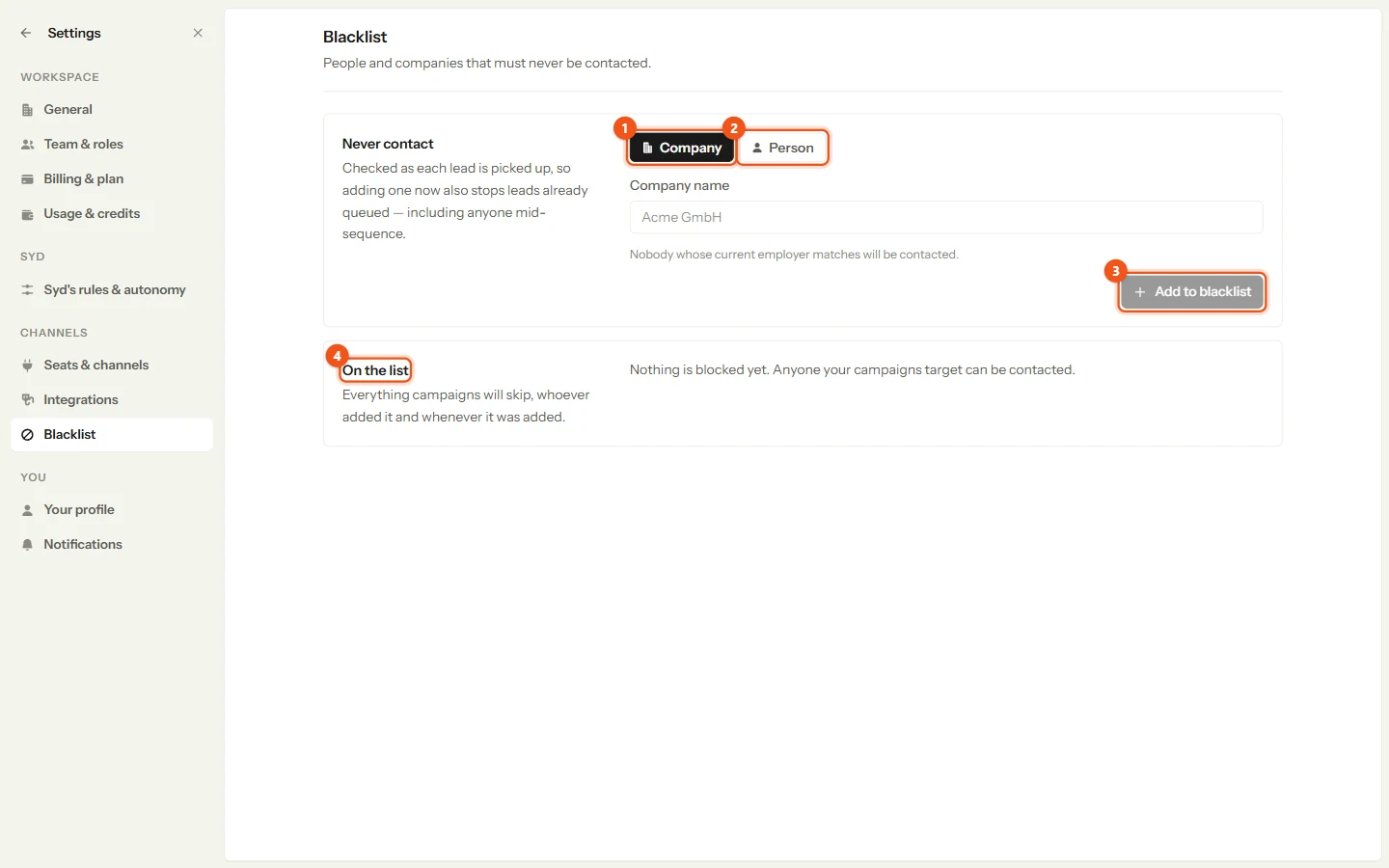
- Open Settings, then Blacklist.
- In the Never contact card, choose Company.
- Type the name in Company name. Matching LinkedIn companies appear as you type. Pick one to match that exact company.
- Click Add to blacklist.
A message confirms that the company will never be contacted.
- You picked a LinkedIn company. The entry is matched to that company, so it still works however the employer is written on someone's profile.
- You typed a name and picked nothing. The entry matches on the name you typed. The match ignores capital letters, accents and punctuation, but the name has to be the same. "Acme" does not match "Acme Corp".
- Company lookup needs a connected LinkedIn account. Without one, you will see that lookup is unavailable. You can still add the name.
The company rule looks at each person's current job only. If someone leaves the company, they are no longer blocked by it.
Block a person
- Choose Person.
- Type their name in Name.
- Paste their LinkedIn address in LinkedIn profile, for example
linkedin.com/in/sarah-green. You can also paste only the username from the end of the address. - Click Add to blacklist.
A person is matched by profile, not by name. Someone with the same name but a different profile can still be contacted. Because the match is on the profile, a job change does not remove the block.
Where the blacklist applies
- When a list fills up. Blocked people are skipped and do not become contacts in the list.
- When a campaign picks up a contact. The check runs as each contact is picked up, so adding an entry also stops contacts who are queued but have not started yet.
- When you add a person. If that person is already a contact in your workspace, an opt-out event is sent to your connected automations (for example n8n).
- Messages Syd sends from the inbox. If you ask Syd to send a LinkedIn message or an email to a blocked person, it refuses. Messages and emails you write and send yourself in the inbox are not checked.
Adding a company does not delete contacts that are already in your workspace. If you need to stop someone who is mid-sequence, also pause or remove them in the campaign.
Emails that are blocked automatically
Syndie also stops sending to an email address when:
- the address bounced for good,
- the person used the unsubscribe link in your email,
- the person reported your email as spam.
These addresses are blocked for the whole workspace. They do not show in the list on this page.
Manage the list
The On the list card shows everything your campaigns will skip, no matter who added it or when. Entries are grouped under Companies and People, with a count for each. Each row shows the name, how it is matched (the LinkedIn profile address, "Matched to a LinkedIn company" or "Matched by name") and when it was added.
- Search the list... finds an entry by name or profile address. If nothing matches you see "Nothing matches that."
- Remove deletes an entry. Move your mouse over a row to see it clearly. After removal, campaigns can contact that person or company again.
If the list is empty, the card says "Nothing is blocked yet. Anyone your campaigns target can be contacted."
Related setting: Prevent duplicate leads
This is a different rule, on the General settings page. When it is on, a campaign skips anyone who is already a contact in another campaign in your workspace. It is off by default and only applies to people added after you turn it on.
Common problems
| Problem | Fix |
|---|---|
| A blocked company still gets contacted | Check how the entry is matched. A typed name must equal the employer name on the profile. Remove it and add it again, this time picking the LinkedIn company from the suggestions. |
| A person I blocked still appears | The entry was added with a name only. Remove it and add it again with their LinkedIn profile address. |
| The company suggestions do not appear | Connect a LinkedIn account in Accounts. You can still add the name by hand. |
| I removed an entry by mistake | Add it again. |
Next: see Prospect Lists and Campaigns.
Campaigns
Campaigns
Create, launch and manage outreach campaigns that reach your prospects on LinkedIn and email.
What is a campaign?
A campaign takes a prospect list and works through it, one person at a time. It invites people on LinkedIn, follows up, can send emails, and hands you the replies. You decide who it reaches (a prospect list), what it sends (a sequence of steps), from which accounts, and when it is allowed to send.
Open Campaigns from the sidebar to see all of them. Each campaign is either built step by step by you, or planned by Syndie's assistant, Syd (see Syd).
The Campaigns list
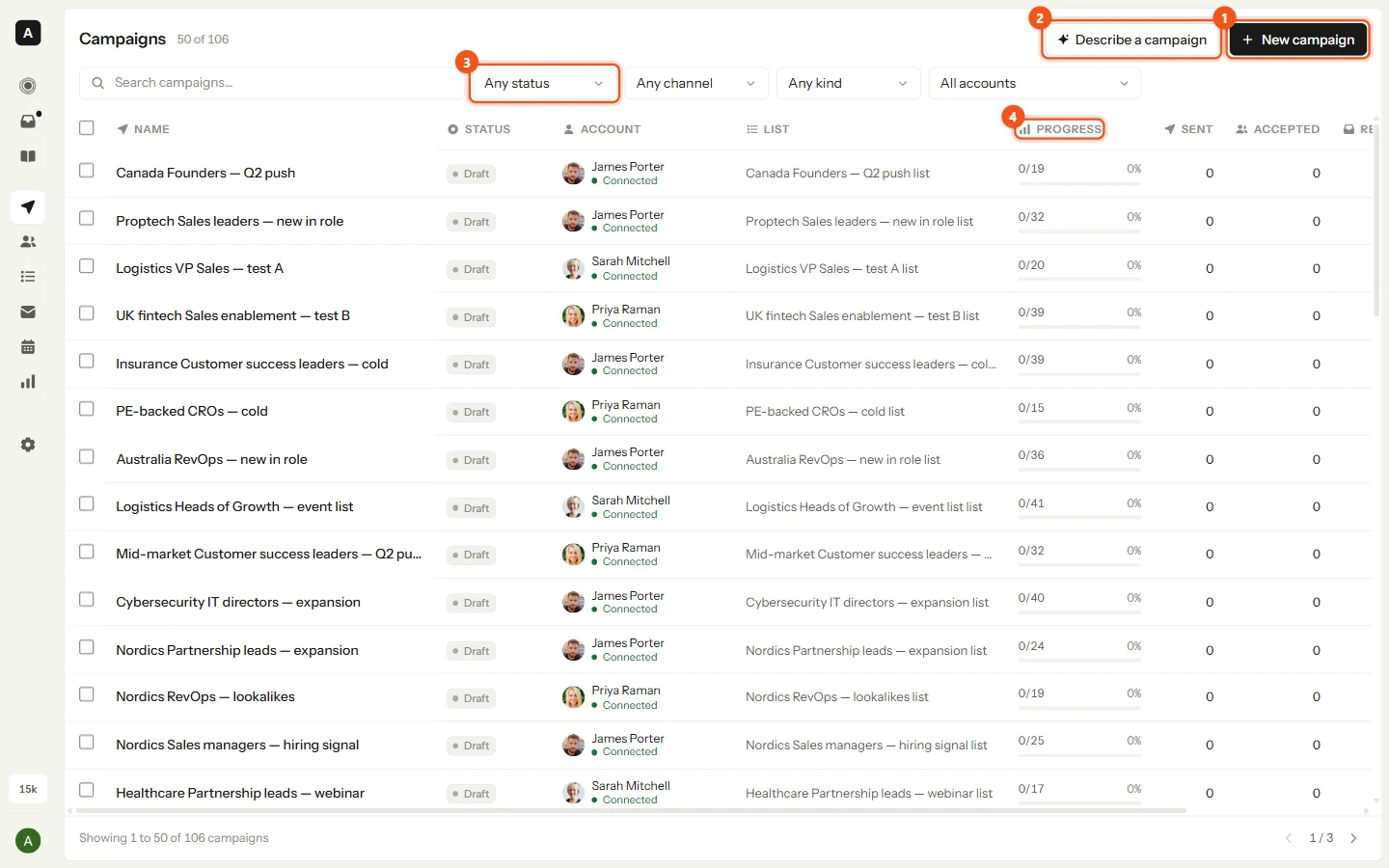
The list shows one row per campaign.
| Column | What it shows |
|---|---|
| Name | The campaign name. A Syd badge means Syd planned it and picks each person's next step. |
| Status | Draft, Active, Paused, Completed or Archived. |
| Account | The LinkedIn account (or accounts) it sends from. |
| List | The prospect list it works through. |
| Progress | How far through the list it is. |
| Sent, Accepted, Replied | Results so far. |
| Created | The date it was made. |
Above the list you can search by name and filter by Any status, Any channel, Any kind (Syd-planned or Hand-drawn) and All accounts. Archived campaigns only show when you pick the Archived status filter.
Hover a row and open the ... menu for Open campaign, Start (drafts), Resume (paused), Pause (active), Duplicate, Archive or Unarchive, and Delete. Tick several rows to pause, resume, archive, unarchive or delete them in one go.
Create a campaign
You have two ways to start.
Describe it to Syd
Click Describe a campaign and finish the sentence "Build me a campaign that ..." Syd asks what it needs, builds the campaign and shows it to you before anything is sent. This is the fastest way, and it uses your workspace's default sending hours. See Syd and Letting Syd Choose Each Step.
Build it yourself
- Click New campaign.
- Fill in the dialog (below) and click Create campaign.
- You land in the campaign builder. Build the steps on the Flow screen (see Flow Builder), then go to Review to attach a prospect list and launch.
The New campaign dialog asks for:
| Field | What to choose |
|---|---|
| Outreach type | Single channel is LinkedIn only. Multi channel is LinkedIn and email in one sequence. You cannot change this once the flow exists. A campaign cannot send by email alone. |
| Campaign name | Optional, up to 80 characters. If you leave it empty the campaign is called something like "LinkedIn outreach, 3 Oct". You can rename it any time. |
| LinkedIn account | The account invites and messages are sent from. Disconnected accounts are greyed out. Pick several to share the load. The first one is the main one. |
| Mailbox | Only for Multi channel. The mailbox emails are sent from. Pick several to share the load. |
A campaign made this way starts as a Draft with these settings, which you can change later in the campaign settings:
- Sending hours 9:00 AM to 5:00 PM, Monday to Friday, in your browser's time zone.
- New people per day set to 25 (or lower, if the account has less room left).
- Stop when someone clicks a link on. Replies are handled on each message, InMail and email step.
- For Multi channel, Look up missing email addresses on.
Review and launch
A draft does nothing until you launch it. In the builder, click Review (or Launch in the top bar). The Review screen checks everything and lists what is still missing under Still needed.
| Check | What it needs |
|---|---|
| Audience | A prospect list. Choose one with Choose a prospect list or Use a different list. An empty list is only a warning: the campaign starts and waits until the list fills. |
| LinkedIn account | A connected account. Use Choose a LinkedIn account or Reconnect. |
| Mailbox | A connected mailbox, for Multi channel campaigns. |
| Sequence | At least one step, and every step complete. Use Build the flow or Finish the flow's steps. Not needed when Syd plans the steps. |
| Subscription | An active subscription. If billing cannot be checked you get a Heads up and can still launch. This check is skipped for people who cannot see billing. |
| Schedule | Room on each account: it must have fewer than 3 active campaigns and enough of its daily allowance left for this campaign's New people per day. Use Make room on a LinkedIn account. |
If your prospect list suggests a time zone, sending days or language, a banner offers Use these to apply them to the campaign.
When nothing is left, click Launch campaign. The first steps go out in the next sending window. You can also click Start on a draft from the list or from the campaign page; it runs the same checks and tells you what is blocking it.
The campaign page
Click a campaign in the list to open it. The top bar shows the name, the status, and the action button (Start, Pause or Resume), plus a ... menu with Duplicate, Archive and Delete. Open full campaign takes you to the builder.
The left side shows the sending account, the list, how many contacts it has, who built it, when it was created, and the Sent, Accepted, Replied and Already connected numbers.
| Tab | What it is for |
|---|---|
| Flow | The sequence as it really runs, with how many people reached each step. Syd-planned campaigns have no Flow tab. |
| Performance | Sent, accepted, replies and link clicks over time, reply rate, meetings, and What didn't go through (failed, skipped, still waiting). |
| Health | A check of why the campaign is or is not sending, with what to do about each finding. See Sending Limits & Why Nothing Is Sending. |
| Contacts | Everyone in the campaign, with every step run for them. Search by name and filter by Pending, Accepted, Connected, Replied, Not connected or Withdrawn. |
| Settings | Name, description, schedule, behaviour and the account and list in use. |
Settings
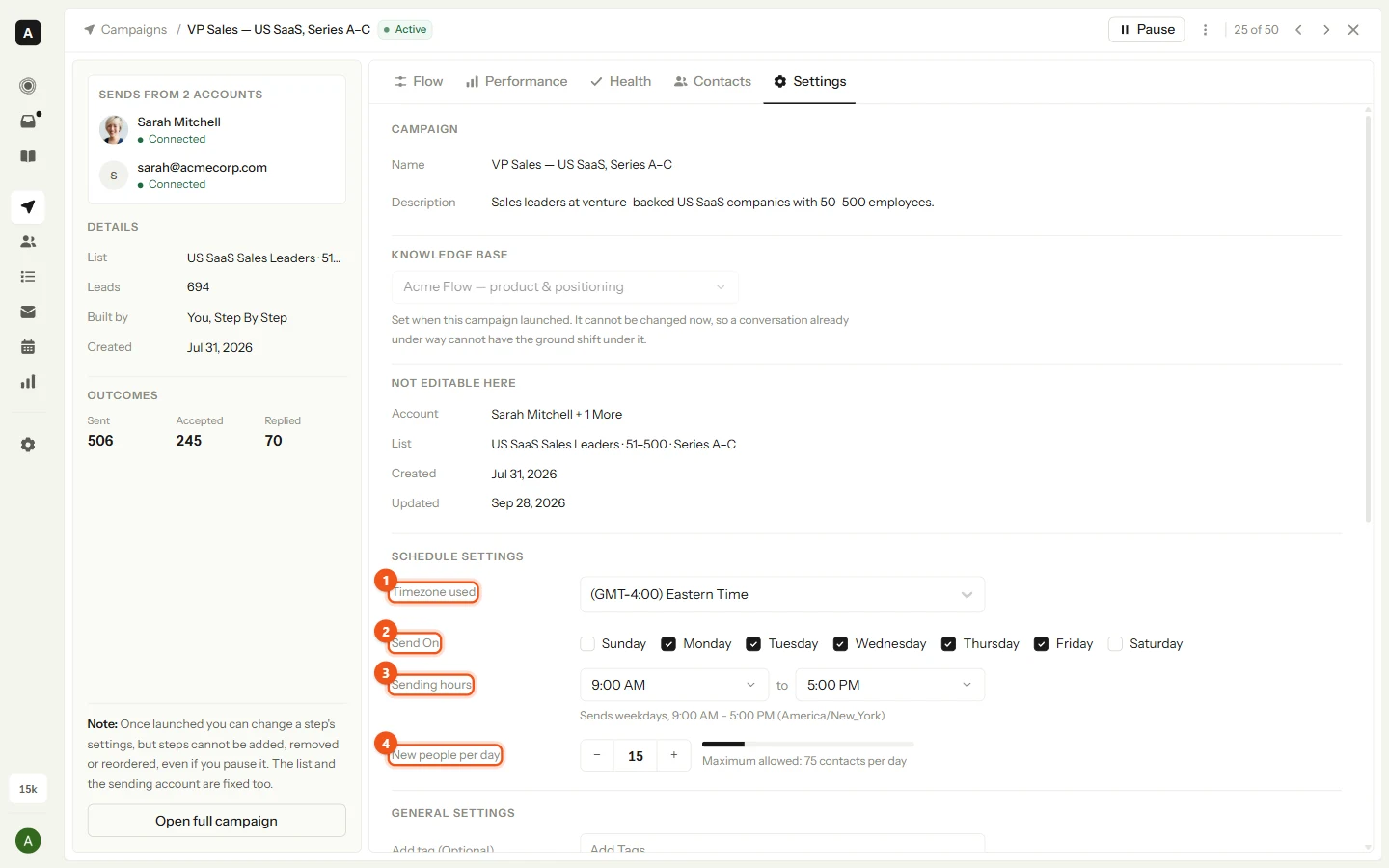
In the Settings tab you can rename the campaign, edit its description and attach a Knowledge base. The Account and List rows are read-only. The rest is below.
Schedule
| Setting | What it does |
|---|---|
| Timezone used | The time zone the hours below are shown and used in. If you change it, the hours are converted so the real sending moments stay the same. Set it to your prospects' time zone. |
| Send On | The days of the week it may send. |
| Sending hours | The start and end time of the sending window, in 5-minute steps. The window must be at least 4 hours long. |
| New people per day | How many new people may enter the campaign each day, from 1 to 75. |
Click Save Changes to apply schedule and general settings. Under the number you see the maximum currently allowed. It shrinks when the account is already used by other active campaigns.
New people per day counts people who start the sequence, not actions. People already inside the campaign keep getting their follow-ups on top of this number. If several accounts send the campaign, the number applies to each account. Two accounts at 25 means up to 50 new people a day.
Your workspace has default sending hours too. Go to Settings → General, section Outreach, Default sending window. New campaigns that are created without hours of their own, for example the ones Syd builds, copy the default hours, days and time zone. Each campaign keeps its own copy, so changing the default later does not change campaigns that already exist. The same section has Prevent duplicate leads, which skips anyone who is already a lead in another campaign of the workspace.
General settings
- Add tag (Optional): tags applied to people on this campaign.
- Language: every message on the campaign is written in this language. If each step has its own language you see a note instead, and you set the language per step in the builder.
- Stop sending to someone who: Clicks a link. Older campaigns also show Replies by email or LinkedIn. See below.
- Send a webhook when someone replies: pick a webhook endpoint (or Create New Webhook) to be told about replies. Every reply the person sends, on LinkedIn or by email, calls it. See Webhooks.
Handling switches
These save as soon as you flip them.
| Switch | What it does |
|---|---|
| Let Syd reply | Syd writes back to people who reply, using your knowledge base. Off: replies wait for you in Unibox. Growth plan only, and it needs a knowledge base. See AI Replies. |
| Knowledge base | The only source Syd quotes when answering. You can add one after launch, but never swap it. See Knowledge Base. |
| Booking link | Sent when someone asks to book a time. Without one, Syd passes the request to you. Optional. |
| Look up missing email addresses | Multi channel only. Finds an email for people you have none for. It costs credits for each person whose address we do not already have, unless you connected your own email-finder key. Off: those people are skipped by every email step but continue on LinkedIn. |
| Skip people already connected | On: someone already connected to you is left out and no step runs for them. Off: every step runs as usual. |
| Stop when someone replies | A reply stops all further steps for that person. Turn it off and people who reply keep getting other steps such as emails. LinkedIn follow-ups still stop. Always on when Syd plans the steps. Only on older campaigns; newer ones decide this on each step. |
| Stop when someone clicks a link | A click on a link in your messages stops the sequence. Not shown for Syd-planned campaigns. |
Several accounts on one campaign
You can choose up to 50 LinkedIn accounts and up to 50 mailboxes for one campaign. In the New campaign dialog pick several, or on Review use Also send from, Use all accounts or Use all mailboxes.
- Each person is sent from one account and stays with it.
- New people per day applies to each account.
- If one account hits a limit, the others keep going, and the people tied to that account wait until it has room again.
- Every account must be connected, or the launch check fails.
Limits per account
- One account can run at most 3 active campaigns at once. Pause one to start another.
- The New people per day of all active campaigns on one account cannot add up to more than 75.
- These are checked when you launch, resume, or raise the number.
For every other limit (invites, messages, profile views, email limits) see Sending Limits & Why Nothing Is Sending.
Statuses
| Status | Meaning |
|---|---|
| Draft | Being set up. You can change everything, including the list and the accounts. Nothing is sent. |
| Active | Running. It adds new people during the sending hours and runs their steps. After the list runs out it stays Active while anyone still has steps left, including people who have not accepted the connection request yet (for up to 30 days). Pause it if you want it to stop sooner. |
| Paused | Stopped. No new people are added and waiting steps are held. Resume continues where it left off. |
| Completed | The list ran out and every person already started has finished. It sends nothing more, even if someone accepts a connection request later. |
| Archived | Put away. A running campaign is paused first, so an archived campaign never sends. Find it under the Archived filter. |
A campaign can also pause by itself, for example when its LinkedIn account disconnects or the subscription ends. It does not restart on its own. Fix the cause, then click Resume.
Pause, resume, archive, duplicate, delete
- Pause: stops adding people and holds steps that were due. Nothing is lost.
- Resume: runs the launch checks again. If something blocks it, you see the reason. Waiting steps are spread out again from the next sending window. Only a Paused campaign can be resumed. A Draft is launched from Review, and a Completed campaign cannot be restarted.
- Archive and Unarchive: a campaign that was running comes back as Paused when you unarchive it. An archived campaign cannot be started until you unarchive it.
- Duplicate: makes a Draft called "Copy of" plus the old name, with the same steps, accounts, schedule and settings but no prospect list and no results. Pick a list before launching. Accounts that were removed from the workspace are dropped from the copy.
- Delete: permanently removes the campaign, its contacts and its history. This cannot be undone. If you only want it out of the way, archive it instead.
How messages should sound
In a campaign where Syd plans each message, the Settings tab has How messages should sound. It sets the style of the messages Syd plans and of Syd's replies. A campaign whose steps you draw yourself doesn't have it: you set each message's tone and instructions inside its step, and that also works while the campaign runs.
| Choice | Options |
|---|---|
| Tone | Let Syd decide, Casual, Friendly and professional, Formal, Direct |
| Length | Let Syd decide, Short (a few lines), Medium (3 to 5 sentences) |
| Ending | Let Syd decide, End with one question, No question |
| Anything else | Free text, up to 500 characters, such as "never mention price" |
| Messages you like | Up to 2 pasted messages. Syd copies their tone and rhythm, never their facts |
- Preview rewrites up to 2 messages waiting to go out (or the last ones sent) in the new style and shows the before and after. If the campaign has no messages yet, it writes one sample first message. Nothing is saved or sent.
- Save works even while the campaign runs. Messages written from now on follow the new style, messages already planned are rewritten in it as they go out, and messages already sent stay as they are. A message a person approved goes out as approved.
- Length and Ending are checked: a message that runs too long or ends the wrong way is written again.
- Replies follow the tone and Anything else, but not the length or ending, because a reply answers what the person wrote.
- Safety rules always win: the style can't add links to invitations, quote prices or invent facts.
- Clear removes the style, and Syd decides again.
When Syd builds a campaign with you, it asks how the messages should sound before launch, in one card with four parts: Tone, Length, How each message ends and Anything else?. Each starts on Let me decide (or Nothing else), so you only change what you care about. Messages you like are pasted later on the Settings tab.
At the end of the build, the launch review opens beside the chat by itself. It has a How messages sound section showing what you picked; click the pencil on any of its rows to change the style, with the same editor and preview. Then click Launch campaign, or Cancel to keep it as a draft.
The campaign's Review screen shows the style under Sequence, as How messages sound, with Change (or Set a style) to open the same editor and preview before you launch.
You can also ask in chat, for example "make the messages in this campaign shorter": Syd shows a preview and saves only after you confirm.
What you can change after launch
Once a campaign leaves Draft it stays locked, and pausing does not unlock it.
Fixed: the LinkedIn accounts and mailboxes, the channels, the prospect list, and the shape of the flow (you cannot add, remove, reorder or reconnect steps).
Still editable: each step's own settings (open the step and click Save), the name and description, Timezone used, Send On, Sending hours, New people per day, language, tags, the stop rules, the webhook, the switches under Handling, and How messages should sound. A Knowledge base can be added once, but not changed.
To change a fixed item, duplicate the campaign and edit the copy.
Reviewing messages before they go
Any send step can be set to Require approval. Nothing goes out until an owner or admin approves it in the Review queue. See Approvals.
Common problems
| Problem | What to do |
|---|---|
| The campaign says Active but nothing is sending | Open the Health tab, or ask Syd "Why is my campaign not sending?". See Sending Limits & Why Nothing Is Sending. |
| Start or Resume is refused | Read the message shown. It names the missing piece: a list, an account, a mailbox, a subscription, or room on the account. |
| I cannot add a fourth campaign to an account | An account runs at most 3 active campaigns. Pause one first. |
| The account has no room for my number | Lower New people per day, or pause another campaign on that account. |
| I need a different list or account on a launched campaign | Duplicate the campaign and choose them on the new draft. |
Campaigns
Campaign Steps & the Flow Builder
Build your outreach sequence from a template or step by step, and learn what every step, condition and setting does.
What is the flow?
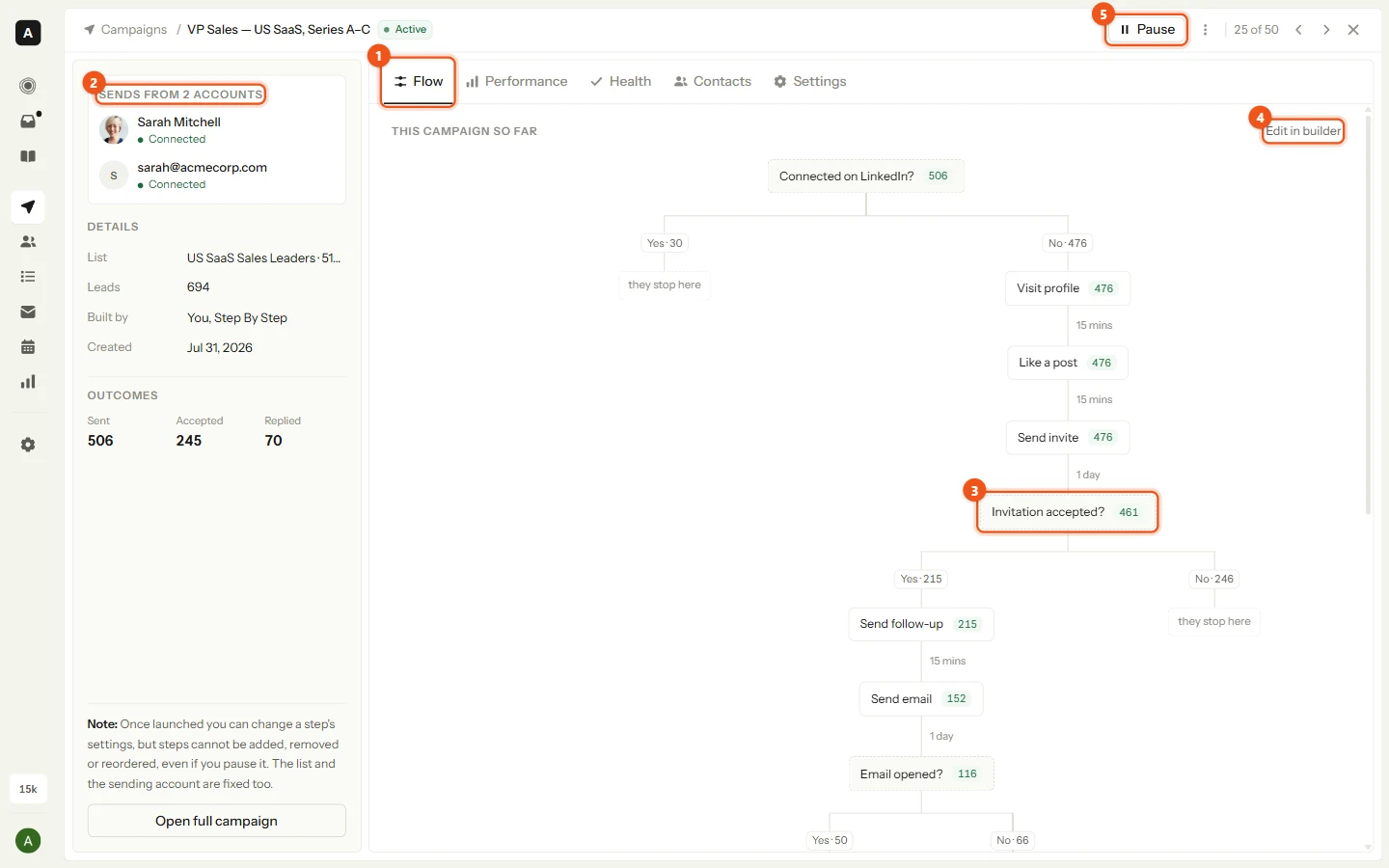
The flow is the list of things Syndie does for each person in your campaign, in order. For example: visit their profile, wait a day, send a connection request, and if they accept, send a message.
You build it in the Flow builder. Each box on the canvas is a step. There are three kinds:
- Actions do something, like send a message.
- Conditions ask a question, like "Did they accept?", and split the flow into a Yes path and a No path.
- Integrations pass the person on to another tool.
To open it, go to Campaigns, open a draft campaign and stay on the Flow step. When you are done, switch to Review and press Launch.
If you would rather not draw a flow at all, see Letting Syd Choose Each Step.
Two ways to start
An empty campaign shows Set up my campaign manually. with every step listed. Under Or Choose another method you can pick one of these:
| Option | What it does |
|---|---|
| Use a template | Opens Pick a template. Each card shows the number of steps, the maximum number of days, and whether it uses LinkedIn only or LinkedIn + email. The best fit for your campaign is marked Recommended. |
| Let Syd plan it | Switches the campaign to adaptive mode, where Syd picks the next step for each person. Growth plan only. |
| Import Flow | Loads a flow you exported earlier from another campaign. Files can be up to 10MB. |
Or skip these and click any step in the list to add it as your first step.
Starting from a template
Templates are ready-made sequences, such as an invite followed by two follow-ups, or a LinkedIn sequence with an email backup. Click a card and the steps appear on the canvas.
Every message in a template comes with starter guidelines for the AI. They are generic, so open each message step and adjust them to your offer before you launch. Templates only show the channels your campaign sends on.
Drawing the flow yourself
Click a step in the empty state, or click the + button at the end of the flow or on a line between two steps. The Add Step panel opens. Use All, Actions, Conditions and Integrations to filter, or type in Search steps….
Which steps you see depends on how the campaign was created:
- A Single channel campaign (LinkedIn only) does not show the email steps and email conditions.
- A Multi channel campaign shows both.
You cannot change a campaign's channels once the flow exists.
Every step at a glance
Actions
| Step | What it does |
|---|---|
| Visit Profile | Views the person's LinkedIn profile. |
| Like Recent Post | Likes their recent posts. |
| Comment on Post | Comments on their recent posts. |
| Follow Profile | Follows the person on LinkedIn. |
| Follow Company | Follows the person's company page. |
| Send Connection Request | Sends a LinkedIn connection request, with or without a note. |
| Send Message | Sends a LinkedIn message to someone you are connected to. |
| Send Inmail | Sends a LinkedIn InMail to someone you are not connected to. |
| Withdraw Request | Withdraws a connection request that was not accepted. |
| Send Email | Sends an email from the campaign's mailbox. |
| Add/Update Tag | Gives the contact a tag. |
Conditions
| Step | The question it asks |
|---|---|
| Connection Request Accepted? | Did they accept your connection request? |
| Replied on LinkedIn? | Did they reply on LinkedIn? |
| Replied via Email? | Did they reply to your email? |
| Email Opened? | Did they open your email? |
| Link Clicked in Email? | Did they click a link in your email? |
| Is a 1st degree linkedin connection? | Are they already connected to you? |
Integrations
| Step | What it does |
|---|---|
| Sync with HubSpot | Sends the contact to your HubSpot account. |
| Sync with GoHighLevel | Sends the contact to your GoHighLevel account. |
| Notify Webhook | Sends the contact's details to a web address you choose. |
Your workspace may not show every integration step.
Settings every step shares
Waiting time
Most steps have a waiting time: how long to wait before the step runs. Pick Minutes, Hours or Days.
- The shortest wait is 5 minutes, or 1 hour or day.
- A new step starts with a wait of 15 minutes.
- Send Email, the two sync steps and Notify Webhook also offer a way to run right away. On Send Email it is called Immediate, on the sync steps Sync immediately.
Writing with AI or writing it yourself
Every step that writes text has a Configure With AI switch (called AI Writing Assistant on email and InMail). It is on by default.
- On: Syndie writes a fresh message for each person at the moment the step runs, using their profile. You steer it with tone settings and Additional Custom Guidelines.
- Off: you type the text yourself and every person gets the same words, with the person's details filled in through variables.
When AI writes, the guidelines box is required, and it can hold up to 1,000 characters. Describe what the message should say, for example "Mention their hiring post, ask one question about how they run outbound, and keep it short."
The Generate Example button shows you a sample. It is only a preview. It does not fix the wording, because each person still gets a message written for them. Press Use this if you want to copy the sample into the step as your own text, or Discard to drop it.
Require approval
Send Connection Request, Send Message, Send Inmail, Send Email and Comment on Post each have a Require approval switch. When it is on, every message from that step waits for a person to review it before it goes out. They wait in Approvals.
You can turn it on for one step and leave the rest automatic. For example, review every first touch and let the follow-ups go on their own.
Stop if they replied since our last message
On Send Message, Send Inmail and Send Email, on by default. If the person wrote back after our last message, their sequence stops here. Turn it off to send even after a short reply like "Thanks for connecting". Older campaigns do not show it; they use Stop when someone replies in the campaign settings.
Attachments
Send Message, Send Inmail and Send Email can carry a file. Under Attachment, click Add file.
- One file per step, up to 10MB.
- It goes out with every message from that step, so use it for something that suits everyone, like a one-pager.
- Use Replace or Remove to change it.
Send Connection Request has no attachment.
Variables
In the text boxes where you write your own text, buttons let you drop in details about the person. Place the cursor, click a button, and a marker is added in square brackets. When the step runs, the marker is replaced with the real value.
| Button | Marker | What it fills in |
|---|---|---|
| First Name | [first_name] | The person's first name |
| Last Name | [last_name] | Their last name |
| Full Name | [full_name] | First and last name together |
| Company | [company_name] | Their current company |
| Job Title | [job_title] | Their current job title |
| Location | [location] | Where they are based |
Good to know:
- If a person has no company or job title on their profile, the text says "your company" or "your role" instead. Other missing details are left blank.
- A LinkedIn headline is free text people write about themselves, so it is not offered as a variable.
- Variables work in invite notes, messages, InMail messages and subjects, email subjects and bodies, and typed comments.
- Do not use square brackets for anything else. A marker the builder does not recognise, like
[Company Name Here], is flagged as An unrecognised placeholder and the step counts as incomplete. - In an email,
[booking_link]places your booking link. See Send Email below.
Action steps in detail
Visit Profile
Views the person's profile. It is a light first touch, and the person can see you looked. Only the waiting time can be set.
Like Recent Post
Likes the person's recent posts.
- Number of Posts (Each): how many posts to like, up to 5.
- Recent Posts Within (Days): only posts from this period are used.
If the person has no recent posts, the step is skipped.
Comment on Post
Comments on the person's recent posts.
- Number of Posts (Each) (1 to 5) and Recent Posts Within (Days) (1 to 30, starts at 7).
- AI on: pick Comment Length (Short (1 sentence), Medium (2-3 sentences) or Long (4+ sentences)), Comment Tone (Agreeable, Neutral or Constructive) and write your guidelines. Generate Example shows a sample post and comment.
- AI off: type your own comment, up to 300 characters.
The step is skipped if there is no suitable post, or if you already commented on that person's post from another campaign.
Follow Profile and Follow Company
Follow the person, or their company page. Only the waiting time can be set.
Send Connection Request
Sends a LinkedIn connection request.
- Send with a note is on by default. Turn it off to send a plain request.
- With the note on, you can let AI write it or write it yourself.
- AI on gives you these choices: Tone (Cold, Moderate, Warm), Formality (Casual, Approachable, Professional), Approach (Direct, Diplomatic, Indirect), Focus (Personal, Relational, Business), Intention (Networking, Collaboration, Partnership), Call to Action (Subtle, Confident, Strong) and Personalization (Specific, General). Engage with Recent Activity lets the note mention something they posted.
The note limit depends on the LinkedIn account that sends the campaign:
| Account | Note |
|---|---|
| Premium, Sales Navigator or Recruiter | Up to 280 characters |
| Free LinkedIn account | No note. Invitations go out without one, and the builder tells you so. |
On a free account a note would also cut your invites to about 1 a day instead of 20, which is why it is left out. For daily limits, see Sending Limits.
The character counter shows the length of the text you typed. Once variables are filled in, the real note can be longer. If the builder estimates it will go over the limit, it warns you, and an invite that is too long is not sent. Keep a margin when you use variables.
If the person is already connected to you, no request is sent and they are marked as connected.
Send Message
Sends a LinkedIn message to a person you are connected to. Put it after a Connection Request Accepted? condition, on the Yes path.
- AI on: pick Message Length (Short (2 sentences), Medium (3-4 sentences) or Long (5+ sentences)) and Tone (Friendly, Professional, Casual). Engage with Recent Activity lets it mention a recent post.
- AI off: type your message with the variable buttons.
- You can attach one file.
If the person is not connected to you when the step runs, the step is skipped.
Send Inmail
Sends a LinkedIn InMail to someone you are not connected to. It uses InMail credits from the sending LinkedIn account.
| Part | Limit |
|---|---|
| Subject | Optional. Up to 200 characters. A subject helps the InMail get opened, but it sends without one. |
| Message | Up to 1,900 characters when you type it yourself. |
- The subject is typed by you, whether the message is written by AI or by you. Variables work in it.
- AI on: pick Length (Short under 100 words, Medium 100 to 200 words, Long over 200 words) and Tone (Formal, Casual, Friendly).
- You can attach one file.
The step is skipped if the person is already connected to you, or if the account has no InMail credits left.
Withdraw Request
Withdraws a connection request that has not been accepted. A Send Connection Request step must come earlier in the flow, or the step shows as incomplete. A new step waits 7 days by default. If the person accepted in the meantime, nothing is withdrawn.
Send Email
Sends an email to the person. The email goes out from the mailbox you pick for the campaign on the Review step.
- Immediate or Delayed sets when it goes out.
- Sender Name is the name used in the email and by AI.
- AI Writing Assistant on: choose the Email Type (Cold Outreach, Follow-up, Meeting Request and others), length, tone and call to action, and write your guidelines. AI Generated Subject is on by default. Turn it off to type your own Subject Line.
- AI off: type the Subject and the email yourself.
- Include Email Signature adds your signature at the end.
- You can attach one file.
- Booking link: choose one of your booking links from the Meetings page. For a typed email the link is added at the end as "Book a time: …", or exactly where you put the Booking Link marker,
[booking_link]. With AI writing the link is always added at the end. If you choose no link but leave the marker in the text, or the chosen link is paused, the emails will not send.
The subject is required whenever you type it yourself.
If the person has no email address, the step is skipped. You can let the campaign look up missing addresses with Look up missing email addresses in the campaign's settings. This uses credits, and the builder warns you if you do not have enough.
Emails are never sent to anyone on your Blocklist.
Add/Update Tag
Gives the contact the tag you choose. It replaces the contact's current tag with the new one. Pick one under Your tags or Predefined, or create a new tag from the step. A tag is required. Use it to mark where people are in your flow, then filter them in Contacts.
Conditions in detail
A condition asks a question and splits the flow in two:
- Yes: the answer is yes. The flow carries on right away.
- No: the answer is still no after the waiting time ends.
Each condition has two ways to wait:
| Mode | What happens |
|---|---|
| Wait a specific amount of time | Checks after the time you set, for example 3 days. If the answer is yes by then, the person takes the Yes path. Otherwise they take the No path. A new condition starts at 1 day (the 1st degree check starts at 1 minute). |
| Wait until... (for example Wait until accepted) | Keeps checking for a long time (the builder sets about 300 days) and carries on only when the answer becomes yes. There is no No path, so the builder removes every step below the condition and asks you to confirm first. |
Which condition fits where:
- Connection Request Accepted? after Send Connection Request. Yes: send a message. No: try an InMail or email, or withdraw the request.
- Replied on LinkedIn? after Send Message or Send Inmail.
- Replied via Email?, Email Opened? and Link Clicked in Email? after Send Email. Link clicks can only be measured on emails.
- Is a 1st degree linkedin connection? near the start, to skip the request for people already connected.
Branches and Merge
When you add a condition, the two paths show on the canvas labelled Yes and No. Click the + on a path to add steps to just that path.
With a timed condition, the builder adds a Merge step for you where the two paths come back together. Steps after the merge run for everyone, whichever path they took. A good place for a CRM sync or a tag.
Integration steps in detail
Sync with HubSpot
Sends the contact to your connected HubSpot account.
- Choose the connected integration. If there is none, click Connect. Only an owner or admin can connect it. A step without an integration is incomplete. If the connection is later removed, choose another one.
- Custom Status is an optional label for the synced contact, for example "Campaign Contact".
- It sends the contact's profile details, such as name, headline, company, location, email and LinkedIn profile, whichever you have.
- Choose Sync immediately or wait. A new step waits 15 minutes.
See HubSpot.
Sync with GoHighLevel
Works the same way, for your connected GoHighLevel account. See GoHighLevel.
Notify Webhook
Sends the contact's details to a web address, as a POST request. Pick one of your webhook integrations, or add one. The step waits 10 seconds at most for an answer. Choose Trigger immediately or wait. A new step waits 15 minutes. See Webhooks for what is sent and what your address must do.
Saving and checking your flow
Saving
- A draft campaign saves for you. A couple of seconds after you stop editing, the flow is saved, and the button shows Saved. You can also press Save at any time.
- If you try to leave with unsaved changes, you are asked whether to Save and Leave or Don't Save.
- The toolbar also has Undo, Redo, Export, Import and Reset. Reset clears the whole flow and cannot be undone.
Incomplete steps
A step that is missing something shows a red Missing badge. Hover over it to see what the step still needs. The most common causes are:
| What it says | What to do |
|---|---|
| Message, Subject, Comment | Type the text, or turn AI on. |
| What the AI should say | Add guidelines. They are required when AI writes. |
| Guidelines are too long | Shorten them to 1,000 characters or fewer. |
| Tag | Choose a tag. |
| Connected integration | Choose or connect the integration. |
| Webhook address | Choose a webhook. |
| Booking link | Choose a link, or remove the marker from the text. |
| A booking link that is still active | Resume the link on the Meetings page, or choose another. |
| An unrecognised placeholder | Replace it with one of the six variables, or remove the square brackets. |
| A connection request earlier in the flow | Add a Send Connection Request before Withdraw Request. |
The Review step lists every incomplete step, and the campaign cannot launch until they are fixed.
Editing a campaign that is already live
Once a campaign has left Draft, including when it is paused, the shape of the flow is locked.
- You cannot add, delete, reorder or reconnect steps, change how a condition waits, or import or reset the flow. Those controls are greyed out with the hint Not available while the campaign is live.
- You can open a step, change its settings and text, and save.
Live campaigns do not save by themselves. Press Save, and confirm Save to the live campaign. The message reminds you that people already in the sequence follow the changed steps from their next step, and that changes apply as soon as you save. Messages already sent are not changed.
To change the shape of a running flow, create a new campaign.
An example flow
- Visit Profile, then wait 1 day.
- Like Recent Post, then wait 1 day.
- Send Connection Request with an AI-written note, then wait 3 days.
- Connection Request Accepted? Wait for 5 days.
- Yes: Send Message, then a second Send Message a few days later.
- No: Send Inmail, then Withdraw Request.
- Merge, added for you.
- Sync with HubSpot.
Tips
- Start small. A flow of three to five steps is easier to check and fix.
- Leave time between steps. One to three days between messages looks natural.
- Add a condition after the important steps, so each person gets the right follow-up.
- Open every AI step and write good guidelines. They have the biggest effect on the message.
- Remember that invitations from a free LinkedIn account go out without a note.
- Not sure where to start? Try a template, or let Syd choose each step.
Campaigns
Letting Syd Choose Each Step
Let Syd decide the next step for each person from what they did, instead of drawing a fixed flow. Growth plan.
What is an adaptive campaign?
In a normal campaign you draw the steps and every person follows the same path. In an adaptive campaign there is no flow to draw. Syd looks at each person on their own and picks their next step, one step at a time, based on what has happened so far.
For example, Syd sees that one person accepted your invite an hour ago and that another has ignored it for a week. The first gets a message. The second gets something different, like an email or an InMail. A person who clicked a link gets a warmer follow-up than one who did not.
Adaptive campaigns are on the Growth plan. See Billing.
| Drawn flow | Adaptive (Syd chooses) | |
|---|---|---|
| Who decides the next step | You, in the flow builder | Syd, for each person |
| Same path for everyone | Yes | No |
| Flow to open and edit | Yes | No |
| Text of each message | Your text, or AI writing from your guidelines | Written by Syd for that person |
| Where it shows in the list | Hand-drawn | Syd-planned |
How to turn it on
There are two places, and both need the Growth plan.
1. When Syd builds the campaign with you. Part of the build is a question, "How should this campaign's steps be decided?". The answers are Use a template, I'll build it myself and Decide each step as it goes ("No sequence; it picks each step per person"). Choose the last one. Without the Growth plan the option shows Needs the Growth plan.
2. In the campaign builder. Open a draft campaign whose flow is still empty. Under Or Choose another method you will find Let Syd plan it, with the note "Syd picks the next step for each lead as the campaign runs". Click it and the campaign switches to adaptive. You are taken to the Review step. Without the Growth plan the option is locked, shows Available on the Growth plan, and links to See plans.
Things to know:
- You can switch back while the campaign is still a draft. The Flow step now says "Syd plans this campaign" and has a Build the steps myself button.
- The option only appears while the flow is empty. A campaign that already has steps drawn does not show it.
- Once the campaign has launched, how its steps are chosen cannot be changed.
- The Campaign settings do not have a switch for this. They control how an adaptive campaign behaves, as described below.
A campaign still needs a prospect list, a LinkedIn account and a subscription like any other. If it also sends email, it needs a mailbox. On the Review step an adaptive campaign shows "Syd picks each step on LinkedIn and email" in place of a step count, and it does not need a drawn flow to launch.
What Syd works from
For every person, Syd looks at:
- Their profile: name, headline, company, location, and a summary of who they are.
- What has already happened to them: which steps ran, what was sent and what they did, such as accepting, clicking a link or reacting to a message without writing back.
- The conversation so far, including messages you sent before this campaign. Syd does not repeat what was already said and does not greet someone it has already talked to as if it were the first time.
- Their recent posts, when they have any.
- Who the campaign is for, from the prospect list and its targeting.
- Your knowledge base. For follow-ups, Syd looks up a few relevant passages and builds the message around one of them, for example a customer story, what the product does day to day, or the usual objection from someone in that role. It describes customers instead of naming them. See Knowledge Base for how to build one.
Syd writes in the campaign's language, even when the person's profile or earlier messages are in another one.
The order Syd follows
1. A short warm-up
If the person is not connected to you yet, Syd starts with a fixed warm-up, without any guessing. It does these in order and skips any that do not fit:
- Visit their profile.
- Follow their company.
- Like one of their posts (never more than two likes per person).
- Leave one short comment on a post.
Likes and comments only happen if the person has a recent post. The waits between warm-up steps are short, a few minutes.
2. Syd picks each next step
After the warm-up, and for people who are already connected, Syd chooses the next step from a short list of what is possible right now for that person:
| Step | When it is possible |
|---|---|
| Send Connection Request | They are not connected, no invite is pending and none was sent before. Syd can send it with a short note or none at all. |
| Send Message | They are connected. |
| Send Inmail | They are not connected, and the LinkedIn account still has InMail credits. |
| Send Email | The campaign has a mailbox, and you have the person's address (or Look up missing email addresses is on and you have the credits for it). |
| Withdraw Request | An invite is still pending and a week has passed. |
| Follow Profile | They are not connected. |
| Add/Update Tag | Your workspace has tags. It records something about the person without contacting them. |
Syd also decides how long to wait before the step, anywhere from 5 minutes to 7 days. It can also decide there is nothing worth doing and stop for that person.
3. It reacts as things change
- After an invite goes out, Syd gives the person up to a week to answer. If they accept sooner, Syd plans the next step then, rather than waiting out the week.
- A link click or a reaction to your last message can make the next step warmer and more direct.
- Replies always stop the sequence for that person. This cannot be turned off for an adaptive campaign.
- Between messages Syd keeps a gap of about 3 to 6 days. The gap is set by the engine, not by Syd, and it grows a little after each message. It also leaves a few hours after someone accepts before it writes to them.
What Syd cannot do
Syd works inside firm limits. These are fixed and you cannot raise them:
- At most 5 messages per person. Invites, messages, InMails and emails all count. The last one is a short, gentle closing message. If the person never answers and an invite is still pending, Syd withdraws it and the sequence ends.
- At most 12 steps per person in total.
- Only the steps in the table above. Syd does not use the other conditions or the integration steps, and it cannot send a webhook or sync a CRM on its own.
- No repeats. It does not send a second invite, and does not InMail someone twice.
- Replies stop it. And a link click never stops it, it only changes what comes next.
Every message Syd writes is checked before it is sent. A message is refused and not sent if it:
- has a link or a price in it,
- asks for a call, a meeting or "a few minutes",
- names one of your customers,
- includes a number or a quoted sentence that is not in the information Syd was given,
- still has an unfilled placeholder,
- is too long: 280 characters for an invite note, 400 for a message or InMail, 80 words for a first email.
When a message is refused, that person's sequence waits and is tried again later. The rest of the campaign keeps sending.
Syd also follows the same rules as every campaign. The daily limits per LinkedIn account and per mailbox still apply, and the account's own limits decide whether a note can be sent with an invite. See Sending Limits. On a free LinkedIn account invitations go out without a note.
Campaign settings that matter
Open the campaign and go to Settings. These apply to an adaptive campaign:
| Setting | What it does |
|---|---|
| Let Syd reply | Syd writes back to people who reply, using your knowledge base. It needs a knowledge base and cannot be turned on without one. Switch it off, and the campaign keeps sending, but every reply waits for you in Unibox. Turning it off asks you to confirm. See AI Replies. |
| Knowledge base | What Syd learns from, both for follow-ups and for replies. You can pick one, or it can come from the prospect list or its targeting profile. After launch you can add one, but not swap it. |
| Booking link | Optional. Sent when someone asks to book a time. Without it Syd passes the request to you. See Meetings. |
| Look up missing email addresses | Only on campaigns that send email. Lets Syd find an address for someone whose email you do not have. This uses credits. Without it, people with no address get no emails. |
| Skip people already connected | When on, people who are already your connection are left out. |
| Stop when someone replies | Always on for an adaptive campaign, and locked. |
Syd's replies use credits, and Syd answers each person at most 10 times before it hands the conversation to you.
How to see what Syd did
Open the campaign from Campaigns. An adaptive campaign shows a Syd badge, and Built by shows Syd. In the campaigns list you can filter by kind to show only Syd-planned campaigns.
There is no Flow tab, because there is no fixed flow. These tabs are there:
- Performance: sent, accepted and replied counts, reply rate, meetings, and what did not go through.
- Health: checks on how the campaign is running, with a shortcut to Resume it if it is paused.
- Contacts: every person in the campaign. Click a person's arrow, Show steps, to see the steps that ran for them, in order, with what Syd sent. This is where you check what Syd decided for one person.
- Settings: the settings above.
Replies to your messages land in Unibox, as for any campaign.
Tips
- Start with a knowledge base. The better it is, the better the follow-ups and replies. See Knowledge Base.
- Keep Let Syd reply on unless you want to answer everyone by hand.
- Check Contacts after the first day. Open a few people and read what went out.
- Connect a mailbox if you want email as a second channel. Without one Syd only uses LinkedIn.
- Prefer to control every step? Use a drawn flow. See Campaign Steps & the Flow Builder.
Campaigns
Sending Limits & Why Nothing Is Sending
The limits that pace your campaigns, what "held for later" means, and a fix for every reason a campaign is not sending.
Quick way to find out
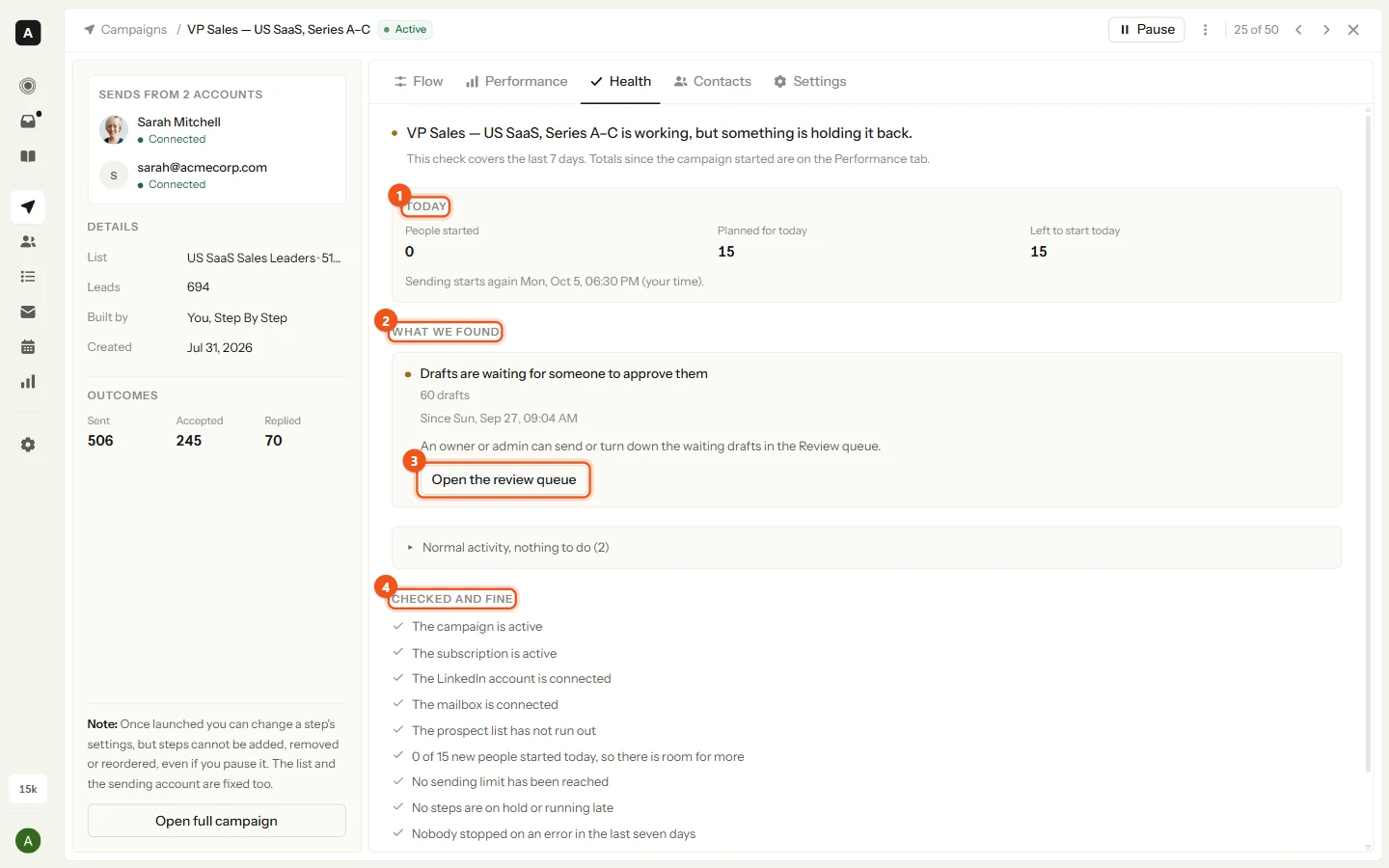
If a campaign is Active but nothing is going out, do one of these:
- Ask Syd: "Why is my campaign not sending?" Syd runs the same check described below and tells you the cause and the fix. See Syd.
- Open the campaign and go to the Health tab. It lists what it found, what to do, and what it Checked and fine.
- Open Settings → Seats & channels to see how much each account has used today.
Most of the time the answer is one of three things: the campaign is outside its sending hours, an account has used up a daily limit, or something needs reconnecting. All three are covered below.
How sending is paced
Syndie does not send everything at once. Three kinds of limits work together, and the slowest one wins.
| Layer | What it limits |
|---|---|
| The clock | The campaign's sending hours and days. |
| The campaign | How many new people it may start each day. |
| The account | How many of each action (invites, messages, profile views, emails) an account may do each day and each week. |
These limits protect your LinkedIn accounts and mailboxes. LinkedIn and email providers restrict accounts that send too much too fast, so the limits are deliberately conservative.
When counters reset. A day's count resets at midnight UTC, not at your local midnight. For a team in New York that is the evening, around 7 or 8 PM. A weekly limit looks at the last 7 days and frees up gradually as older sends drop out of that window.
The sending window
Every campaign has sending hours, send days and a time zone. They are set in the campaign's Settings tab (Timezone used, Send On, Sending hours) and shown in the campaign's own time zone.
- The window must be at least 4 hours long.
- Outside the window nothing is sent. The campaign shows "It is outside the campaign's sending hours". Nothing is wrong, and sending resumes when the window opens.
- New people are started one at a time through the window, with small random gaps, so your account does not send a burst at 9:00 sharp.
- A step that comes due outside the window waits for the next one.
- A new campaign made from New campaign starts at 9:00 AM to 5:00 PM, Monday to Friday, in your browser's time zone. Your workspace default is in Settings → General → Default sending window, and it is used by campaigns created without hours of their own, such as the ones Syd builds.
Limits on new people
| Limit | Value | Notes |
|---|---|---|
| New people per day, per campaign | 1 to 75 | Set in the campaign Settings tab. Counts people who start the sequence, not actions. |
| Several accounts on one campaign | The number applies to each account | Two accounts at 25 means up to 50 new people a day. |
| New people per day, per account | 75 across all active campaigns on that account | The daily numbers of the account's active campaigns cannot add up to more than 75. Checked when you launch, resume or raise the number. |
| Active campaigns per account | 3 | A fourth cannot start until one is paused. |
| Overall starts per account | 400 a day and 1,500 in any 7 days | A safety ceiling across every campaign that uses the account. If the same LinkedIn account is connected in more than one workspace, the ceiling is shared across them. |
People already inside a campaign keep getting their follow-ups. These limits only decide how many new people may start.
Limits on actions, per account
Each action has its own allowance per account, per day and per week. When an action is over its allowance the step is held for later, see below.
| Action | Per day | Per week |
|---|---|---|
| Connection requests and Withdraw invite, free LinkedIn account | 20 | 150 |
| Connection requests and Withdraw invite, paid account (Premium, Sales Navigator, Recruiter) | 50 | 200 |
| LinkedIn messages (follow-ups and Syd's replies together), free account | 40 | 200 |
| LinkedIn messages, Premium | 80 | 400 |
| LinkedIn messages, Sales Navigator | 100 | 500 |
| LinkedIn messages, Recruiter | 150 | 750 |
| InMails | 30 | 150 |
| Profile visits, standard account | 100 | 500 |
| Profile visits, Sales Navigator | 300 | 1,200 |
| Profile visits, Recruiter | 1,000 | 3,000 |
| Post likes | 50 | 250 |
| Post comments | 20 | 90 |
| Follow a profile | 30 | 150 |
| Follow a company | 50 | 250 |
| Replies written by Syd, sent by email (per mailbox) | 80 | 400 |
Steps that send nothing to LinkedIn, such as applying a tag, a condition, waiting for someone to accept, and sending data to a CRM, a webhook or an automation tool, have no limit.
Good to know:
- Follow-ups and Syd's LinkedIn replies draw from one shared allowance. On a busy day, whichever goes out first uses the room. LinkedIn publishes no official message limit, so these numbers follow what LinkedIn tolerates for each kind of account.
- A free LinkedIn account can attach a note to only about 5 invitations a month, so on a free account the note is left out and a plain invitation is sent. On a paid account the note can be up to 280 characters.
- LinkedIn itself can pause invitations on an account for a few days. Sending resumes by itself when the pause ends.
- These numbers can change as an account does. A newer account, or a different LinkedIn plan, moves what is allowed. Settings → Seats & channels shows the live figures for each account, under Show details.
Mailbox limits and warm-up
Emails are limited per mailbox, by provider.
| Mailbox | Per day | Per week |
|---|---|---|
| Gmail | 80 | 400 |
| Outlook | 120 | 600 |
| Yahoo and other providers | 80 | 400 |
New mailboxes warm up. For the first 14 days after you connect a mailbox it may send at most 30 emails a day and 210 a week, whatever its provider. After that it moves to the normal limit. Warming up protects the mailbox's reputation, so emails keep reaching inboxes. If a campaign uses several mailboxes, it spreads people across them.
What "held for later" means
When a step would go over a limit, Syndie does not drop it and does not mark it as failed. It puts the step back in the queue and picks a new time inside the next sending window, usually the next day. You will see this on the Health tab as steps waiting, and on the Performance tab under Still waiting.
For new people it works the same way: the campaign simply stops starting new people until there is room, then carries on. Nobody is lost.
A few holds are different, because they wait for you:
- Invitations whose note is too long once names are filled in wait until you shorten the note.
- Messages set to Require approval wait in the Review queue.
- A paused campaign holds everything until you click Resume.
Reasons a campaign is not sending
The wording below is what you see in the Health tab and in the messages on a campaign. Each one says what it means and how to fix it.
The campaign is not running
| What you see | What it means | What to do |
|---|---|---|
| The campaign has not been launched yet | It is still a Draft. | Open the campaign, go to Review, fix anything marked Needed, then click Launch campaign. |
| The campaign is paused | Someone paused it. | Click Resume in the campaign's menu. |
| The campaign was paused because ... | It paused itself. The reason is named: the sending account was disconnected, the subscription ended, no LinkedIn account or no mailbox is attached, or the mailbox was disconnected. | Fix the named cause, then click Resume. |
| The LinkedIn account is connected again, but the campaign is still paused (same for a mailbox, a subscription, an account) | The cause is fixed, but campaigns never restart on their own. | Click Resume. |
| The campaign has completed | The list ran out and everyone finished. | Create a new campaign with a new prospect list, or duplicate this one and pick a new list. |
| This campaign is archived | Archived campaigns do not run. | Click Unarchive, then Resume. |
Something is missing or disconnected
| What you see | What it means | What to do |
|---|---|---|
| No LinkedIn account is attached to the campaign | A draft with no sending account, or a launched campaign whose account was removed. | In a draft, choose an account on Review. A launched campaign cannot get a new account. Duplicate it and choose one on the new draft. |
| No mailbox is attached for the email steps | A Multi channel campaign with no mailbox. | Choose a connected mailbox on Review. After launch, duplicate the campaign. |
| No prospect list is attached to the campaign | Nobody to contact. | Choose a list on Review. |
| The LinkedIn account this campaign sends from is disconnected (or: One of the LinkedIn accounts ...) | LinkedIn signed the account out, or it was disconnected. | Settings → Seats & channels, click Reconnect. If the campaign paused, click Resume afterwards. |
| The mailbox this campaign sends from is disconnected | Same, for a mailbox. | Reconnect it in Seats & channels, then Resume if needed. |
| LinkedIn signed this account out because it was used somewhere else | The account was opened in another place. | Reconnect it in Settings. |
| LinkedIn needs you to confirm something on this account | LinkedIn is asking for a check, such as a security step. | Open LinkedIn, confirm what it asks, then reconnect the account. |
| LinkedIn has restricted this account, so it can't send right now | LinkedIn has limited the account. | Stop sending from it for now. Use another account or contact support. |
| The workspace subscription is not active, or: The subscription ended, so the campaign was paused | Campaigns do not send without a subscription. | The workspace owner can buy a seat under Settings → Billing & plan, then click Resume. |
| Your workspace ran out of credits | A step that costs credits, such as an email lookup, could not run. | The workspace owner can buy credits under Settings → Usage & credits. |
| This sequence cannot run yet, or: This step can't run as set up | A step is incomplete or no longer supported. | Open the flow, fix the highlighted steps and save. |
Waiting for a limit or for the clock
These clear on their own. You do not need to do anything unless the text says so.
| What you see | What it means | What to do |
|---|---|---|
| It is outside the campaign's sending hours | The window is closed. | Nothing. Sending resumes when it opens. To send more hours, widen the window in Settings. |
| The campaign has reached its own daily limit | It started as many new people as New people per day allows. | Clears at midnight UTC. To start more people each day, raise New people per day in the Settings tab, up to what the account allows. |
| The LinkedIn account has no room to add new people right now (or: None of the LinkedIn accounts ... has room) | The account reached its overall limit of 400 starts a day or 1,500 in 7 days. | Clears at midnight UTC, or as older starts leave the 7-day window. |
| The LinkedIn account has reached its overall sending limit | Same as above, shown as a finding. | Same. |
| The account has reached its allowance for connection requests (or follow-up messages, InMails, profile visits, and so on) | That action used its daily or weekly allowance. | Steps are held and go out later. Clears at midnight UTC, or as older sends leave the 7-day window. |
| The LinkedIn account cannot send more connection requests for now, so no new people are being added | The account used its invitations for today or this week. | New people are added again when there is room. The next check is just after midnight UTC. |
| LinkedIn has paused connection requests on the account, so no new people are being added | LinkedIn itself stopped invitations on this account for a few days. | It resumes by itself on the date shown. Do not try to work around it. |
| Profile views are limited on the account right now, so no new people are being added | The account used its profile views. | Clears by itself. Sales Navigator accounts get a higher allowance. |
| The mailbox has reached its email sending limit for now, so no new people are being added | The mailbox hit its daily or weekly limit, or is still warming up. | Clears tomorrow. Add another mailbox to the campaign to send more. |
| 1 of 3 accounts on this campaign has reached its allowance | Only some accounts are at the limit. | The other accounts keep sending. People on the full account wait. |
| New people were held earlier and the campaign has not been checked again yet | An older note. The live numbers no longer show a problem. | Clears at the next check, usually within a few minutes. |
| Some scheduled steps are running late | The queue is a little behind. | Usually clears within minutes. |
| LinkedIn asked us to slow down. Sending continues automatically | LinkedIn asked for a pause. | Nothing to do. |
| LinkedIn couldn't be reached, or took too long to answer | A temporary problem. | Nothing to do. The step is tried again. |
The prospect list
| What you see | What it means | What to do |
|---|---|---|
| The prospect list has no people stored yet | The list is still filling. | Wait, or check the list under Prospect lists. |
| The prospect list has run out | Everyone has been reached. | Create a new campaign with a new list. |
| The list has run out and the campaign is finishing its current people | No new people, but some are still in their sequence. | Nothing to do. It becomes Completed when they finish. |
| The list reached the most results LinkedIn will return | LinkedIn only returns the first 2,500 results of a saved search. | Create a new campaign with a list from a narrower search, or add another source. |
| The account the list searches from is disconnected | The list fills using a LinkedIn account that is signed out. | Reconnect that account. |
| The list has no account to search from | A search-based list needs a LinkedIn account. | Open the list and attach an account, then start the campaign again. |
| LinkedIn didn't return more people for the lead list | A temporary problem. | Try again later. |
| N of the M people checked in the last seven days were turned away before starting | They were duplicates of another campaign, on your blocklist, already connected, already in this campaign, or their profile could not be read. | Use a list that overlaps less with your other campaigns. Turn on Prevent duplicate leads in Settings → General to keep each person in one campaign. |
Messages held back or failing
| What you see | What it means | What to do |
|---|---|---|
| Drafts are waiting for someone to approve them | Steps with Require approval are waiting. | An owner or admin approves or rejects them in the Review queue. See Approvals. |
| Invitations are waiting because the note is too long once names are filled in | The note is over the limit for the account. | Open the flow, shorten the note on the connection request step and save. The held invitations then send. |
| This account can't add a note to invites | A free LinkedIn account cannot send a note with an invitation. | Remove the note from the step, or run it from a paid account. |
| This step's message is empty | The step has no message. | Add a message to the step. |
| The campaign instructions are too long | The step's Custom Guidelines are over 1,000 characters. | Shorten them and save. |
| The meeting type used in this step no longer exists | The booking link was deleted or paused. | If paused, turn it back on in Meetings with Resume bookings. Otherwise pick another link. |
| This step has too many attachments | Too many files on one step. | Remove some. |
| The written message wasn't good enough to send, so it was held back | A reply Syd wrote did not pass its review. | Nothing to do. That reply was not sent. |
| This account's LinkedIn plan can't do this step, or: This account can't send InMail | The account lacks that feature. | Use a paid account or remove the step. |
People stopped or skipped
These are normal. A person who does not need a step is skipped, and the rest of the campaign keeps going.
| What you see | What it means |
|---|---|
| Some people replied, so the campaign stopped messaging them | Stop when someone replies is on. |
| Some people booked a meeting, so the campaign stopped messaging them | The goal was reached. |
| Some people were stopped by your team | Someone removed them from the campaign. |
| Some people stopped because another campaign in this workspace had already contacted them | Duplicate protection. |
| Some invites were skipped because the people were already connected | The invite was not needed. |
| Some emails were skipped because no email address was found | Turn on Look up missing email addresses, or use a list with emails. |
| Some emails were skipped because the address had unsubscribed or bounced before | We never email an address that opted out or bounced. |
When to ask for help
Contact support, or ask Syd to hand the question to a person, if you see:
- "Something went wrong on our side. The team has been told."
- "This step kept getting interrupted, so it was stopped."
- "Some steps did not confirm whether they were sent."
- A reason that "has no description yet", or failures with no recorded cause.
- "The uploaded file could not be stored" or "New people couldn't be saved to the lead list."
When you write to support, include the campaign name and what the Health tab says.
Tips to send more, safely
- Add accounts. Two LinkedIn accounts on one campaign doubles the new people per day, and each keeps its own limits. See Accounts.
- Keep New people per day within what the account can really do. A higher number does not send faster than the account's action allowances.
- Use a wide sending window in your prospects' time zone.
- Warm up new mailboxes and new LinkedIn accounts instead of pushing them.
- Prefer a paid LinkedIn account for invitation-heavy campaigns: it allows more invitations a day and week.
Replies & Meetings
Unibox
One inbox for every LinkedIn and email conversation your campaigns start. Read, filter, reply and get help drafting.
What the Unibox Is
The Unibox is where every conversation your campaigns start comes back to you. LinkedIn messages and email replies sit in one list, so you answer people in one place instead of jumping between LinkedIn, your mailbox and Syndie.
Open Unibox from the main menu. The list of conversations is on the left. The conversation you pick is on the right.
A person shows up in the list when at least one of these is true:
- They accepted your LinkedIn connection request.
- They replied on LinkedIn.
- They have an email conversation with you.
If your role is limited to certain LinkedIn accounts, you only see the conversations that belong to those accounts.
The Conversation List
Each row shows:
- The person's photo, with a small LinkedIn icon. A small mail icon appears next to it when the person also has an email conversation.
- Their name and how long ago the conversation last moved.
- Their headline or company.
- A status label, when one applies:
| Label | What it means |
|---|---|
| They replied | They wrote and you have not opened it yet. |
| Draft ready | Syd already wrote a suggested reply for you. |
| Replied | The person has replied and you have already read it. |
- Their tags. Click Add tag on a row to tag the person without opening the conversation.
Click Load more at the bottom to see older conversations.
Finding a Conversation
The controls above the list:
- Search conversations… Type a name to filter the list.
- More filters (the sliders button). It opens two options:
- Channel: All, LinkedIn or Email. Email shows only people who also have an email conversation. LinkedIn hides the people who have an email conversation.
- Tag: pick a tag, or leave it on Any tag.
- Clear these filters resets both. A small number on the button tells you how many of these filters are on.
- All accounts: narrow the list to one connected LinkedIn account. A red dot means at least one of your accounts is disconnected. Open the menu to see which. Reconnect it from Settings → Seats & channels (see Accounts).
- All campaigns: show only the people from one campaign.
- All / Unread: switch between every conversation and only the ones you have not read. Each button shows a count.
- Mark all read: marks the conversations currently loaded in the list as read. It does not touch ones you have not loaded yet.
If nothing matches, the list says so and offers Clear filters.
Opening a conversation marks it as read. Unread is tracked for LinkedIn and email separately, so an unanswered email does not get lost behind a LinkedIn thread you already read.
Reading a Conversation
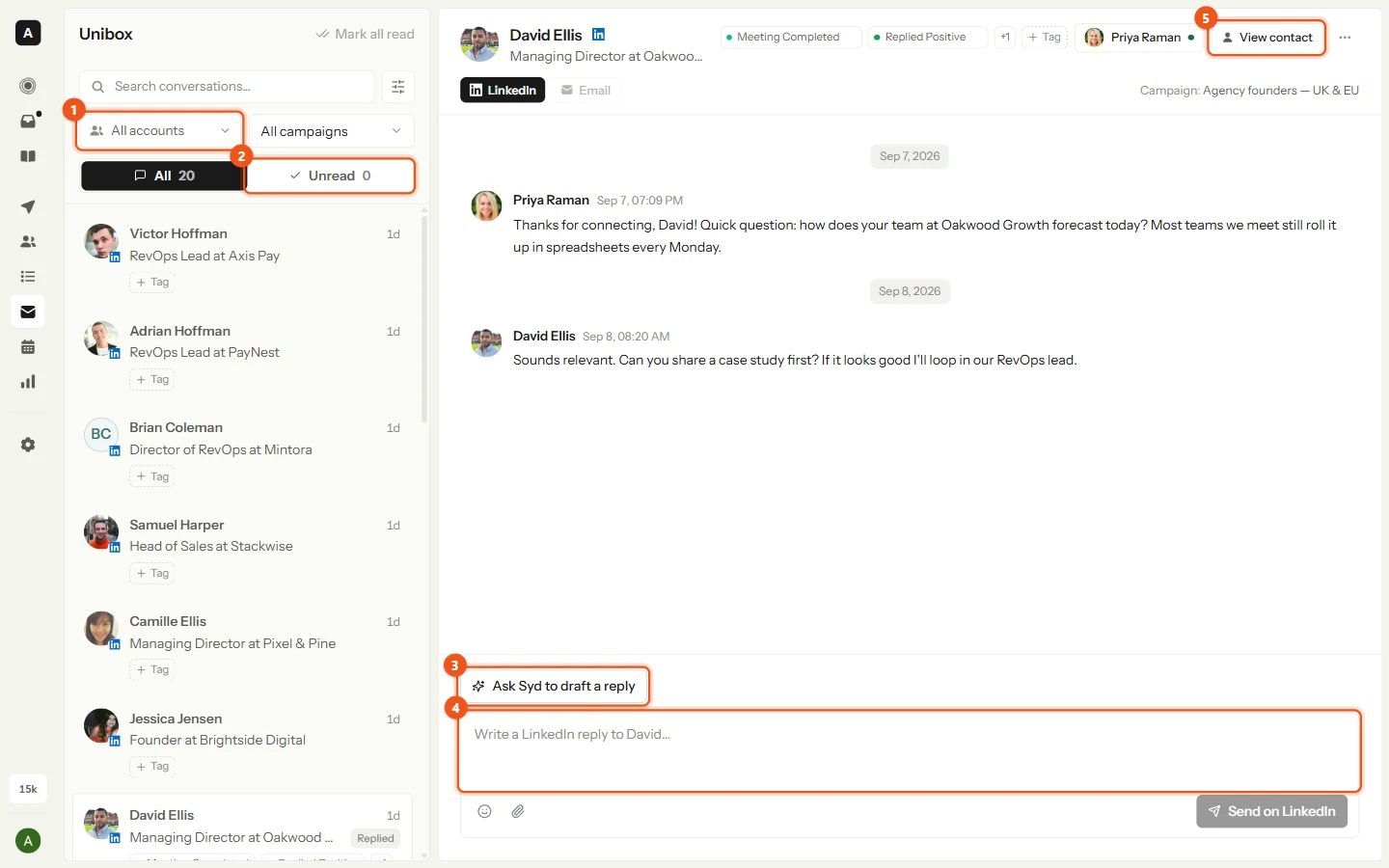
At the top of the conversation you see:
- The person's name, headline and company. Click the small LinkedIn icon next to the name (Open on LinkedIn) to open their profile in a new tab.
- Their tags. Click Add tag (or Tag) to add or remove tags without leaving the conversation.
- The LinkedIn account the conversation belongs to, with a green dot when it is Connected and a red dot when it is Disconnected.
- View contact: opens the person's contact record, where you can see notes, tasks and history. See Contacts.
- A Conversation actions menu (the three dots) with:
- Open the campaign: jumps to the campaign that contacted this person.
- Stop execution: see "Stopping a Person" below.
- Campaign: shows which campaign the person came from.
Under that are two tabs, LinkedIn and Email. The Email tab is greyed out, with the hint No email conversations, until the person has an email thread.
LinkedIn tab. Messages are grouped by day. If the person sent a file, click it to open or download it. A file that LinkedIn no longer holds shows as "no longer available".
Email tab. You see the subject line, the mailbox the emails were From and the address they went To. Emails you sent show an Opened label when the person opened them and a Clicked label when they clicked a link. Attachments work the same way as on LinkedIn.
Replying
Type in the box at the bottom of the conversation.
On LinkedIn
- Type your message in Write a LinkedIn reply to (name)…
- Click Send on LinkedIn (or press Ctrl+Enter, Cmd+Enter on a Mac).
Extras:
- Emoji: click the smiley button and pick one.
- Attach a file: click the paperclip. You can attach one file per LinkedIn message.
- Length: a LinkedIn message can be up to 8,000 characters. A counter appears when you get close, and Send on LinkedIn is disabled when you go over.
By email
- Open the Email tab.
- Type your reply in Write an email reply to (name)…
- Click Send from followed by your mailbox address.
Extras:
- You can attach several files to one email.
- Replying by email needs a connected mailbox on that person's campaign. If there is none, you see "No mailbox on this seat can reply to this thread" with a pointer to Settings → Seats & channels, and the box stays locked until you connect one.
Attachment size
Files you attach in the Unibox can add up to 4 MB in total per message. If they are larger, you get "Attachments can be 4 MB in total. Please pick a smaller file."
If a message does not go out
You see "That message did not send." (LinkedIn) or "That email did not send." (email) under the box. Your text stays in the box so you can try again. If it keeps failing on LinkedIn, check that the account shows Connected.
Answering by Hand Stops the Rest of the Sequence
When you write to someone, Syndie takes it as "a person has taken over".
- The person's remaining campaign steps are cancelled. They get no more automatic messages or emails from that campaign.
- Syd (the AI replies) steps back for good on that conversation. It will not write over you.
- Any reply Syd had waiting for that person in the Review queue is closed.
- If Syd had already been answering that person, they get the Needs Human tag so you can find them later.
This happens when you send from the Unibox. Syndie also notices when you answer straight from LinkedIn or from your own mailbox.
A separate campaign setting, Stop when someone replies, decides what happens when the person writes to you. See Campaigns.
Stopping a Person Without Writing
Open the Conversation actions menu and choose Stop execution. Confirm Stop this conversation? and no further steps run for that person. Messages already sent stay where they are, and this cannot be undone. The menu shows Execution stopped once it is done. The option only appears while the person is still in a running sequence.
Getting Help With a Reply
Syd can write a suggested reply for you. It is only ever a suggestion. Nothing is sent until you click send.
- Open a conversation where the person has written.
- Click Ask Syd to draft a reply. (The button shows when the person has written, and there is no draft or waiting reply yet.)
- The draft appears in the message box, under the label Syd's draft · read it before sending.
- Edit it however you like, then send it yourself.
With a draft showing you can also:
- Rewrite: ask for a different draft.
- Discard: throw the draft away.
- Why this reply: see what Syd answered and a reminder that every claim was checked against your knowledge base. Anything it could not support was left out instead of guessed.
If the draft could not answer something from your Knowledge Base, a yellow box says "Syd could not answer this from your knowledge base, so add it yourself" and lists the questions. Fill those in before you send.
If you see "Syd found no message from (name) to reply to", the person has not written anything yet.
Drafts waiting for you
Sometimes a draft is already there when you open a conversation. When someone replies on LinkedIn and the campaign stops on reply, Syndie can write a draft for you right away. These are marked Draft ready in the list and are always free.
If Syd is set to write replies for your approval, you may see a yellow notice instead: "Syd wrote a reply to this. It's waiting for your approval." Click Review it to open it in the Review queue. A notice that says "Syd handed this conversation to you, with a suggested reply" has an Open it link that does the same.
What drafts cost
- Your workspace gets a daily allowance of free suggested replies (100 a day).
- After that, Ask Syd to draft a reply first shows This suggested reply costs credits. It tells you how many free ones you used and the price (1 credit, charged only if a reply is actually written). Choose Draft it to go ahead or Not now to cancel. The free ones come back the next day.
- Asking Syd questions in chat never uses credits.
For the full story on Syd answering on its own, see AI Replies, Reply Mode & Agent Rules.
Tags
Use tags to sort people as you talk to them, for example a tag for hot leads or booked meetings. You can add or remove a tag from the list row or from the top of the open conversation. Tagged people can be filtered here with More filters → Tag, and in Contacts.
When Syd answers replies it also applies its own tags, such as Replied Positive, Replied Negative, Out of Office, Follow Up Required, In Conversation, Do Not Contact, Referral, Wrong Person and Needs Human.
Common Problems
| Problem | What to do |
|---|---|
| A person I expect is missing | They only appear after they accept your request, reply, or start an email conversation. Clear all filters, then check All accounts and All campaigns. |
| The Email tab is greyed out | The person has no email conversation yet. |
| I cannot send an email reply | Connect a mailbox for that campaign in Settings → Seats & channels. |
| LinkedIn shows Disconnected | Reconnect the account in Settings → Seats & channels. |
| "Attachments can be 4 MB in total" | Pick a smaller file, or send a link instead. |
| Send on LinkedIn is disabled | The message is empty or over 8,000 characters. |
| A draft I did not ask for is in my message box | A draft was already waiting for this person. Edit it, or click Discard to clear it. |
| The conversation count looks off after Mark all read | It only affects the conversations loaded on screen. Click Load more, then use it again. |
Messages sent by your campaigns can be held for a person to check before they go out. See Approvals & Review Queue.
Replies & Meetings
AI Replies, Reply Mode & Agent Rules
Let Syd answer the people who reply to your campaigns. Choose Off, Drafts or Automatic, set your own rules, and see what Syd will and will not do.
What AI Replies Do
When someone answers one of your campaign messages, Syd can read the reply and decide what to do.
- Someone replies to your message.
- Syd reads it and decides: answer, hand it to you, stop, or stay quiet.
- If Syd answers, Drafts mode waits for you to approve the reply first. Automatic mode sends it.
Syd answers replies on LinkedIn and, for campaigns that send email, on email too. It writes in your voice, in the language the person wrote in, and keeps answers short (about 60 words on LinkedIn, about 120 by email).
Growth plan feature. Answering replies is part of the Growth plan. You can set everything up on any plan, but Syd only starts answering once the Growth plan is active. Asking Syd for a draft inside the Unibox is separate and does not need the automatic setup described here.
What You Need
- The Growth plan.
- At least one connected LinkedIn account. Without one, the settings page warns you that there are no LinkedIn replies to answer.
- A knowledge base on each campaign that Syd answers for. See Knowledge Base.
- Syd switched on for the campaign (Let Syd reply) and a reply mode other than Off for the workspace. Both are explained next.
Two Settings Decide Whether Syd Answers
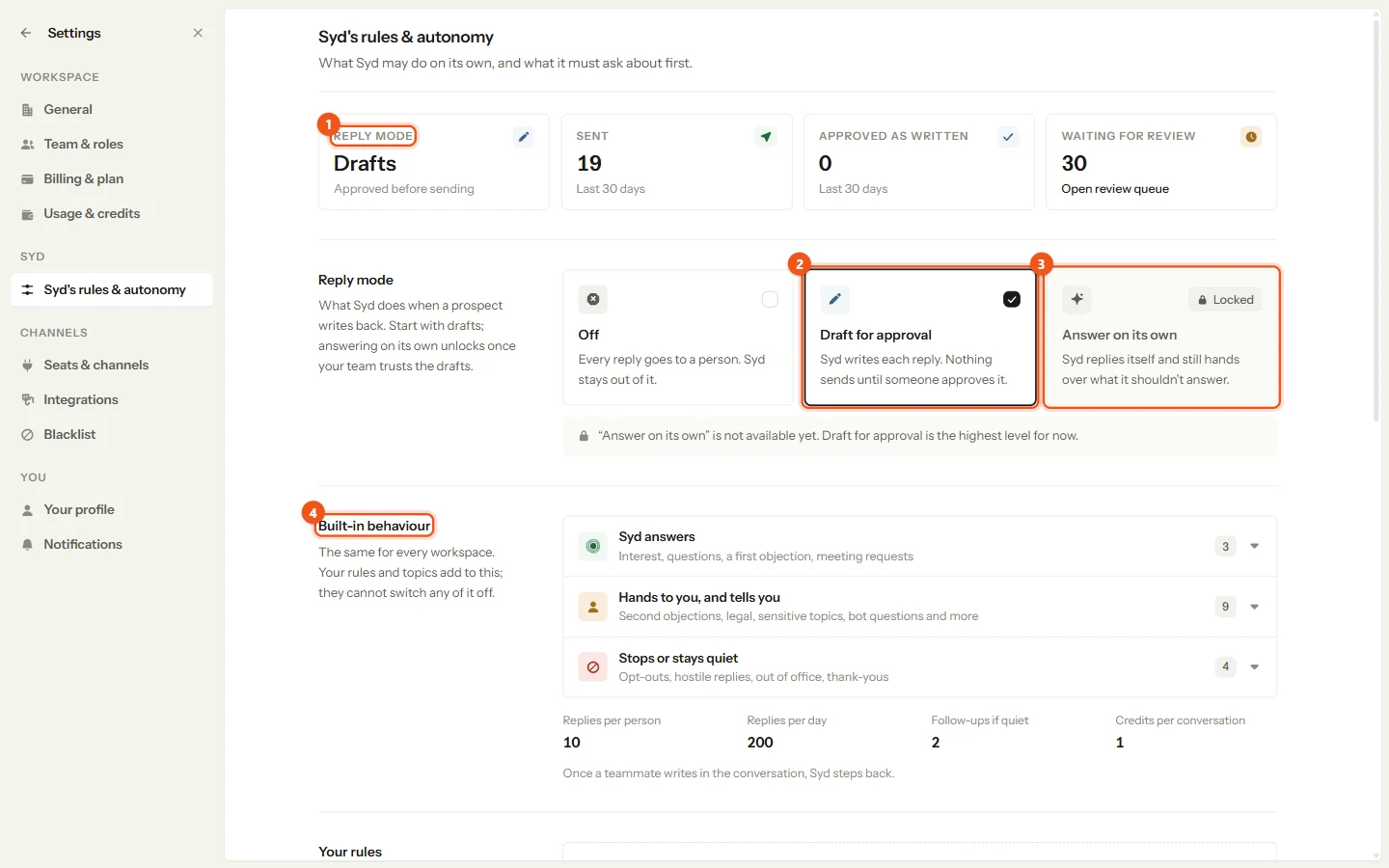
| Setting | Where | What it controls |
|---|---|---|
| Reply mode | Settings → Syd's rules & autonomy | What Syd does for the whole workspace: Off, Drafts or Automatic. |
| Let Syd reply | The campaign's settings | Whether Syd answers replies for that one campaign. |
Both must allow it. If the campaign switch is off, or the reply mode is Off, the reply simply waits for you in the Unibox.
Reply mode (the whole workspace)
Open Settings → Syd's rules & autonomy. Under Reply mode pick one of three cards:
| Card | Shown as | What happens |
|---|---|---|
| Off | Off | Every reply goes to a person. Syd stays out of it. |
| Draft for approval | Drafts | Syd writes each reply. Nothing is sent until someone approves it in the Review queue. |
| Answer on its own | Automatic | Syd sends replies itself and still hands over anything it should not answer. |
- Drafts is the default. Every workspace starts there.
- The change saves as soon as you click a card. You see Saved.
- Only Owners and Admins can change it. Everyone else can look at the page but not edit it.
- If you switch to Off, replies that Syd had not sent yet are dropped and left for you.
Let Syd reply (one campaign)
In a campaign's settings, switch on Let Syd reply. Next to it you will find:
- Knowledge base: what Syd answers from. Syd cannot be switched on without one. You can add one after launch but not swap it for another. The knowledge base can also come from the campaign's lead list or targeting profile.
- Booking link: optional. When someone asks to meet, Syd offers two free times from this link and books the one they pick. Without one, it hands the request to you. A booking link that has been paused is marked (paused).
Good to know:
- New campaigns start with Let Syd reply already on when your workspace is on the Growth plan and the reply mode is not Off.
- On the Starter plan the switch is greyed out with "Included in the Growth plan."
- If the campaign is one where Syd plans each person's steps, switching it off shows a warning. The campaign keeps sending, but nobody answers people who write back. Choose Turn it off anyway or Keep it on.
- Switching it off drops replies that Syd had not sent yet and leaves them with you.
Unlocking Automatic
Answer on its own starts Locked. It unlocks once Syd has earned your trust, based on how you handled its drafts in the Review queue. Under the cards you see Unlocking "Answer on its own" with a count such as "2 of 3 met". The three checks:
| Check | What it needs |
|---|---|
| Drafts reviewed | At least 50 drafts approved or turned down. |
| Approved without edits | At least 90% of the reviewed drafts approved exactly as Syd wrote them. |
| Drafts rejected as untrue | None turned down with the reason Wrong facts. |
When all three pass:
- You get a notification: "'On its own' is now available".
- The lock comes off the Answer on its own card.
- It never turns itself on. You decide when to pick it.
If you see "'Answer on its own' is not available yet. Draft for approval is the highest level for now", Automatic is not yet open for your account.
When it moves back to Drafts
While Automatic is on, Syndie watches how you treat Syd's replies. It moves you back to Drafts straight away if:
- a reply is turned down as Wrong facts, or
- three replies are turned down within one week.
You get a notification, and the page says "Moved back to drafts on (date) because…". The count starts again from that day, and to unlock again you need 20 drafts reviewed (instead of 50), still with 90% approved as written and none rejected as untrue.
What Syd Will Do
This is built in. It is the same for every workspace, and your rules can add to it but cannot switch any of it off. You can read it on the settings page under Built-in behaviour.
Syd answers
| When the person… | Syd… |
|---|---|
| Shows interest, asks a question, or raises a first objection | Writes an answer. |
| Asks to meet | Offers two free times from your Booking link, or sends the link if they ask for it. In Automatic it goes out like any other reply. |
| Says "not now" or a polite no | Sends one closing reply, then stops. |
Syd hands the conversation to you, and tells you
- A second objection.
- Wrong person, or a referral to someone else.
- A request for a file, deck or price list.
- A question about whether they are talking to a bot.
- Legal or data-protection requests.
- Sensitive or personal topics.
- Voice notes, images or anything without text.
- Anything Syd is not confident it read correctly.
- Any word or phrase on your own Always hand to a person list (see below).
- A meeting request when no booking link is set up, or when the person already sent their own link.
Syd stops or stays quiet
| When the person… | Syd… |
|---|---|
| Asks to stop | Stops, tags them Do Not Contact and puts their email on your Blacklist when there is one. |
| Is hostile | Stops and tells you. |
| Sends an out-of-office message | Tags it Out of Office and does not reply. |
| Sends a thank-you or a thumbs-up | Does not reply. |
Other built-in behaviour
- Syd waits about 2 to 15 minutes before replying, and only inside the seller's Reply hours (8:00 to 20:00 unless changed in Settings → How Syd writes).
- If the person goes quiet after Syd's answer, Syd can follow up twice: about 3 working days after its answer, and about 10 working days after the first follow-up. In Drafts mode, follow-ups wait for approval like any reply.
- Syd steps back for good on a conversation as soon as a person on your team writes in it.
- The first reply Syd sends by email ends with a short line telling the person they can reply to stop hearing from you.
- Syd writes as you. It never says it is an AI and never claims to be a person. If someone asks, it does not answer that question and hands the conversation to you.
- Syd reads the newest notes your team wrote on the person, so it does not contradict what you know. It never quotes them, and a reply that repeats a note's words is not sent. See Contact notes below.
What Syd Will Not Do
Before a reply goes anywhere, it passes safety checks. A reply that breaks one of these is not sent. The conversation is handed to you instead.
- Include a link, web address, email address or phone number.
- Quote or guess a price, discount, guarantee, refund or free trial.
- Suggest a day, date or time.
- Promise to send something.
- Say it is an AI or a person.
- Use a number that is not in your material.
- Repeat the person's message back, or repeat something already said.
- Greet or sign off with the wrong name.
- Be far too long or far too short.
Syd also answers only from your knowledge base. If it cannot support something, it leaves it out and lists the question as unanswered. In that case the reply is held for you, even in Automatic mode. If a campaign has no usable knowledge base, Syd hands questions and objections to you.
When the reply is held, the Review queue shows what Syd could not answer. You can type the answer there and click Save this answer to add it to the knowledge base for next time.
Your Rules and Topics
On Settings → Syd's rules & autonomy you can add your own guidance. It applies to every campaign.
Your rules
- Click Add rule and write one instruction per rule, written to Syd. Short "if … then …" rules work best.
- Click an example to start from it: Pricing questions, Competitors or No promises.
- All rules together can be up to 1,000 characters. A counter shows how much you have used, and you cannot save while you are over.
- Remove a rule with the X next to it.
- A bar appears at the bottom with Discard and Save changes. Nothing is saved until you click Save changes.
Your rules sit below safety and the knowledge base. They can guide tone and approach but they cannot make Syd break a safety rule.
Always hand to a person
Type a word or phrase and press Enter to add it to the list. If a reply mentions one of them, Syd hands the conversation to you instead of answering.
- Up to 20 topics, each up to 40 characters.
- Capital letters and accents are ignored. Only whole words match.
- Starter ideas appear when the list is empty: pricing negotiation, security review, contract terms, partnership.
Contact notes
Read contact notes when writing is on unless someone turns it off. When it is on, Syd reads the five newest notes on a person before it writes to them, in campaign messages and in replies. That includes notes on another record of the same person, such as a contact imported from Apollo.
- The notes are private background. Syd never quotes them and never says they exist.
- A message that repeats a note's words, or uses a number found only in a note, is not sent.
- The switch saves as soon as you flip it and applies to the whole workspace. Owners and admins can change it.
- Turn it off if your notes hold things the AI should not see.
Try It Before You Rely On It
The Try it box on the same page lets you play the prospect. Choose what to Test with (a campaign or a knowledge base), the channel (LinkedIn or email), then write a message. Syd shows what it would do: answer, draft, hand over or stop, plus why.
- Nothing is ever sent.
- It uses the rules on the page, even ones you have not saved yet.
- You get 20 tries a day.
- A knowledge base on its own has no booking link, so meeting requests go to you in the test. Pick a campaign to test the booking link.
- Reset clears the test conversation.
Limits
| Limit | Value |
|---|---|
| Replies per person | 10 |
| Replies per day | Whichever is lower: what your connected accounts allow, or 200 for the whole workspace. On LinkedIn, replies share each account's daily message limit with your follow-ups (see Sending limits). The settings page shows your number. It resets at midnight UTC. |
| Follow-ups if the person goes quiet | 2 |
| Credits per conversation | 1 |
| Free suggested replies per day (Unibox button) | 100 |
Credits
- Syd uses one credit per conversation it answers. The credit is taken when the first reply goes out. Later replies in the same conversation are free.
- Replies that you send from a handed-over conversation do not cost credits.
- If your workspace runs out of credits, Syd does not start new reply conversations and hands them to you. Conversations already under way can continue. Campaigns keep running either way. Buy more under Settings → Usage & credits (see Billing).
- Plans with unlimited credits are not charged.
Daily limit
When the daily limit is reached, Syd pauses replies until the next day. You get a notification. If a reply still cannot go out, the conversation is handed to you.
What You See and Where
At the top of Settings → Syd's rules & autonomy:
- Reply mode: the one that is active now.
- Sent: replies Syd sent in the last 30 days.
- Approved as written: drafts you approved without edits in the last 30 days.
- Waiting for review: replies waiting for you, with an Open review queue link.
Yellow notices on the page flag problems: no Growth plan, no LinkedIn account connected, or campaigns that answer replies but have no usable knowledge base (named as none chosen, deleted or empty).
Notifications
Syd tells you when it needs you. Notifications appear in the bell menu:
| Notification | Meaning |
|---|---|
| Syd wrote a reply for (name) | A draft is waiting for your approval. |
| Syd needs you: (name) asked something it can't answer | A draft is waiting and has gaps for you to fill. |
| Syd handed (name) to you | A conversation needs a person. The reason is in the title. |
| Syd stopped a conversation with (name) | The reply was hostile. Nothing was sent back. |
| Replies from Syd are waiting for your approval | A reminder. They come after about 30 minutes, a day and three days. |
| (name) is still waiting for a reply | A handed-over conversation nobody has answered, after 24 and 72 hours. |
| Syd paused replies | The daily limit was reached, or credits ran out. |
| "On its own" is now available | The three checks passed. |
| Syd went back to Ask me first | Automatic moved back to Drafts (this is the same as Drafts). |
Taking Over a Conversation
You can always step in. Write to the person yourself in the Unibox and Syd steps back for good on that conversation, and the rest of the campaign stops for that person.
For conversations Syd handed to you, the Review queue offers Let Syd continue after this. See Approvals & Review Queue.
The Assistants Page
Assistants is a separate page for outside tools you allow to act in your workspace. It is not where Syd's reply behaviour is set. Anything an outside assistant wants to send or change also waits for your approval in the Review queue.
Common Problems
| Problem | What to do |
|---|---|
| Syd is not answering replies | Check all four: Growth plan active, a reply mode other than Off, Let Syd reply on for the campaign, and a knowledge base on the campaign. |
| Let Syd reply will not switch on | The campaign has no knowledge base yet. Pick one first. |
| Answer on its own is locked | Keep reviewing drafts in the Review queue. Check the three meters under the cards. |
| Replies keep landing in my Review queue in Automatic mode | Syd holds anything it could not fully answer from the knowledge base. Add the missing answers. |
| Syd handed over a conversation I expected it to answer | Open it in the Review queue. The top of the card says why. Common causes: a second objection, a question the knowledge base does not cover, or one of your topics. |
| "Syd paused replies" | The daily limit was reached, or credits ran out. Replies resume the next day, or after you buy credits. |
| Meeting requests go to me | The campaign has no booking link, or the person sent their own link. Add one under Booking link in the campaign's settings. See Meetings. |
| I cannot edit the rules | Only Owners and Admins can change them. |
Replies & Meetings
Approvals & Review Queue
Check, edit and approve what waits for a person before it goes out. Messages from your campaigns, Syd's reply drafts and actions Syd asks to take.
What the Review Queue Is
The Review queue is one place for everything that needs a person to say yes before it happens. Nothing in it is sent or done until someone approves it.
Open Review queue from the main menu. A number next to it shows how much is waiting. (The old Approvals page was merged into the Review queue, and old links to it lead here.)
Three kinds of things can wait here:
| What waits | Where it comes from | What approving does |
|---|---|---|
| A campaign message | A step in a campaign that has Require approval switched on | Sends the message. |
| A reply from Syd | Syd answering a reply while the reply mode is Drafts, plus follow-ups and conversations Syd handed to you | Sends the reply. |
| A request from Syd | An action Syd wants to take for you, like launching a campaign | Does the action. |
Who Can Decide
- Owners and Admins can send, turn down and bulk-handle messages.
- Members can open the queue, read everything and edit a draft, but cannot send it. The page tells them "Releasing a message to a prospect is an owner or admin decision." Someone with the authority sends it.
Holding Campaign Messages for Review
Put a person between your campaign and your prospect on any step you choose.
- Open the campaign and go to the Flow Builder.
- Click a step. These steps can be held: Send Connection Request, Send Message, Send InMail, Send Email and Comment on Post.
- Switch on Require approval ("Hold this step for a human to review before it sends").
- Save the flow.
From then on, every message that step produces waits in the queue instead of going out. You can hold only one step and let the rest run on their own, for example review the first message and let follow-ups send automatically.
Syd's replies do not need this switch. They wait in the queue when the workspace Reply mode is Drafts. See AI Replies, Reply Mode & Agent Rules.
Finding Your Way Around
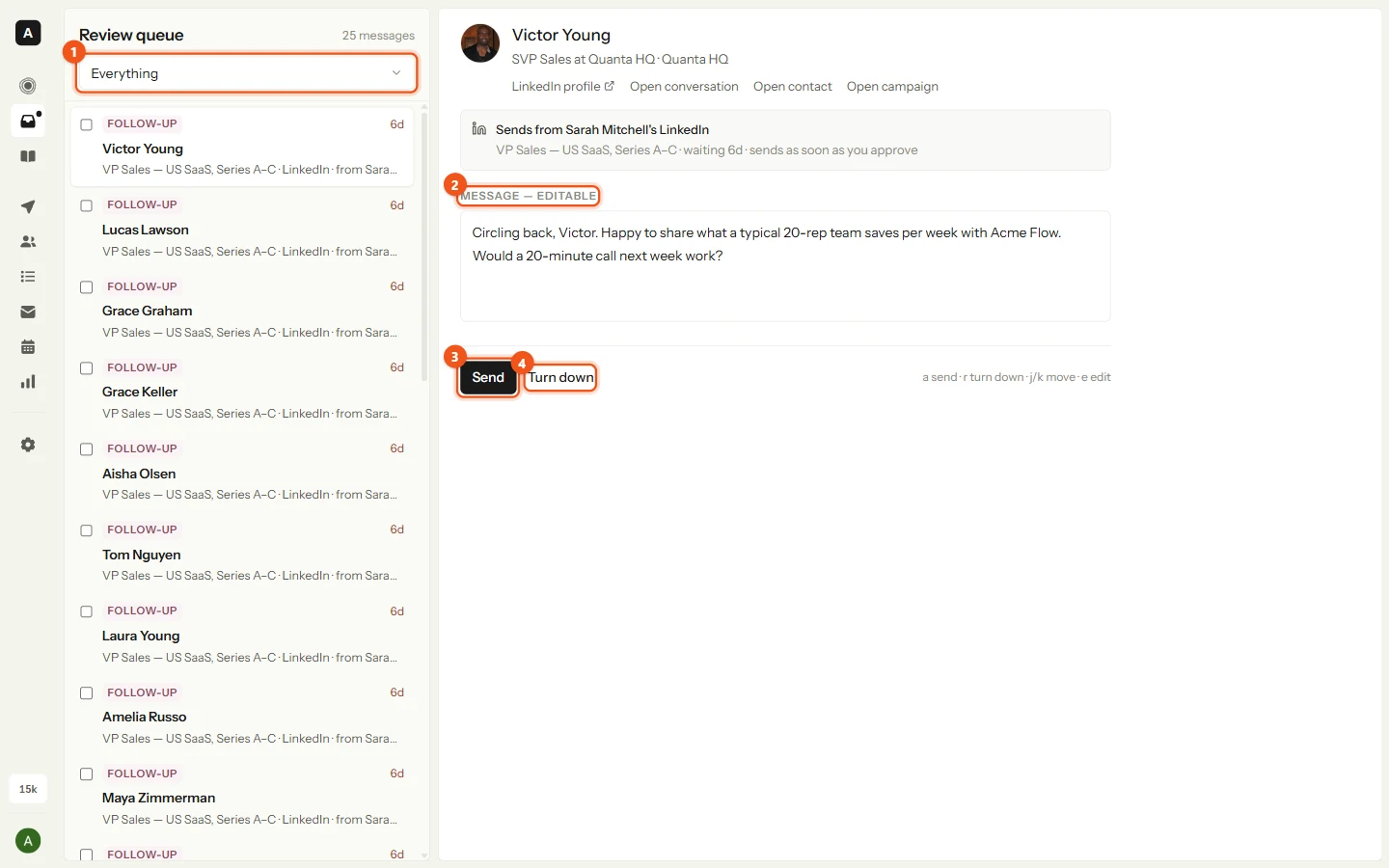
The list is on the left and the selected item is on the right. At the top of the list you see the number of requests and messages waiting.
- Filter by what is needed: Everything, Requests from Syd, Ready to send, Needs a person or Blocked. Only the groups that have something in them appear.
- Filter by campaign: appears when more than one campaign has something waiting.
- The list has two sections: From Syd (requests) and Messages.
- Each row has a coloured label for its kind: connection request, follow-up, email, InMail, public comment, Syd reply, nudge, wants to meet, needs a person, handed to you, request, or blocked.
- On the right side of a row, the time it has been waiting. It turns to a warning colour after a day and to a red one after three days.
- Click Show more at the bottom to load more.
If nothing is waiting, the page says Nothing waiting and offers shortcuts that ask Syd to start a campaign, build a list, summarise what is running, or show recent replies.
Reviewing a Campaign Message
Click a row. On the right you see:
- Who it is for, with links to their LinkedIn profile, the Open conversation, Open contact and Open campaign pages.
- Which account it will go out from, and how long it has been waiting. The same line says when it will go: "sends as soon as you approve" or a date and time. Once you approve, a message goes out in the campaign's next sending window and counts toward your daily limits.
- For emails and InMails, a Subject box.
- The message itself, in an editable box. For connection requests a counter shows the note length, for example 120 / 190. The limit is 190 characters for a free LinkedIn account and 280 for a paid one. A request can also go with no note.
- Any attached file.
- For public comments, a warning that the comment posts publicly under the sender's name and cannot be taken back, and the text of the post it answers.
Your choices:
- Send: sends the message as written. If you changed the text it reads Send edited.
- Turn down: opens two options.
- Skip this message, keep going: nothing is sent and the person carries on to the next step of the campaign.
- Stop this person: nothing is sent and the campaign ends for this person. In campaigns where Syd plans the steps, a connection request that is still pending is withdrawn first.
- Cancel closes the options.
Reviewing a Reply From Syd
Replies Syd wrote show the label Syd reply. The card shows:
- They wrote: the message Syd is answering.
- Syd's draft, editable: the reply. You can change anything.
- Used the knowledge base (Yes or No) and Syd would have sent this on its own (Yes or No). If the second one says No, Syd was not sure and wants your eyes on it.
- For a follow-up to someone gone quiet, the label nudge and a Follow-up number.
- A yellow box Syd could not answer this when something was missing from the knowledge base. Type the answer in the box under it and click Save this answer. It is saved to the knowledge base for every future conversation.
- If the person writes again while the reply waits, Syd writes it again on its own from the whole conversation. Meanwhile the card says Syd is writing it again, and the new version replaces it in a few seconds. If you had started editing, your edit is kept aside with a Use my edit link.
- If the reply was handed to you only because their earlier message was unclear, and their new message is clear, Syd takes the conversation back. Its new reply still waits for your approval.
- If Syd cannot write it again (for example the campaign is paused), a box says "They wrote again, so this reply answers an earlier message", with a Rewrite from the whole conversation button.
Your choices:
- Send or Send edited: sends the reply right away.
- Turn down: asks Why? and offers three reasons: Wrong facts, Wrong tone and I'll handle this one. Syd then hands the conversation to you, and you answer in the Unibox. Your answers count toward unlocking Automatic mode, so be honest with the reason.
A reply labelled wants to meet carries your booking link.
Conversations Syd Handed to You
A row labelled handed to you means Syd stopped on purpose. The card explains why, for example "they asked for a file or link" or "they objected a second time". It also opens with a suggested reply when Syd could write one, labelled Your reply, suggested by Syd, editable. Handed-over conversations are never approved in bulk.
- Send my reply: sends the text in the box as your own reply. The conversation is yours from then on.
- I'll reply in Unibox: closes the item without sending anything. Go answer in the Unibox.
- Let Syd continue after this (tick box, off by default): after you send, Syd goes back to answering the person's next messages with the replies it has left. This option only shows when it is allowed. For example it does not appear when the hand-over was because the reply limit or credits ran out.
If a handed-over conversation has waited more than a week, a note tells you to read the conversation before sending.
Requests From Syd
When Syd wants to do something that changes things or reaches people, it asks first. These show up under From Syd with the label request, and also as a card inside your chat with Syd. Examples are launching or resuming a campaign, sending a message or email from your inbox, scheduling or cancelling a meeting, stopping someone's sequence, deleting a prospect list, or inviting or removing a team member.
The card shows:
- What will change: a plain list of the effects, with the people involved.
- Timing, given today's allowance: when sending would start, given your daily limits.
- Worth knowing: warnings.
- Links such as Open conversation, Open contact, Open campaign, Open meetings and Open prospect lists.
- Who asked, how long ago, and when the request expires.
Choose Approve to let it happen or Turn down to cancel. Nothing happens until you decide.
A few things Syd can never do, even with approval, such as deleting campaigns or the workspace.
Approving and Turning Down in Bulk
- Tick the box on each message you want. Boxes only appear on messages that can be sent now and are not handed-over conversations, and only for Owners and Admins.
- A bar appears: 3 selected (the number you ticked), Send all and Turn down all.
- Click one. Send all goes straight away. Turn down all first asks how:
- If your selection includes Syd replies, pick a reason: Wrong facts, Wrong tone or I'll handle this one.
- For campaign messages, pick Skip (number) messages, keep going or Stop (number) people.
Afterwards a note tells you how many worked and how many could not, for example "5 sent, 1 could not be". There is no confirmation step and no Select all.
Bulk always sends the messages as they are. To send something you edited, open it and click Send edited.
Why a Message Cannot Be Sent
A message that cannot go out shows a reason and the label blocked. You cannot tick it or send it until the reason is fixed.
| Reason shown | What to do |
|---|---|
| Campaign is not running — approving cannot release it | Resume the campaign, then approve. |
| This conversation moved on — the draft can no longer be sent | The person moved on in their sequence. Turn it down, or open the conversation and write yourself. |
| Invite note is (number) characters over the (limit) limit | Shorten the note until the counter is under the limit. |
| Nothing to send — the message is empty | Write something, or turn the message down. |
How Long Things Wait
- Campaign messages and Syd's replies do not expire. They wait until someone decides, unless the campaign stops running (see the table above).
- Syd sends you reminders when its replies sit too long: after about 30 minutes, a day and three days. See AI Replies, Reply Mode & Agent Rules.
- Requests from Syd expire 24 hours after they were asked, and the expiry time is shown on the card. An expired request cannot be approved. Ask Syd again. A request also disappears if the campaign it was about is deleted.
What Happens After You Decide
| You… | Result |
|---|---|
| Send a campaign message | It goes out in the campaign's next sending window. |
| Skip this message | The step is marked skipped and the person moves on. |
| Stop this person | Their sequence ends. |
| Send a Syd reply | It goes out straight away. |
| Turn down a Syd reply | Syd hands the conversation to you. |
| Approve a request | The action runs. |
| Turn down a request | Nothing happens. |
You see a short confirmation such as Sent, Turned down, or "Turned down — Syd has handed this conversation to you".
Keyboard Shortcuts
| Key | Does |
|---|---|
| a | Send the selected item. |
| r | Turn down (opens the options). |
| e | Jump into the message box to edit. |
| j or k | Next or previous item. The arrow keys work too. |
Common Problems
| Problem | What to do |
|---|---|
| I cannot send or turn anything down | Only Owners and Admins can. Ask one of them, or ask for your role to change. |
| There is no tick box next to a message | It is blocked, it is a handed-over conversation, or you are not an Owner or Admin. |
| The queue is empty but I expected messages | Require approval is only on steps you switched it on for. Check the step in the Flow Builder. For Syd, check that the reply mode is Drafts. |
| A request disappeared | It expired after 24 hours, or its campaign was deleted. Ask Syd again. |
| The message says the campaign is not running | Resume the campaign from Campaigns, then approve. |
Replies & Meetings
Meetings, Calendar & Booking Links
Connect a calendar, create booking links, put them in your emails and AI replies, and manage every meeting from the Meetings page.
What Meetings Does
A booking link is a page where a prospect picks a free time on your calendar. They choose a slot, and a meeting is created with a calendar invitation for both sides. You never have to go back and forth by email.
The Meetings page is where you see every meeting, create and manage your booking links, and add meetings by hand.
Mailbox with a connected calendar → Booking link → In an email or an AI reply → Prospect picks a time → Meeting on your calendar
Plans: Offering a booking link in AI replies needs the Growth plan (see AI Replies). Booking links in your campaign emails work on any plan.
Step 1: Connect a Mailbox's Calendar
A booking link books meetings on the calendar of a connected mailbox. Open Settings › Seats & channels and open the mailbox. At the bottom you will find a Meetings section with a status:
| Status | What it means | What to do |
|---|---|---|
| Takes meetings | The mailbox can host booking links. | Nothing. Set its hours (below). |
| Calendar not connected | The mailbox sends email, but its calendar is not connected yet. | Click Connect calendar and sign in with the same address as the mailbox. |
| Calendar needs reconnecting | The calendar stopped letting us in, so its links offer no times. | Click Reconnect calendar and sign in with the same address. |
| Calendar unchecked | We could not check the mailbox just now. | Try again in a few minutes. |
| Disconnected | The mailbox lost its connection. | Click Reconnect first, then check the status again. |
| Cannot host meetings | This kind of mailbox has no calendar we can connect. | Use a Gmail or Outlook mailbox for meetings. |
Only Gmail and Outlook mailboxes can host meetings. Connecting the calendar adds a separate calendar to that account: meetings booked through your links go there, and the invitations are sent from it. Free times are read from the account's main calendar and from that separate one, so anything already in either is never offered.
Set the hours a mailbox offers
When a mailbox shows Takes meetings, its Meetings section also shows the weekly hours it offers.
- Choose the time zone next to Times are in.
- Tick the days you take meetings. Untick a day to show No meetings for it.
- Pick a start and an end time for each ticked day (in steps of 30 minutes).
- Save the changes.
Rules to know:
- Choose at least one day, and every day must end after it starts.
- The hours belong to the mailbox, not to the link. Every booking link that mailbox hosts offers the same hours.
- A mailbox that never had hours starts with your workspace sending hours (by default Monday to Friday, 9:00 to 17:00).
- Saving new hours updates the links that mailbox hosts.
Step 2: Create a Booking Link
- Open Meetings from the left menu.
- Click New and choose Booking link ("Let them pick from your availability"). You can also click the + next to Booking links in the left column.
- Fill in the form and click Create link.
| Field | What it does | Options and default |
|---|---|---|
| Name | What the prospect sees at the top of the page. Required. | Up to 80 characters. Example: Intro call |
| Description | A short line shown under the name. Optional. | Up to 500 characters |
| How long | Length of the meeting. | 15, 20, 30, 45, 60 or 90 minutes. Default 30 min |
| Gap afterwards | Time kept free after each meeting. | No gap, 5, 10, 15 or 30 minutes. Default 15 min |
| Shortest notice | How soon before the start someone may book. | No notice needed, 1, 2, 4, 12 or 24 hours. Default 2 hours |
| How far ahead | The furthest day a prospect may pick. | 7, 14, 30, 60 or 90 days. Default 60 days |
| Mailboxes that take these meetings | Who hosts the link. Pick at least one. | Only mailboxes that can host meetings are listed. Up to 20 |
If the list of mailboxes is empty, the form shows Set one up in Seats & channels. Finish Step 1 first.
Personal links and team links
- One mailbox makes a Personal link. Meetings go to that mailbox.
- Several mailboxes make a Team link. Everyone's free time is offered together. When a prospect picks a time, the meeting goes to a host who is free at that time. If several hosts are free, the one who was booked least recently gets it. The prospect sees "Your meeting goes to whoever is free".
You choose the mailboxes when you create the link. The edit form does not change them. To use different mailboxes, create a new link.
The link address
The address looks like /book/your-name-xxxx/xxxxxxxx on your Syndie address. It is made for you and cannot be changed, so every link you already sent keeps working.
Manage your links
Each link in the Booking links column shows its length, how many meetings are still to come, and a Paused tag when it is off. Open the menu next to a link:
| Option | What it does |
|---|---|
| Copy link | Copies the address to share or paste. |
| Open booking page | Opens the page as a prospect sees it. |
| Edit link | Change the name, description, length, gap, notice and how far ahead. The address stays the same. Meetings already booked keep their time, and the new settings apply to the times offered from now on. |
| Pause bookings / Resume bookings | A paused link turns people away until you resume it. |
| Delete link | Removes the link for good. |
Pausing is not harmless. A campaign email step that uses a paused link does not send, and a campaign that names a paused link cannot launch until you resume the link or pick another one.
Delete link asks you first. A link that still has upcoming meetings cannot be deleted. The dialog tells you how many are booked, and offers Pause instead. Cancel or move those meetings first if you really want to delete it.
Step 3: Use the Link in Your Messages
In a campaign email
- Open the campaign flow and click a Send Email step.
- Find the Booking link section and pick your link from the list. Choose No booking link to remove it.
- Save the step.
The link is personal to each prospect. When they book, the meeting is matched to them and to the campaign automatically. Where the link appears depends on how the email is written:
| Email writing | Where the link goes |
|---|---|
| AI writing assistant on | Always added at the end of the email. |
| Written by you, with the Booking Link button | Exactly where you placed it. While you type, click the Booking Link button (it works once a link is chosen) to insert the marker. Nothing is added at the end. |
| Written by you, no marker | Added at the end as a line that starts with "Book a time:" (in Portuguese, "Agende um horário:"). |
Things to check:
- A paused link shows a warning in the step: "Emails will not send until it is resumed on the Meetings page."
- If your text still has the booking link marker but no link is chosen, the step shows a warning and the email does not send until you pick a link or delete the marker.
- An email step whose link is paused or deleted does not go out. Fix the link, or choose another.
In AI replies (Growth)
In the campaign settings, the Handling block has a Booking link picker (optional). When a prospect asks to meet, the AI offers two free times from this link, and sends the link itself when they ask for it.
- It only shows when Let Syd reply is on, and it needs the Growth plan.
- With no booking link on the campaign, or when the prospect already sent their own link, the reply is handed to you instead.
- Whether the reply waits for your approval or goes out by itself follows your reply mode. See AI Replies and Approvals.
What the Prospect Sees
The prospect opens the link and sees your page: the name, the description, the length, who they are meeting, and a calendar.
- Pick a day, then a time. Times show in their own time zone. They can change it with Time zone.
- Under Your details they enter Name and Email, and optionally Anything to share before the meeting?
- They click Book meeting.
- A confirmation page says You're booked and shows the details, Join the video call, Add to Google Calendar and Download .ics. A calendar invitation is also sent to their email.
Video call: a video link is added when the host mailbox is Gmail. A meeting on an Outlook mailbox gets an invitation without a video link.
If someone else takes the time first, the prospect sees "That time was just taken. Pick another slot." A paused link shows "This link is no longer taking meetings." A link that does not exist shows "This booking link does not exist".
Moving or cancelling (the prospect)
The confirmation page and the emails carry a Change or cancel this meeting link. From there the prospect can Pick another time or Cancel the meeting, and add a short message. You are notified either way.
What Happens When a Prospect Books
More than a meeting appears. When the booking is matched to a contact in a campaign:
- The campaign stops for that person.
- They get the tag Meeting Booked.
- The AI stops answering them, and the conversation is yours.
- You get a notification that the contact booked a meeting. It belongs to the seat of the mailbox hosting the meeting, so a member who only sees some seats gets it only for their own mailboxes. You choose how you are told in Settings › Notifications ("A meeting is booked, moved or cancelled").
- The booking counts in the campaign numbers (Meetings booked in Analytics).
- The meeting shows on the contact's record, and on the Meetings page under Linked to.
If the prospect cancels, the campaign numbers record the cancellation. The Meeting Booked tag is taken off again if that meeting added it and the contact has no other meeting booked. The campaign does not restart for them.
How a booking is tied to a prospect
- If they came from your email or AI reply, the link already knows who they are, so the booking is tied to that contact and campaign.
- If they opened a plain link and typed an email address that matches a contact in your workspace, the meeting is tied to that contact (without the campaign).
- If nothing matches, the meeting still appears on the Meetings page, but no campaign is stopped and no tag is added.
The Meetings Page
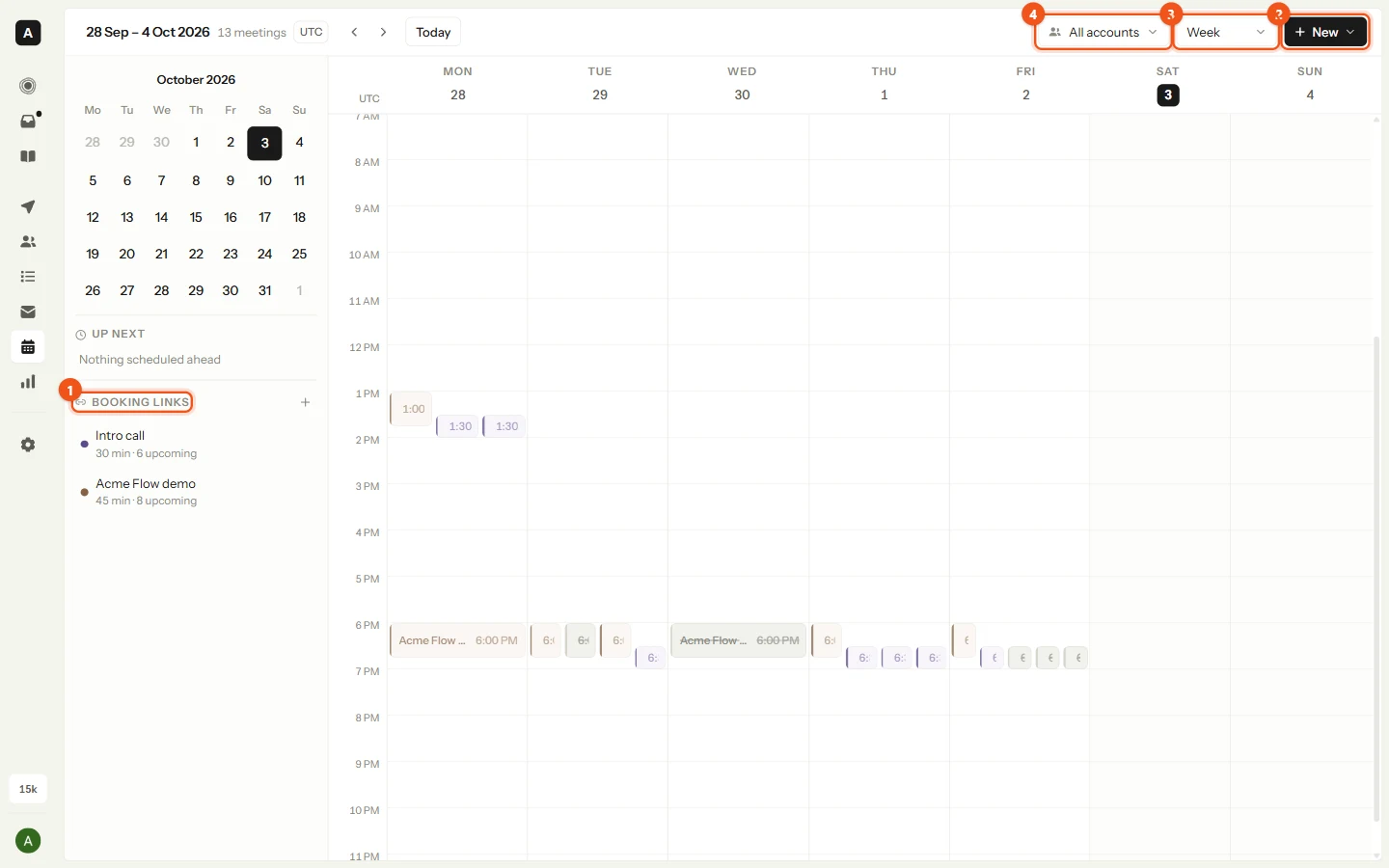
Meetings is both your calendar and your booking-link manager. (The old Calendar address opens it too.)
Layout
- Left column: a small month, Up next (the next six meetings still ahead on screen), and Booking links.
- Top bar: Previous, Next and Today, the view switch Day, Week or Month (Week is the default), the account filter All accounts (pick a mailbox to see only its meetings), and New.
- Time zone: times show in your workspace time zone. Change it in Settings › General.
- Keys: t for today, d, w and m for the views, the arrow keys to move, c for a new meeting, Esc to close.
Click a meeting to open its details: when, Video call, Location, Host, Guests, notes from the person, and Linked to (the contact and the campaign, each a link). The status is Scheduled, Completed (after it ended) or Cancelled, with who cancelled and why.
Busy time
In the Day and Week views, grey striped blocks marked Busy show when a mailbox owner is busy in their own calendar, so you can see their real free time. Only the time is shown, never what the event is. A block also covers their meetings from other workspaces. Meetings already on this page are not repeated.
- With more than one calendar in view, each block says who: Busy · Alex or Busy · 2 people. Hover a block for the exact time and names.
- Pick one mailbox in All accounts to see only that person's busy time.
- You can still drag across a busy block to put a meeting there.
- A short line at the top says when a calendar could not be read, so its empty hours are never mistaken for free ones.
Add a meeting yourself
For a time you already agreed, you do not need a booking link.
- Click New and choose Meeting ("A time you have already agreed"). You can also drag on the week grid, or press c.
- In New meeting, fill in Title, Calendars, When, Who and an optional Description.
- Click Create meeting.
| Field | Notes |
|---|---|
| Calendars | The mailbox whose calendar holds the meeting and sends the invitations. Pick more than one: the first holds the meeting, and the others are invited to it. |
| When | Any time still ahead. The free hours of your booking links do not apply here. |
| Who | Search your contacts, or type any email and press Enter. Up to 21 people. |
If no mailbox can hold meetings yet, the form tells you to connect a calendar in Seats & channels. Everyone you add gets a calendar invitation with a video link: Google Meet for Gmail, and Microsoft Teams when the Outlook account offers it.
Move or cancel a meeting
Open the meeting, then use the buttons at the bottom. They disappear once the meeting has started.
| Button | For | What it does |
|---|---|---|
| Join meeting | Any scheduled meeting with a video link | Opens the video call. |
| Reschedule | A meeting a prospect booked on a link | Pick a day and a free time of that link. Add an optional Message to the invitee. The same calendar event moves, with the same video link, and the person gets the updated invitation. The time must still be ahead. You can also drag the meeting on the week grid and confirm a free time. |
| Edit meeting | A meeting you added by hand | Change the title, time, people and description. Everyone still invited is told, and anyone you remove gets a cancellation. It stays on the calendar it was created on. |
| Cancel meeting | Any scheduled meeting | Add an optional Reason, then click Cancel meeting again. For a booked meeting the person is emailed and the event is removed. For a meeting you added, everyone invited gets a cancellation. |
You can also reschedule and cancel from the contact's record, in its Calendar tab (Upcoming and Past).
Moving or deleting a booked meeting in your own Google Calendar or Outlook works too: the meeting here follows, and the person is emailed the change.
Meetings and Syd
You can ask Syd to handle meetings in the chat:
- Schedule a meeting. Syd asks who, which mailbox, when and how long (15, 30, 45 or 60 minutes), then asks for your approval. It puts the meeting straight on that mailbox's calendar.
- Move or cancel a meeting. Choose it from a list, then give a new time or a reason. Cancelling asks twice, because the person is told.
- Anything that sends an invitation or cancels a meeting always waits for your Approve.
Syd cannot create, pause or delete a booking link. Do that on the Meetings page.
Common Problems
| Problem | Why and what to do |
|---|---|
| No mailboxes in the booking link form | No mailbox can host meetings yet. Open Settings › Seats & channels and connect the calendar of a Gmail or Outlook mailbox. Only mailboxes with a connected calendar are listed. |
| Calendar not connected | Click Connect calendar on the mailbox and sign in with the same address. |
| Calendar needs reconnecting | The calendar stopped letting us in, so its links offer no times. Click Reconnect calendar. |
| "You signed in with a different account." | Connect the calendar while signed in with the same address as the mailbox. |
| "Your organisation's administrator has to approve this app" | Some company accounts only let an administrator approve new apps. Ask them to approve it, then connect again. |
| Cannot host meetings | This kind of mailbox has no calendar we can connect. Use a Gmail or Outlook mailbox. |
| "Free times could not be loaded." | The calendar could not be read. Open the mailbox in Seats & channels; if it says Calendar needs reconnecting, reconnect it. |
| "Busy times for … are not shown until the calendar is reconnected." | That calendar stopped letting us in. Click Open Seats & channels and Reconnect calendar on that mailbox. |
| "Busy times for … could not be read just now." | The calendar did not answer this time. Click Try again; the meetings themselves are not affected. |
| "No free times this day. Try another date." | Your hours, notice, gap or how far ahead leave nothing open that day. Check the mailbox hours and the link settings. |
| A prospect says the page has no times | The link may be paused, the mailbox hours may be empty for those days, or the shortest notice is too long. Open the page yourself with Open booking page. |
| A campaign's emails stopped sending | The booking link in an email step may be paused or deleted. Resume or replace it. |
| A campaign will not launch and names a booking link | Same reason. Resume the link or pick another. |
| A meeting cannot be moved | The new time is in the past ("A meeting can only move to a time still ahead"), or the link has nothing free then. A meeting that has no link behind it shows "This meeting has no booking link, so it cannot be moved here". |
| A link cannot be deleted | It still has upcoming meetings. Cancel or move them, or pause the link. |
| A meeting is not tied to a contact or campaign | The prospect opened a plain link and typed an email that matches no contact. The meeting is still on the Meetings page, but the campaign keeps running for that person. Stop or pause them by hand if needed. |
Limits at a Glance
- A booking link needs at least one mailbox and can have up to 20.
- A link's address and its mailboxes cannot be changed after it is created.
- A booked meeting can only move to a time its link offers. A meeting you added by hand stays on its own calendar.
- A new meeting has up to 21 people.
- A prospect can pick a time up to the link's How far ahead. The page shows one month at a time and says "No open times this month. Try the next one." when a month is empty.
Syd
Syd, Your Assistant
What Syd is, how to talk to it, what it can build and change for you, what needs your approval, what it cannot do, and how credits work.
What Syd Is
Syd is the assistant built into Syndie. You talk to it in plain words, and it can:
- Build things with you: a campaign, a prospect list, a knowledge base, a connected account, a meeting.
- Change things you already have: rename a campaign, pause it, tag contacts, change how many people a campaign contacts a day, and more.
- Answer questions about your data: which campaign is doing worst, which replies are waiting, how many invites are left today, why a campaign is not sending.
- Explain how the product works, using the help pages.
You ask → Syd asks one thing at a time on a card → Syd does it (or asks you to approve) → You see what changed
Syd works inside your workspace and only does what your own role allows. Anything that goes out to a person or cannot be undone waits for your approval. Syd can make mistakes, so check anything important.
Plans: Syd's chat, guided builds and answers are included on every plan. AI-planned campaigns ("Decide each step as it goes") and Syd answering your prospects' replies need the Growth plan.
Where to Find Syd
| Where | What you see |
|---|---|
| Home (the row with Syd's name at the top of the left menu) | Syd full screen. A greeting ("What are you trying to get done?"), four starter tiles, and on the right the Activity column. |
| Any other page | Click Ask Syd in the left menu (or press Ctrl+/, Cmd+/ on a Mac). Syd opens as a panel on the right, and your page stays where it is. Press Esc or the close button to hide it. |
| Search box (Ask Syd or search…, in the left menu) | Type a question and press Enter to send it to Syd, or pick a page to jump to. |
The four starter tiles on the home screen:
| Tile | What it does |
|---|---|
| Set up a campaign | Puts "Set up a campaign to reach " in the box. Finish the sentence and send it. Syd then asks one thing at a time. |
| Build me a list | Puts "Build me a list of " in the box for you to finish. Builds just the people, with no campaign yet. |
| Tell me what is not working | Sends at once: "Which of my campaigns is performing worst right now, and why?" |
| Pick up the replies | Sends at once: "Which replies are still waiting on me?" |
On a wide screen, the Activity column shows what is Running now, what Needs you (approvals, disconnected accounts, replies to write), what was Done, last 24 hours, and what is At risk (for example a campaign that sent nothing for days). Items come with buttons such as Diagnose, Why? or Draft a reply for me that send a question to Syd.
In the panel header you have the notification bell, Past conversations, New conversation (the plus), and close.
Talking to Syd
Type in the box and press Enter (Shift + Enter starts a new line). A message can be up to 1,000 characters.
Good things to say:
- "Set up a campaign to reach HR directors in Germany."
- "Build me a list of founders in fintech."
- "Which of my campaigns is performing worst right now, and why?"
- "Which replies are still waiting on me?"
- "Rename my prospect list."
While Syd works you see short status lines ("Checking your account…", "Writing…"). When it takes actions, a line shows how many things it did, and you can open it to see what changed.
Under an answer you may see Ask next (follow-up questions you can click) and References (the help pages it used). Use This helped or This did not help to rate an answer.
Questions on cards
When Syd needs something, it asks one question at a time on a card above the box.
- A badge such as Your call marks a decision that is yours.
- Click an option to answer. Recommended marks Syd's suggestion.
- Something else lets you type your own answer.
- Skip uses the suggested answer when one exists.
- Some questions let you Pick any that apply, then click Done.
- When there are several questions, use Previous question and Next question.
- You can also just type your answer in the box.
Closing a card is not answering it. A line in the chat ("Panel closed" with Open for review or Open to select) lets you open it again.
Guided Builds
Build a campaign
Start with the Set up a campaign tile, or type something like "Set up a campaign to reach HR directors."
First Syd may ask whether you want to see how it is done or have it done: Show me how to create a campaign (the steps, from the help pages) or Create a campaign for me (a few questions, then Syd builds the draft).
If you pick the second, Syd asks, in this order. It skips anything it already knows from your message or your workspace.
- Which channels should this campaign send on? LinkedIn only, or Both (LinkedIn and email, which needs a connected mailbox).
- Which prospects should this campaign contact? A list I already have, or Build a new one (Syd then builds the list first, see below).
- The draft is created. Syd does not ask for a name. Unless you gave one in your message, the draft is named after its prospect list, and you can ask Syd to rename it later.
- How should this campaign's steps be decided? Use a template (a proven sequence to adjust, then Which template?), I'll build it myself (you draw it in the Flow Builder), or Decide each step as it goes (Syd picks each step per person, Growth plan only).
- Should I answer replies on this campaign? (Growth plan only.) Your reply mode in Settings decides whether Syd sends the replies or drafts them for you.
- Which knowledge base should answer prospects' questions? Asked when the campaign needs one: when Syd decides each step, answers replies, or writes a step with AI. Pick one, Create a knowledge base, or choose None.
- Which booking link should I offer when someone wants to meet? Asked on Growth, when replies are on and you have booking links. Optional. See Meetings.
- Which LinkedIn account should send it? and, for email, Which mailboxes should send the email? Only accounts with room are offered. One LinkedIn account can run up to 3 campaigns at once.
Two shortcuts to know about:
- If you attached exactly one knowledge base to the chat (see Adding Context below), Syd uses it for the campaign without asking.
- If you have exactly one connected LinkedIn account with room, Syd uses it without asking and tells you ("It sends from ... the only connected account").
Nobody is messaged until you launch. At the end Syd opens a review beside the chat with a Launch campaign button. If you close the review, the launch stays waiting for you, and a line in the chat lets you reopen it. If the steps still need to be saved in the builder, Syd gives you an Open the builder link.
Build a prospect list
Start with Build me a list, or type "Build me a list of ..." Syd asks Where should the people come from?
| Option | What happens |
|---|---|
| I will describe my list | Five short questions: Who, Company, Where, Why now and Angle. Tap Syd's suggestion or type your own. Syd then shows the lists it would build ("Pick the one closest to who you want to reach"). |
| Use my knowledge base | Syd reads a knowledge base you pick to work out who to look for, then shows the lists it would build. If you have none, it helps you create one first. |
| I will use LinkedIn options | You paste a URL: a LinkedIn search, a Sales Navigator search, a Recruiter search, Applicants to a job post, or People who engaged with a post. Needs a connected LinkedIn account that can run the search. |
| I will use my contacts | Your contacts open beside the chat. Narrow them with filters, untick anyone to leave out, choose the LinkedIn account the list belongs to, then give it a name. |
Once you pick one of the lists Syd drafted, it shows Build this list? with about how many people match and a sample of who they are. You can:
- Yes, build it: save the list.
- Change the timing, or Change who is on it (job titles, industry, company size, place, language, or who to leave out) on a card, then Update the list.
- Find more people (Syd loosens one thing at a time) or Make it smaller (Syd tightens one thing at a time).
- See the other lists: go back and pick a different one.
A list cannot be built if too many people match: narrow it first. With a LinkedIn link, Syd checks who the search finds ("That search finds about N people. Here are the first few") and asks Build the list from this search? If the search finds nobody, you can paste a different link or build the list anyway and let it fill later. "Building saves who to look for. Nobody is messaged until a campaign uses it." Uploading a CSV file is not done in chat: use the Prospect lists page.
Build a knowledge base
Say "Create a knowledge base" or "Learn my website." Syd asks Where should the answers come from? (Your website, Paste some text or Upload a file) and What should the knowledge base be called? It creates the base empty and opens a card with Read my website, Paste text and Upload a file.
Syd never reads a website, saves text or uploads a file by itself. You add the source and check it on the card, and "Nothing is saved until you check it and press save." Once saved, the base is attached to the chat, and Syd offers to build a prospect list from it. Details: Knowledge Base.
Connect an account
Say "Connect my LinkedIn" or "Connect a mailbox", or pick A LinkedIn account or A mailbox on the card. Syd gives you a Connect LinkedIn or Connect a mailbox link. You sign in on the provider's own page, in a new tab. The card shows Signing in, in the window that opened…, then Checking the new account…, then Connected. Tell me to send from it. If it does not work, click the card to open Settings.
A seat holds one LinkedIn account and one mailbox. If every seat is full, add a seat from Billing. Syd cannot buy seats.
Schedule a meeting
Say "Book a meeting with Ana." Syd asks Who is the meeting with? (a contact with an email address), Which mailbox should send the invitation?, When should the meeting start? and How long should it run?, then asks for your approval. See Meetings.
Changing Something You Already Have
Ask about something that exists, such as "Rename my campaign", "Tag a contact" or "Pause my campaign". Syd does not make you remember an id. It shows a list to pick from (for contacts, your most recent ones, and Other lets you type a name or email), asks What would you like to do?, then asks only what that action needs.
| What | What Syd can do |
|---|---|
| Contacts | Change their status, add a note, tag them, take a tag off, stop contacting them. Tag, untag and stop also work on several at once. |
| Prospect lists | Rename, delete, delete several at once. |
| Campaigns | Rename, pause, resume, archive, unarchive, pause several at once, and change settings. |
| Accounts and mailboxes | Reconnect, show seats and free slots, show what an account can still send today and this week, remove an account. |
| Meetings | Move, cancel. |
For a campaign, What would you like to do? groups its settings:
- Change when it sends: its hours, days, time zone and how many people a day.
- Change how it handles replies: answering for you, its knowledge base, its booking link.
- Change who it skips or stops for: people already connected, replies, link clicks.
- Change its language or email lookup: the language it writes in, and finding missing email addresses.
Limits to know: sending hours need at least 4 hours a day. A campaign that has launched can gain a knowledge base but not swap it. Delete it on a campaign does not run: Syd points you to the Campaigns page.
Anything that cannot be undone asks twice: once on the card ("Yes, go ahead" or "No, leave it"), and once more as an approval showing exactly what would change.
Asking About Your Data
Questions that only read are answered right away and change nothing. Examples:
- "Which of my campaigns is performing worst right now, and why?" Syd shows a stats card with how far each step got.
- "Which replies are still waiting on me?"
- "How many invites are left today?" You see what each account can still send Today and This week, and whether LinkedIn has paused invitations on it.
- "How many credits do I have?" You see your balance, what used credits this period, and when the plan credits renew.
- "Why is my campaign not sending?" Syd runs the same check as the campaign's Health tab and ends with a link to it. If it cannot tell which campaign you mean, it asks Which campaign should I check? on a card. If the cause is not recorded, Syd says so rather than guessing, and offers to hand it to the team.
- "Where do I connect a calendar?" Syd answers from the help pages and links to the right screen.
If you ask again about the same campaign within 5 minutes, Syd may reuse the last check and say what time it was made. Ask whether it is still stuck to get a fresh one.
What Needs Your Approval
Syd never sends something to a person, or does something that cannot be undone, without showing you first. A card says This needs your approval before it runs, with:
- What will change
- Worth knowing (warnings)
- Timing, given today's allowance (when sending actions would go out)
Click Approve to run it ("Approved, running it now.") or Turn down ("Turned down. Nothing was changed."). Nothing has happened until you approve.
| Waits for your approval | Does not |
|---|---|
| Launching or resuming a campaign | Reading anything (campaigns, contacts, stats, credits) |
| Sending a message or email from the Unibox | Renaming, tagging, pausing, archiving |
| Booking, scheduling, moving a meeting | Writing a draft reply |
| Cancelling a meeting | Creating a list from a link or your contacts, a campaign draft or a knowledge base |
| Creating a list from a search Syd describes | |
| Inviting someone, changing a role or removing someone from the workspace | |
| Deleting a list, stopping contacts, removing an account, deleting notes or tasks |
Good to know:
- Only a person can approve. Syd cannot approve its own requests.
- A request expires after 24 hours if nobody decides. Ask Syd again.
- A campaign launch opens as a review beside the chat, with the Launch campaign button.
- Waiting approvals also show under Needs you in the Activity column and in the Review queue (filter Requests from Syd). Details: Approvals.
- A member who only sees some seats only sees approvals for those seats.
What Syd Cannot Do
| Syd cannot | What to do instead |
|---|---|
| Delete a campaign, one or several | Use the Campaigns page. |
| Remove someone from the blacklist | Settings › Blacklist. |
| Delete a workspace | Settings › General › Danger Zone. |
| Change your plan, buy seats or credits, or change billing | Settings › Billing & plan (only owners change billing). Ask Syd to put you in touch with the team if you need help. |
| Manage API keys, hand over ownership of the workspace | Do it in Settings. |
| Create, pause or delete a booking link | The Meetings page. |
| Connect an account by itself | Syd gives you a link, and you sign in. |
| Upload a file, read a website or save text by itself | You add it in the card or on the Knowledge base page. |
| Do more than your role allows | A member cannot do actions meant for admins or owners, even through Syd. |
If you ask for something on this list, Syd says so plainly and tells you where to go. It does not ask you to confirm, because no confirmation opens it.
Credits
- Each answer from Syd costs 1 credit. This covers the messages you type, including a question typed in the search box.
- Not charged: an answer that failed, was refused, or was not given (for example Syd could not answer and offered the team instead). Clicking an option on a card is not charged either. Only the messages you type are.
- The actions inside an answer are covered by that same credit. Syd renaming and tagging in one answer is still one credit.
- With no credits left, Syd does not answer and shows: "Credit limit reached. Each answer from Syd uses 1 credit, and this workspace has none left. Upgrade your plan or add credits in Settings → Usage to keep going."
- See your balance and what used credits in Settings › Usage & credits, in the credits display in the left menu (View usage), or by asking Syd "How many credits do I have?"
Some other features use credits on their own (for example finding missing email addresses). The product shows the price before you confirm. See Billing.
Adding Context (Knowledge Bases)
Below the message box, click Add context (shown as Context) to attach a knowledge base to the conversation. The picker says "Your workspace is always in view. Attach a knowledge base to have it quoted from as well." Each base shows how many documents are ready, or "still indexing".
- Up to 5 bases per message. Click a base again to take it off, or use the x on its tag.
- The base stays attached to that conversation, even after you reload or reopen it from history, until you remove it.
- While one is attached, questions about your own business (your ideal customer, what you sell) are answered from it first, and a list build offers Use my knowledge base with it already chosen.
- New knowledge base in the picker takes you to the Knowledge base page.
This is not the same as the knowledge base on a campaign. Attaching a base here changes what Syd quotes to you, in this chat. What Syd quotes to your prospects is set on the campaign. The one overlap: when you build a campaign with Syd and exactly one base is attached to the chat, Syd uses it for that campaign. See Knowledge Base.
Chat History
Every conversation is kept. Click Past conversations (the clock icon) to see them, then click one to reopen it. Start fresh with New conversation (the plus).
For each conversation in the list:
- Rename: click Rename, type a name in Name this chat (up to 120 characters), then Save name. Untitled chats show as "Untitled chat".
- Delete: click Delete, then confirm Remove. "Remove this chat? It will no longer appear in your history." Choose Keep to cancel.
Talking to the Support Team From the Chat
If Syd cannot help, or you ask for a person, it offers Hand this off to our team? Choose Yes, hand off to the team, or No, keep helping me here.
If you choose yes, Syd asks:
- What's the best email to reach you at?
- Pick a reason: Something's broken, Billing & plans, Account help, Feature request or Something else.
- Tell us a bit more about the issue. Then click Send to the team. You can click Cancel at any step.
What happens next depends on how your account is set up:
- Live support chat: the reply comes right in the same panel. You see "Waiting for someone from the team", then "(Name) joined the chat". You can write back, End chat, or Start a new chat to go back to Syd. A chat closes by itself after 7 days with no reply from you.
- Email: the chat becomes read-only with "Conversation handed off, our team will reach out by email." Start a New conversation to keep using Syd.
Chats with the team show a Support tag in Past conversations, with New reply from the team when there is an answer you have not read.
Common Problems
| What you see | What it means and what to do |
|---|---|
| "Credit limit reached…" | The workspace has no credits left. Add credits or upgrade in Settings › Usage & credits. |
| "You're sending messages too fast. Try again in a few minutes." | There is a limit on messages per hour. Wait a little. |
| "Syd is busy right now. Please try again in a moment." / "Syd took too long to respond." | Try again, or click Retry. |
| "That message is too long. Keep it under 1000 characters." | Shorten it, or split it into two messages. |
| "This chat has been handed off and is read-only." | Start a New conversation. |
| Syd asks something you already answered | Say so plainly. Syd reads the real state of your workspace and skips what is already stored. |
| Syd cannot find a campaign or list | Give its name. Syd searches names only. |
| An approval says it expired | It was not decided within 24 hours. Ask Syd to do it again. |
| You do not see Approve | Only a person can approve, and a member only sees approvals for their own seats. |
| A card disappeared | Closing a card does not answer it. Use Open for review or Open to select in the chat, or ask again. |
| Syd says it does not know, or offers the team | Syd answers from your workspace and the help pages. When it is not sure, it says so and may offer to hand the question to the team. |
| Syd refuses to delete something | That action is closed to Syd on purpose. Use the page in the table above. |
| "That account is already running 3 campaigns, the most at once." | Pick another account, or pause one of that account's campaigns first. |
Syd
Knowledge Base
Give Syd your website, documents and notes so it can write about your business and answer prospects without inventing things.
What a Knowledge Base Is For
A knowledge base is the material Syd quotes from. You put in your website, a pricing page, a sales deck or a few notes, and Syd uses it so that what it says about your business is true.
It is used in three places:
- Answering replies. When a prospect writes back with a question, Syd's reply comes from the documents in the base. It only quotes what is in there. If the documents do not cover the question, Syd says so or hands the conversation to you.
- Writing messages. For campaigns with a knowledge base, the AI uses what your Overview says you do and sell to make its messages relevant. Campaigns where Syd decides each step also write from it.
- Syd's chat, when you attach a base to a conversation (see Syd).
A knowledge base also holds your Audience, the kinds of companies and people you sell to. Syd uses it when it builds prospect lists for you.
Replies need a knowledge base. Without one, Syd has nothing true to say, so it cannot be switched on to answer replies on a campaign. See AI Replies.
Where to Find It
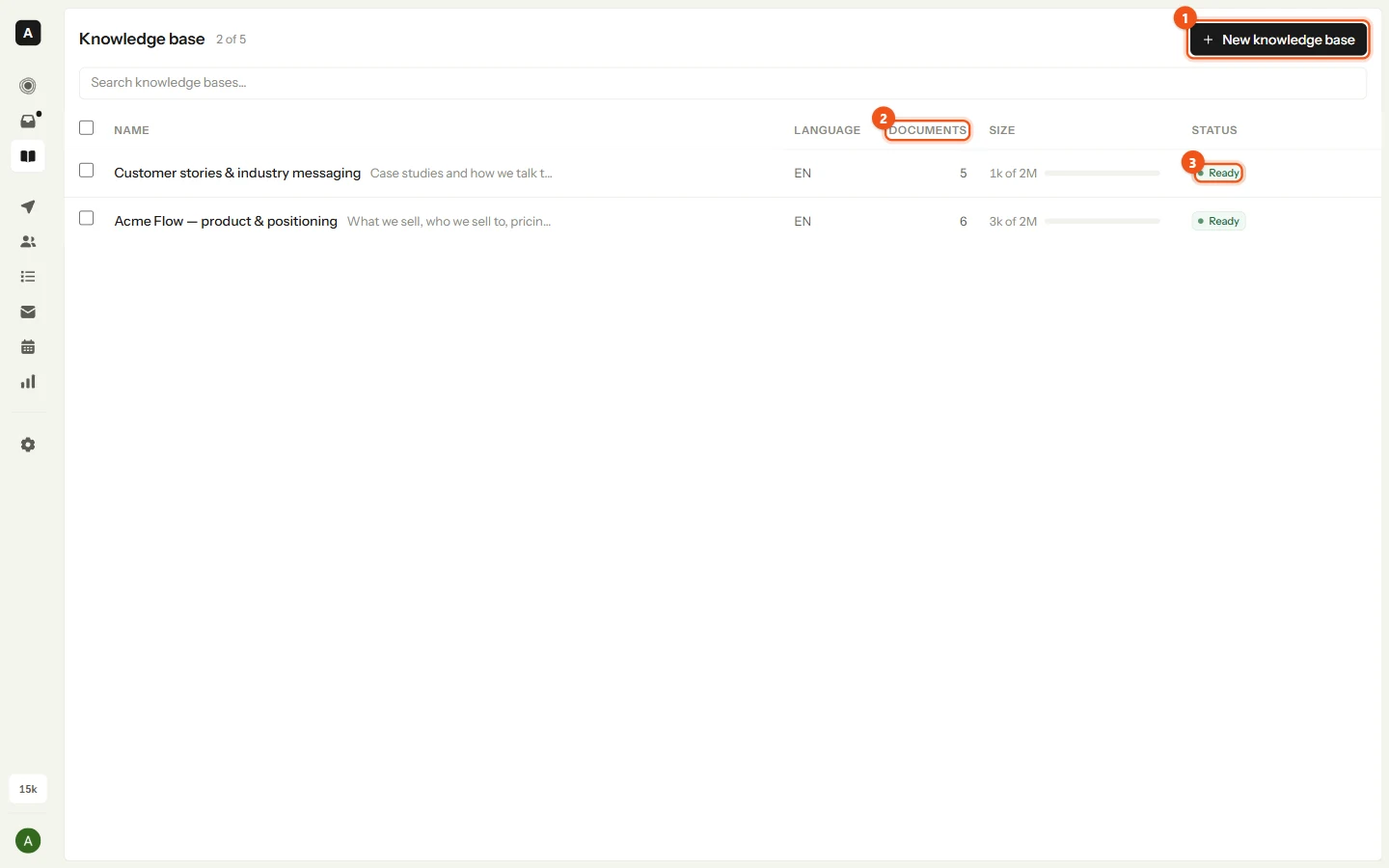
Open Knowledge base from the left menu. You see a table of your bases with their Name, Language, Documents, Size and Status:
| Status | Meaning |
|---|---|
| Ready | At least one document is indexed and Syd can answer from it. |
| Indexing | Documents are still being read. |
| Failed | Documents could not be indexed. Open the base to see which. |
| Empty | No documents yet. |
Click a base to open it. It has four tabs: Overview, Sources, Audience and Rules.
Create a Knowledge Base
- Click New knowledge base.
- Fill in the form:
| Field | Notes |
|---|---|
| Name | Required, up to 120 characters. Example: Product collateral. This is how you pick it later for a campaign. |
| Language | English or Português. It cannot be changed later. Every document inherits it, so a base in the wrong language has to be rebuilt. |
| Website (optional) | Your site address. We start reading it as soon as the base is created, and you choose which pages to keep. |
- Click Create.
The new base opens. If you gave a website address, Add source opens on the website step with the reading already started. If the address cannot be read, the base is still created, and you can correct the address and try again.
You can also ask Syd: "Create a knowledge base" or "Learn my website". Syd asks where the answers should come from and what to call the base, creates it empty, and opens a card for you to add the first source. Syd never reads a site, saves text or uploads a file by itself.
Naming rules: a name is 1 to 120 characters in the app. When Syd creates it, the name can be up to 80 characters, and Syd asks for another name if you already have a base with that name. You cannot rename a base after it is created.
Add Documents
Open the base, go to Sources and click Add source. There are three ways in.
Add a website
- Choose Add a website.
- Type the Website address of the section you want read, such as your help centre, your docs or your main site (for example https://help.yourcompany.com).
- Click Read this site. This takes a minute or two, and you can leave the window open. You see "Read N pages so far…". Stop reading cancels it.
- When it finishes, you see "N pages found". Every page is ticked, except pages already in the base, which are marked already added. Untick what you do not want, or use Select all and Select none.
- Check the summary ("Adding N pages, about X characters, Y% of this knowledge base") and click Add N pages.
What to know:
- One read covers up to 40 pages and about 600,000 characters. Long pages are shortened, and the dialog tells you ("Some long pages were shortened."). To add more, read another section separately.
- Only one site read can run on a base at a time.
- A finished read is kept for 24 hours. After that you read the site again.
- If the site blocks automated readers, you see "We couldn't read anything from that site". Try a different address, or paste the text in.
- If a read takes too long you see "This is taking unusually long". Nothing was added. Try the address again, or paste the text.
Paste text
- Choose Paste text.
- Give it a Title (up to 200 characters) and paste the Text.
- Click Save document.
Good for a single page from your site, a price list, or your answers to common objections.
Upload a file
- Choose Upload a file and pick one file. One file at a time.
- Wait while it says "Reading (file name)…". Large PDFs and slide decks can take a minute.
- You see What we read, the text taken from the file. Read it, fix anything that came out wrong, and edit the Title.
- Click Save document.
| Type | Formats | Size limit |
|---|---|---|
| Text | TXT, MD, CSV | 2 MB |
| Documents | PDF, Word (DOCX), PowerPoint (PPTX), Excel (XLSX) | 10 MB |
Older Office formats (DOC, PPT, XLS) cannot be read. Save them as DOCX, PPTX or XLSX first.
Under Replaces you can choose an existing document that this file is a newer version of. Its old text is replaced, and the audience is checked against the new one. The default is Nothing, add it as a new document. If a document with the same name already exists, it is chosen for you.
If a PDF has columns, you may see a warning that sentences from side-by-side blocks may be mixed up. Skim the text before saving.
Nothing is saved until you press Save
For uploads and websites, you always see the text first. A document only joins the base when you click Save document (or Add N pages). You see "Added, indexing now."
Processing Status
After you save, each document shows a status in Sources:
| Status | Meaning |
|---|---|
| Processing | "Indexing, usually under a minute". Syd cannot quote it yet. |
| Ready | Syd can answer from it. |
| Failed | It could not be read or indexed. The reason shows under the title. |
A failed document still takes up space until you delete it. The base shows Needs attention with how many characters they use.
| Reason shown | What to do |
|---|---|
| "No text could be read from this. Delete it and paste the text in instead." | Delete it and paste the text. |
| "There was no room left in this base when it was processed. Free up space, then add it again." | Delete something, then add it again. |
| "This could not be indexed. Delete it and add it again." | Delete it and add it again. |
| "This took too long to index. Try a shorter document." | Split it or shorten it. |
The Sources table also shows each document's From (File, Pasted, or the page address), its size in characters, and when it was Added.
Check, edit and delete a document
- Click a document to open its text, so you can check what was stored.
- Edit lets you change the Title and Text, then Save changes. It is indexed again, which takes a minute or two ("Saved. It is being indexed again."), and Syd does not quote it until it is ready again. You cannot edit a document that is still indexing: "This is still being indexed. You can edit it once it is ready."
- Delete removes it. To remove several, tick them in Sources and click Delete in the bar that appears. Syd stops answering from them. This cannot be undone.
The Four Tabs
| Tab | What it is |
|---|---|
| Overview | A short description of your company drafted from your documents: What you do, What you sell and Who else does this. You can edit every field. |
| Sources | Your documents (above). |
| Audience | Who you sell to: kinds of company, company sizes, job families, places and who to never contact. Syd uses it to build prospect lists. Edit it, confirm it, or Redraft it. Fields you wrote yourself are kept when you redraft. |
| Rules | What this base is for (up to 300 characters, shown when you pick a base for a campaign) and Rules for answering from this material (up to 1,000 characters, plain sentences such as "Never mention the self-serve plan"). These rules add to your workspace rules, and neither can switch off a safety check. |
When you add sources, Syd reads them and drafts the Overview and the Audience on its own. This takes about 2 minutes, and you can keep working. When it is ready, you are asked to check each one and press Looks right. When you add or delete sources later, Syd checks your Audience against them and suggests changes. Anything that would change who gets contacted waits for you. If your sources say little about who you sell to, you can Answer 3 questions instead: What do you sell?, Who buys it? and What problem does it solve for them? (and optionally Who else does this?).
Attach It to a Campaign
A base does nothing until a campaign uses it.
- In the campaign settings, the Handling block has a Knowledge base picker. Pick one, and switch on Let Syd reply (Growth plan).
- You can attach a base while the campaign is a draft, or after launch if it has none. Once a campaign has launched, you can add a base but not swap or remove it.
- A campaign looks for a base in this order: its own, then its prospect list's, then the audience profile of that list. A list Syd built from a base's audience therefore already carries one.
- A campaign uses one base. It cannot read from several.
- Syd can also attach one when you build a campaign with it. See Syd.
The base's page shows Used by, the campaigns that answer from it.
Fill the gaps
When Syd could not answer a prospect, the Review queue shows what was missing. Type the answer there and click Save this answer. It is saved into the base, so every future prospect gets it without you. This is the fastest way to make the base cover what people really ask.
Delete a Knowledge Base
Only owners and admins can delete a base.
- One base: open it and click the bin icon at the top (Delete knowledge base).
- Several bases: tick them in the list and click Delete in the bar that appears.
The dialog first checks what uses each base:
- Running campaigns block it. If an active campaign answers from a base, it cannot be deleted. Pause or finish those campaigns first. When you delete several, those bases are listed as Not deleted: running campaigns use these, and the rest go ahead.
- Other campaigns lose it. A campaign with AI replies on has them turned off. It keeps sending its other steps, but nothing answers people who write back: replies waiting to send are cancelled, and new replies wait for your team in Unibox. To turn them back on, attach another knowledge base and switch Let Syd reply on.
- Prospect lists built from it keep their people and keep filling from the search they were built with.
- Audiences drafted from it are deleted with it.
- Its documents, website reads and uploaded files are deleted. This cannot be undone.
To confirm one base, type its name exactly. To confirm several, type delete. Then click the delete button.
Limits
| Limit | Value |
|---|---|
| Knowledge bases per workspace | No limit. The page shows how many you have. |
| Documents per base | 100 by default. Shown as "N of 100 documents". |
| Text per base | About 2,000,000 characters. A meter shows how much is left. |
| One pasted document or file's text | Up to 2,000,000 characters, and it must fit in what is left in the base |
| Text file size (TXT, MD, CSV) | 2 MB |
| PDF, Word, PowerPoint, Excel size | 10 MB |
| Pages per website read | 40 pages and about 600,000 characters |
| Document title | 200 characters |
| Base name | 120 characters (80 when Syd creates it) |
| Language | English or Português, fixed at creation |
When a base is full, Add source is switched off and the base shows "This base is full. Delete a document to make room." or "This base holds as many documents as it can. Delete one to add another."
Common Problems
| What you see | What to do |
|---|---|
| "That file type can't be read. Use TXT, MD, CSV, PDF, DOCX, PPTX or XLSX." | Convert the file, or paste the text. |
| "That file is too large. Text files can be up to 2MB; PDF, Word, PowerPoint and Excel files up to 10MB." | Split the file, or paste the parts that matter. |
| "That file is empty." | The file has nothing in it. Check you picked the right one. |
| "That looks like a scan rather than text…" | The PDF is a picture of a page. Use a version with selectable text, or paste the text. |
| "That file could not be opened. It may be damaged or password-protected." | Remove the password or re-save the file. |
| "That file's contents don't match its extension." | Re-save it in the right format. |
| "Reading that file took too long." | Try a smaller file, or paste the text. |
| "This is (X) characters and only (Y) are left in this base." | The text is bigger than the room left. Trim it in the box, or delete a document first. |
| A document shows Failed | See the reason under its title. Delete it and add it again, or paste the text. |
| "We couldn't read anything from that site" | The site may block automated readers. Try another address, or paste the text. |
| The base is Ready but Syd will not answer on a campaign | The base has to be attached to the campaign, its list, or that list's audience. Check Used by on the base. |
| Syd does not know something that is in the base | The document may still be indexing or may have failed. Also check that the text is really there by opening the document. |
| "Running campaigns use this knowledge base. Pause or finish them first." | Pause the campaign on the Campaigns page, then delete the base. |
| I cannot change the language or name | They are fixed after creation. Create a new base. |
| I cannot delete a base | Only owners and admins can. Ask one of them. |
Results
Analytics
What every number on the Analytics screen and on a campaign's Performance tab means, how the rates are worked out, and how to compare your campaigns.
What Analytics Shows
The Analytics screen answers one question: is my outreach working? It adds up everything your campaigns sent and everything that came back, for the period you pick, and compares it with the period before.
Open it from Analytics in the left menu. Each campaign also has its own numbers on its Performance tab, covered further down.
You only see numbers for the campaigns and accounts you have access to in this workspace. The figures refresh about once a minute.
Pick a Period and a Channel
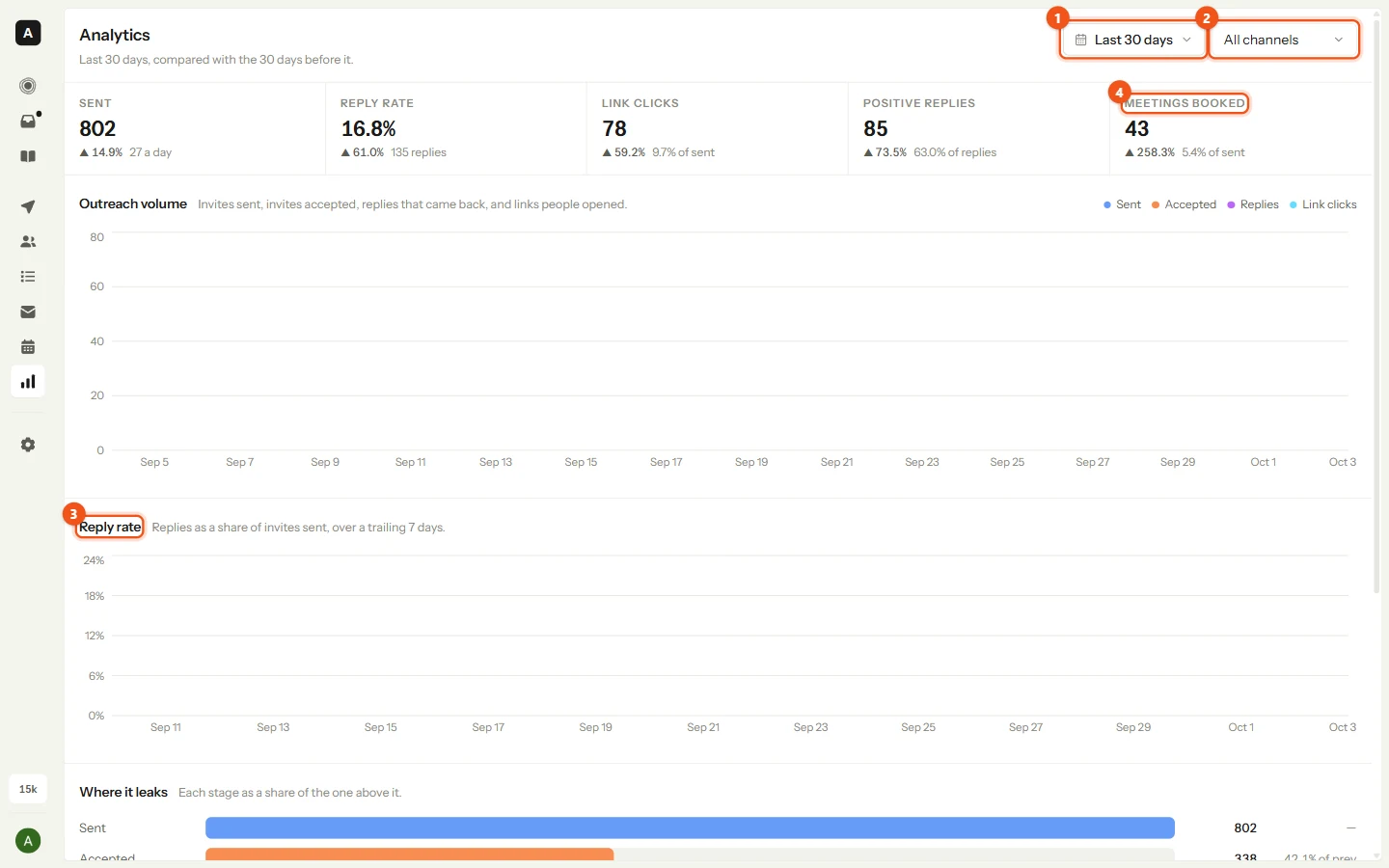
At the top right of the screen there are two controls.
Date range. Click the date button and choose Last 7 days, Last 30 days or Last 90 days. To pick your own dates, choose a start and an end day on the calendar. The screen opens on the last 30 days. A custom range can be 1 to 400 days long, and you cannot pick a day in the future.
Channel. Choose All channels, LinkedIn or Email.
- All channels adds LinkedIn and email together.
- LinkedIn counts LinkedIn activity only. "Sent" then means invites sent.
- Email counts email activity only. "Sent" then means emails sent.
The comparison. The line under the title tells you what you are looking at, for example "Last 30 days, compared with the 30 days before it." Every tile shows a small arrow with a percentage. That is the change against the period of the same length just before yours. If the earlier period had nothing to compare with, the arrow is left out.
The Five Tiles
| Tile | What it counts |
|---|---|
| Sent | LinkedIn invites plus emails sent in the period. Under the number you see the daily average, for example "12 a day". |
| Reply rate | Replies received in the period, as a share of what was sent in the same period. Under it you see the number of replies. |
| Link clicks | Clicks on tracked links, from both LinkedIn messages and emails. Under it you see clicks as a share of sent. |
| Positive replies | People who carry the Replied Positive tag, counted on the day the tag was added. Under it you see the share of all replies. |
| Meetings booked | Confirmed meetings that came from your campaigns. Under it you see meetings as a share of sent. |
How the reply rate is worked out
Reply rate is replies divided by sent, times 100, shown with one decimal. If you sent 200 invites and emails and received 14 replies in the period, the rate is 7.0%.
Positive replies
This tile shows a dash and the note "Not split by campaign or channel" whenever you have picked LinkedIn or Email. Positive replies are only counted for All channels. The Replied Positive tag is normally added by Syd when it reads a reply as positive.
Meetings
Meetings are counted on the day the meeting is scheduled for, not the day it was booked. Only meetings with the status confirmed are counted, and only when they are linked to one of your campaigns. See Meetings.
Outreach Volume
The first chart, Outreach volume, draws one line per day for four things:
- Sent
- Accepted (LinkedIn invites that were accepted)
- Replies
- Link clicks
Move your mouse over the chart to see the exact numbers for a day. With the Email channel the chart shows emails sent, replies and link clicks.
Each number is counted on the day it happened. An invite sent last week and accepted today adds to today's Accepted, not to last week's.
Reply Rate Over Time
The second chart shows the reply rate as a line. Each point is the replies of the last 7 days divided by what was sent in those same 7 days, so the line moves smoothly instead of jumping from day to day. The line starts on the 7th day of your range, so pick a range of at least 7 days to see it.
Where It Leaks
Where it leaks is a funnel. It lists the stages in order and shows each stage as a share of the one above it:
- Sent
- Accepted
- Replied
- Positive (only with All channels)
- Meeting booked
Read it from the top. If Accepted is low next to Sent, people are not accepting your invites. If Replied is low next to Accepted, people accept but your message does not start a conversation. A big drop at the end means replies are not turning into meetings.
Two things to keep in mind:
- With All channels, Sent includes emails. Emails are not accepted like invites, so the Accepted share looks smaller. Choose LinkedIn for a clean acceptance rate.
- Because every number is counted on the day it happened, people invited before your period can accept or reply inside it. On a short period a share can look odd for that reason. A longer range smooths it out.
If some people were already connected to you on LinkedIn, a note appears under the funnel. No invite is sent to them, so they are not counted in Sent or Accepted.
By Campaign
By campaign splits the volume across the campaigns that ran in your period. You get a bar chart of Sent and a table with these columns:
| Column | Meaning |
|---|---|
| Campaign | The campaign name, with its status next to it. |
| Sent | Invites and emails sent by that campaign in the period. |
| Replies | Replies that campaign received in the period. |
| Clicks | Link clicks from that campaign. |
| Reply rate | Replies divided by sent for that campaign. |
The table is sorted by Sent, highest first. A campaign that sent and received nothing in the period is left out. If no campaign did anything, you see "No campaign sent anything in this window."
To compare campaigns fairly, look at the Reply rate column and make sure the campaigns ran for a similar time in the period. A campaign that started yesterday will always look small next to one that has run for a month.
Meetings by How They Were Booked
Every confirmed meeting in your period, grouped by how it was booked, including meetings not tied to a campaign. Click a group to see the detail.
A Campaign's Performance Tab
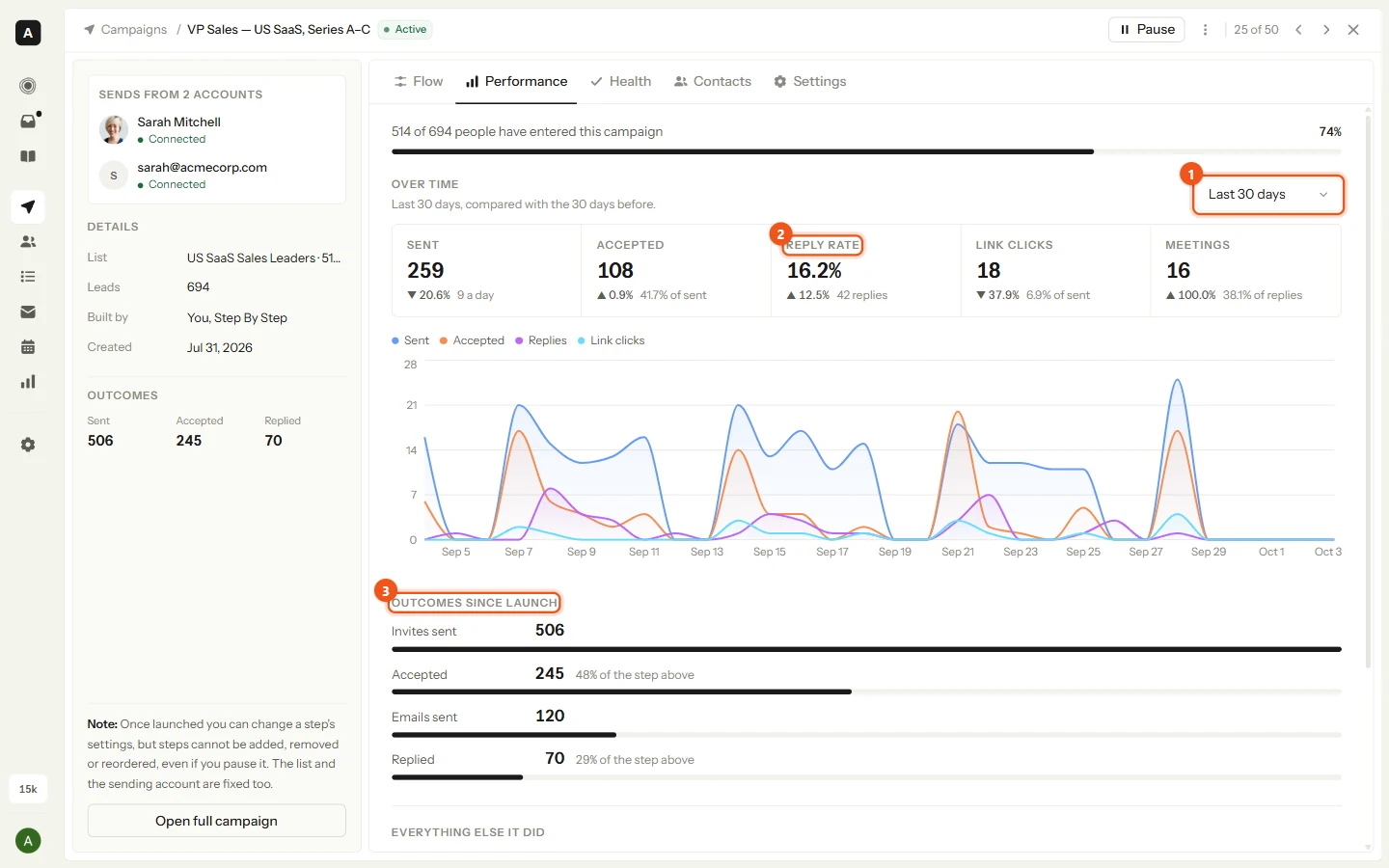
Open a campaign and click the Performance tab for the same kind of numbers, for that one campaign only.
- Progress. "X of Y people have entered this campaign", with a bar.
- Over time. A Date range menu (Last 7 days, Last 30 days, Last 90 days) and five tiles compared with the days before:
| Tile | What it counts |
|---|---|
| Sent | Invites and emails sent, with a daily average. |
| Accepted | Accepted invites, as a share of sent. If some people were already connected, that count is added. |
| Reply rate | Replies divided by sent. |
| Link clicks | Clicks on tracked links, as a share of sent. |
| Meetings | Confirmed meetings, as a share of replies (not of sent, as on the Analytics screen). |
- Outcomes since launch. A funnel from the start of the campaign: Invites sent, Accepted, Emails sent (for campaigns that send email) and Replied. Each line shows its share of the step above it. For a LinkedIn campaign, Replied is shown against Accepted. For an email-only campaign it is shown against Emails sent.
- Everything else it did. Smaller counts, such as Links clicked, Follow-ups, Profile visits, InMails, Posts liked, Comments, Follows, Invites withdrawn and Emails. A line only appears when it is above zero.
- What didn't go through. How many steps Failed, were Skipped or are Still waiting, with the most common reasons. These counts cover every step since the campaign started. The Health tab looks only at the last 7 days, so its numbers are smaller.
- Links. One row for each web address you linked to, with Destination, Sent, Opened by (how many different people clicked) and Rate. Clicks made by software, such as LinkedIn building a preview or a mail scanner, are not counted. A note under the table tells you how many there were.
A new campaign shows "Nothing has been sent yet" until it has sent something.
The campaigns list also has Sent, Accepted and Replied columns, so you can scan every campaign at a glance. See Campaigns.
Ask Syd About Performance
You do not have to read the charts yourself. Ask Syd in the chat, for example:
- "How are my campaigns performing?"
- "Which campaign is doing worst?"
- "How is my Q4 campaign doing?"
Syd can rank all your campaigns side by side, or look at one campaign in detail: how far through its list it is, how many invites went out, how many were accepted, how many people replied, and the rates that follow.
Syd also points out problems. It tells you when:
- A campaign is active but nothing has gone out yet.
- Fewer than 15% of invites are accepted, once at least 20 invites have been sent. A low rate over a long time can get a LinkedIn account restricted, so Syd suggests checking who is on the list.
- At least 20 people accepted and nobody replied. That usually points at the message rather than the list.
When Syd compares campaigns, it works out the rates from the people it invited (how many of them accepted or replied). The Analytics screen counts events on the day they happened. For that reason Syd's numbers can differ a little from the screen, even for the same campaign.
Common Questions
The numbers look low or empty
- Check the date range and the channel. A new campaign has nothing in older periods.
- Make sure the campaign is active and sending. Open it and check its status.
- Figures refresh about once a minute. Reload the page after a minute if you just sent something.
Positive replies shows a dash
Switch the channel back to All channels. Positive replies are not split by channel or campaign.
My reply rate changed but I sent the same amount
The comparison is against the previous period of the same length. Replies arrive over several days, so a recent period can look low until replies come in. Check again a few days later.
The numbers do not match what Syd told me
Syd and the screen count in different ways (see above). Use the screen for trends over time and Syd for a quick read on one campaign.
Integrations
Integrations Overview
What you can connect from Settings, Integrations. Your CRM, automation tools, data providers, webhooks and the public API, who can connect them and how to disconnect.
What the Integrations Screen Does
Integrations link Syndie to the other tools you use. You can send your leads and replies to a CRM, start automations in n8n, import people from Apollo, or let another tool such as Clay add contacts to your workspace.
Open it from Settings, then Integrations. The screen has two parts:
- Connected services. A card for each service you can connect. This is where your CRM, automation tools, data providers and API keys live. The text under the title reads: "Where Syndie sends your leads and replies, and what it reads back."
- Webhooks. A web address of your own that Syndie calls when something happens in a campaign.
What You Can Connect
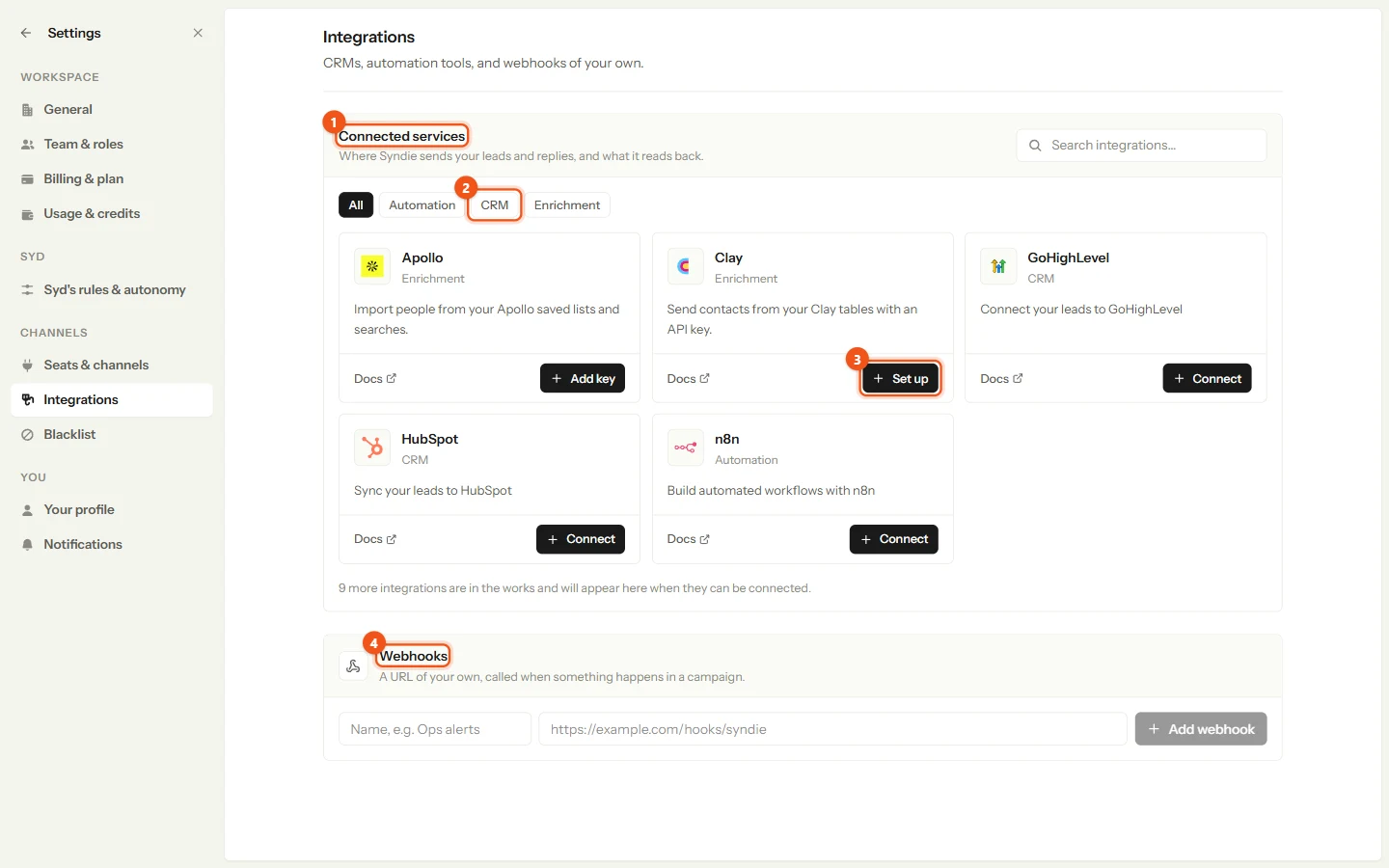
Which cards you see depends on your workspace. A card only appears when that service is available to you.
| Type | What it is good for | Guide |
|---|---|---|
| HubSpot | Send leads from a campaign into your HubSpot CRM, creating or updating contacts, and import contacts from it. | HubSpot |
| GoHighLevel | The same, for your GoHighLevel CRM. Agencies can connect one account for each sub-account. | GoHighLevel |
| n8n | Start an n8n workflow when something happens in Syndie, or add contacts to your workspace from a workflow. | n8n |
| Apollo (category Enrichment) | Import people from your Apollo saved lists and searches, and find work emails with your own Apollo key. | Open the card, click Add key and paste your key |
| Clay (category Enrichment) | Let your Clay tables, or any tool that can call an API, add contacts with an API key. The card's button is Set up. | Public API |
| Webhooks | Call your own web address when something happens in a campaign. | Webhooks |
Coming soon: some cards, such as Zapier, Make, Slack and ZoomInfo, may show a Coming soon button instead of Connect, depending on your workspace. They can be connected once they are ready.
n8n in a few words
n8n connects from its own side. In n8n you start the connection, and a screen opens in Syndie asking you to allow it. The screen names the tool and says it is asking to read and add contacts, and to receive replies and other events from this workspace. Only allow it if you started the connection yourself.
Once connected, n8n can react to these events in your workspace:
| Event | When it happens |
|---|---|
| Lead created | A new contact is added. You have to ask for this one specifically. |
| Lead replied | A lead answers on LinkedIn or by email. |
| Connection accepted | A lead accepts your LinkedIn invite. |
| Status changed | A lead's status changes. |
| Opted out | A lead unsubscribes, complains, replies to opt out, or is on your blacklist. |
| Conversation handed off | A conversation is handed over to a person. |
| Meeting booked | Someone books a meeting. |
n8n can also do two things in your workspace: add a contact without creating duplicates, and look a contact up by LinkedIn address or email.
Who Can Connect
| Role | What they can do |
|---|---|
| Owner and Admin | Connect, reconnect and disconnect services. Add and remove webhooks. Create, replace and revoke API keys. |
| Member | See which services are connected and read the setup guides. The Connect buttons are off for them. |
The screen tells members this plainly: "Only owners and admins can connect or disconnect a service." A member can open the Set up guide of the Clay card, but cannot create a key. It tells them to ask an owner or admin.
Connect a Service
- Go to Settings, then Integrations.
- Find the card. Use the Search integrations… box, or pick a category. All shows everything.
- Click Connect. What happens next depends on the service:
- CRM cards send you to the CRM to give permission, then bring you back.
- Cards with steps open a short list of steps. Follow them on the other service's side, then come back. The connection appears here on its own.
- Cards that use your own key ask you to paste an API key. Syndie checks the key before saving it and shows only its last four characters afterwards.
- When it works, the card shows a green Connected label.
You can connect more than one account of the same service. Click Add another. The new connection gets a name such as "HubSpot 2" so you can tell them apart. In a campaign step you choose which connection to use.
Check That It Still Works
Each card shows the state of its connections.
| What you see | What it means | What to do |
|---|---|---|
| Connected | The connection is working. With several, "3 connected". | Nothing. |
| Needs attention | A connection is broken. With several, "1 of 3 need attention". | Look at the line for the broken connection. |
| Needs reconnecting | The permission was lost or expired. | Click Reconnect on that line. |
| Removed in your CRM | Someone uninstalled the app inside the CRM. | Click Remove, then connect again if you still want it. |
| Key not accepted or Key not allowed to use the API | The provider no longer accepts the key you pasted. | Click Replace key and paste a working one. |
Data provider cards also have a Check link next to each connection. It tests the connection right now and tells you if it works and how many provider credits are left. Where you pasted your own key, you can also choose whether email lookups use Syndie credits or your own provider credits, with the link on that line.
Disconnect a Service
- Find the connection on its card and click Disconnect. If the app was already removed in your CRM, the link says Remove.
- Read the list in the confirmation window and confirm.
What changes depends on the type.
CRM (HubSpot, GoHighLevel):
- Contacts stop syncing to that account.
- Campaign steps that write to it stop until you choose another connection.
- A contact import from it that is still running stops.
- Contacts already in Syndie stay. Only their link to that account is removed.
- Nothing already in your CRM is deleted.
- The app is also removed from that account in your CRM, unless another connection still uses it. HubSpot sends the account an email to say so.
Data provider:
- Imports from that account stop, including one that is still running.
- Contacts already imported stay.
- Nothing in the provider is changed. A key you pasted keeps working there until you delete it in the provider.
Your other connections to the same service stay connected.
If the CRM does not confirm that the app was removed, a window tells you so. To finish, open the CRM, find the app in that account's settings and uninstall it there.
Webhooks
The Webhooks block at the bottom of the screen is for a web address of your own. Syndie calls it when something happens in a campaign, using the Notify Webhook step in the Flow Builder.
To add one:
- Type a Webhook name, for example "Ops alerts".
- Paste the Webhook URL.
- Click Add webhook.
Each webhook is listed with its name and address. Click Remove to delete it. Only owners and admins can add or remove webhooks.
Webhooks explains what is sent, the reply webhook, and what your address must do.
Which One Should I Use?
- You use a CRM and want leads to land in it: connect HubSpot or GoHighLevel.
- You use n8n and want to react to replies or meetings, or add contacts from other tools: connect n8n, or use a webhook for a simple one-way call.
- You already have an Apollo account and want its people in your lists: use the Apollo card.
- You are a developer, or your data tool can call an API: create an API key and read Public API.
Fixing Integration Problems
I cannot click Connect
Only owners and admins can connect. Ask one of them, or ask for your role to change under Settings, then Team & roles.
I do not see the card I want
The card is not available for your workspace yet. Contact support if you expected it.
A connection says Needs reconnecting
Click Reconnect on its line and approve again in the other service. If your CRM account itself lost permission, sign in there as an admin.
Email lookups use Syndie credits when I expected my own
On a data provider card, check whether the key shows an error. Replace the key, or click Check, and then pick your own credits again with the link on that line.
My Apollo notes didn't come over
Notes come only with a saved Apollo list, not with a people search. If the import said the notes were not brought in, your Apollo key isn't allowed to read notes, and the Apollo card says so too. Allow the notes endpoint on the key in Apollo, click Check on the card, then import the same list again: only the missing notes are added, and no contact is duplicated.
Integrations
HubSpot
Connect HubSpot to Syndie, send contacts to it from your campaigns, and bring your HubSpot contacts in.
What it does
Connecting HubSpot lets Syndie do four things with your HubSpot account:
- Send contacts to HubSpot from a campaign. When a contact reaches the Sync with HubSpot step in your flow, it is created in HubSpot, or updated if it is already there.
- Send one contact by hand. Open a contact and send it to HubSpot right away.
- Export the contacts you already have. Filter your contacts, for example to everyone who replied in one campaign, and send them all to HubSpot in one go.
- Import your HubSpot contacts. Bring the people already in HubSpot into your Syndie contacts, and turn them into a prospect list if you like.
Syndie campaign  ->  Sync with HubSpot step  ->  HubSpot contact
Syndie contacts  ->  Export  ->  HubSpot contacts
HubSpot contacts  ->  Import  ->  Syndie contacts
Who can connect it
Only owners and admins can connect, reconnect or disconnect HubSpot. Other members can still pick an account that is already connected when they edit a campaign step, and can send a single contact to it.
Before you connect
- Be signed in to the Syndie workspace you want to connect.
- Have a HubSpot login that is allowed to approve apps for your HubSpot account. If HubSpot refuses, ask your HubSpot admin to approve the connection.
- HubSpot will ask you to allow Syndie to read and write contacts, and to read and create contact properties. When you connect, Syndie creates three contact properties if they are missing: LinkedIn Status (
linkedin_status), Outreach Lead Status (lead_status) and LinkedIn Profile URL (linkedin_profile_url).
Connect HubSpot
- In the left menu, open Integrations.
- Find the HubSpot card and click Connect.
- You are taken to HubSpot. Sign in if HubSpot asks, choose your account and approve the connection.
- HubSpot sends you back to Integrations. You see "HubSpot connected successfully!" and the card shows Connected.
You do not need to type a name for the connection. The first one is called HubSpot. If you connect a second HubSpot account, click Add another on the card. It is called HubSpot 2, and so on.
Add HubSpot to a campaign
Sync with HubSpot
This step sends the contact to HubSpot the moment it runs.
- Open your campaign and go to its flow.
- Click + where you want the step to go.
- Open the Integrations tab and choose Sync with HubSpot.
- Choose when it runs: Sync immediately, or Wait a specific amount of time. For the second one, set Duration and Unit (Minutes, Hours or Days) under Sync Delay.
- Under HubSpot Integration, pick the account in HubSpot Account. If your workspace has only one working HubSpot connection, a new step picks it for you.
- Optional: turn on Custom Contact Status and type a Custom Status, for example "Connected" or "Replied". It is sent to HubSpot with the contact.
- Click Save & Close.
If no HubSpot account is connected yet, the step says "Connect HubSpot to continue." Owners and admins get a Connect button there. Everyone else sees "Only an owner or admin can connect this."
If the connection a step used is later removed, the step shows "The connection this step used was removed. Choose another one." Syndie never moves a step to another account by itself.
What is sent to HubSpot
Only fields that have a value are sent. An empty field never erases something that is already in HubSpot.
| In Syndie | HubSpot property |
|---|---|
| First name | firstname |
| Last name | lastname |
| Email (the best one found for the contact) | email |
| Phone | phone |
| Company | company |
| Headline | jobtitle |
| Location (the whole text, as one value) | city |
| LinkedIn profile address | hs_linkedin_url and linkedin_profile_url |
| LinkedIn connection status | linkedin_status |
| Custom Status (from the step) | lead_status, and HubSpot's own Lead Status when the text matches one of its choices |
linkedin_status, lead_status and linkedin_profile_url are created in your HubSpot when you connect, if they are missing. If someone deletes one of them later in HubSpot:
linkedin_profile_urlis created again at the next sync.linkedin_statusandlead_statusare not. The contact is still saved, but those values are left out. Create the property again in HubSpot with exactly the same internal name, as single-line text.
Every sync sends these fields again. If you change a contact in Syndie, the next sync updates HubSpot with the new value.
Duplicates and contacts already in HubSpot
- The contact has an email. HubSpot matches on the email. A person who is already in HubSpot with that email is updated, not duplicated.
- The contact has no email. The first sync creates a new HubSpot contact, because there is nothing to match on. If that person already exists in HubSpot without an email you gave us, you will get a second contact. Import your HubSpot contacts first (see below) so the two are linked.
- After the first sync, Syndie remembers which HubSpot contact belongs to the contact. Every later sync updates that same one.
- The same person in two lists or campaigns (same LinkedIn profile or same email) is sent to the same HubSpot contact.
- If the HubSpot contact was deleted in HubSpot, the next sync creates a new one.
- If the email already belongs to a different HubSpot contact, the contact is updated but its email is left as it is.
Send one contact by hand
- Open a contact.
- Click the three-dot menu (Contact actions) and choose Send to HubSpot followed by the connection name.
- You see "Added to ..." when the contact is new in HubSpot, or "Updated in ..." when it was already there.
This makes the same write as the campaign step. It only lists HubSpot connections that are working.
Export your existing contacts to HubSpot
Use this when campaigns are already running and you want their contacts in HubSpot without changing the campaigns. Connecting HubSpot never sends anything by itself: contacts go to HubSpot only when you export them, send one by hand, or a campaign reaches the Sync with HubSpot step.
- Open Contacts.
- Filter the list to the contacts you want. You can combine Campaign, Status (for example Replied or Accepted), Seat, Tag, Source, Email, Date and Sent to CRM. Or tick the contacts you want instead.
- Click Export, then choose HubSpot in the window that opens. (The other choice, CSV file, downloads the same contacts as a spreadsheet.) With contacts ticked, use the Export button in the bar at the bottom.
- If you connected several accounts, choose the one to send to.
- Check the three numbers: Match, Already sent and Will be sent. Then click Send.
- The export runs in the background. You can close the window; click Export again to see how far it is, or click Stop export.
When it finishes you see four numbers:
| Number | What it means |
|---|---|
| New | Created in HubSpot. |
| Already in HubSpot | HubSpot already had a contact with that email, so it was updated, not created again. |
| Already sent | Sent to this HubSpot account before, by an export, by hand or by a campaign step. Skipped. |
| Failed | HubSpot refused the contact. It is sent again the next time you export. |
Good to know:
- Exporting again only sends what is new. If you export "Replied" today and again in two weeks, only the people who replied since then are sent.
- Running campaigns are not touched. Nothing is paused, restarted or changed.
- One export sends up to 10,000 contacts. If more are waiting, export again for the rest.
- One export at a time for each HubSpot account. Wait for it to finish, or stop it, before starting another.
- To send only replies automatically in future campaigns, put Sync with HubSpot on the Yes side of a "replied" condition in the flow. Contacts that do not reach the step are not sent. The step and the export share the same record, so a contact is never created twice.
- Use the "Sent to CRM" filter on the Contacts page to see who is already in a HubSpot account and who is not.
Import contacts from HubSpot
- Open Contacts and click Import.
- Under From your apps, choose HubSpot. If you connected several accounts, choose the account first.
- Optional: leave Create a list from these contacts ticked, give the list a name (it starts as "HubSpot contacts") and choose a LinkedIn account for it.
- Click Start import.
What happens:
- Every contact in the HubSpot account is read. Syndie brings in the name, email, phone, company, job title, location (city, state and country together) and LinkedIn address.
- New people are added to your contacts. People who are already here are linked, not duplicated (matched on LinkedIn address or email), and any blank fields are filled in.
- Anyone with neither an email nor a LinkedIn address is left out.
- If you asked for a list, it is made when the import ends, as long as at least 10 people have a LinkedIn profile. Only they go into the list. Everyone is still added to your contacts.
- You can close the window. The import keeps going. Click Stop import to stop it. Contacts already imported stay.
- When it finishes you see how many contacts were new, how many were already here and linked, and how many were left out. If the import hits its contact limit, it says so.
Imported people stay linked to their HubSpot contact, so a later Sync with HubSpot updates that contact instead of making a new one.
Disconnect HubSpot
- Open Integrations.
- On the HubSpot card, click Disconnect next to the connection, then confirm.
What this does:
- Contacts stop syncing to that HubSpot account, and campaign steps that write to it stop until you choose another connection.
- An import from it that is still running stops.
- Contacts already in Syndie stay. Only their link to HubSpot is removed. Nothing in your HubSpot is deleted.
- The app is also removed from your HubSpot account, unless another connection still uses that account. HubSpot sends the account an email saying the app was removed.
- Your other HubSpot connections stay connected.
If HubSpot does not confirm the removal, the box says "HubSpot is disconnected". To finish, open HubSpot, find the app in that account's settings and uninstall it there.
HubSpot does not tell Syndie when someone removes the app inside HubSpot, so a HubSpot connection never shows "Removed in your CRM". If the app was removed there, click Disconnect to clear the connection, then connect HubSpot again.
Fixing problems
| Problem | What to do |
|---|---|
| The card says Needs reconnecting | HubSpot stopped accepting the sign-in. Syndie renews it by itself in the background, so this only shows when HubSpot refuses. Click Reconnect and approve again. You also get a notification: "Reconnect a connected app". |
| Authorization failed when connecting | Try again from Connect. Make sure your HubSpot user may approve apps, or ask your HubSpot admin. A connection that takes too long to finish has to be started again. |
| The sync step does nothing | Check that the campaign is active, the contacts reach that step, and the HubSpot connection is not marked Needs reconnecting. |
| A contact shows in HubSpot without its connection status or custom status | Check that the linkedin_status and lead_status properties still exist in HubSpot. If one was deleted, create it again there with the same internal name, as single-line text (see above). |
| Two HubSpot contacts for one person | They had no email when first synced, or were created in HubSpot before. Merge them in HubSpot's duplicate tool. Import your HubSpot contacts so the two are linked from now on. |
| The import says the connection stopped working | Reconnect HubSpot in Integrations, then import again. Contacts already imported are skipped. |
| The import stopped after 3 days with no progress | Start it again. Contacts already imported are skipped. |
Still stuck? See Support.
Integrations
GoHighLevel
Connect GoHighLevel to Syndie, from one sub-account or a whole agency, send contacts to it from your campaigns, and import its contacts.
What it does
Connecting GoHighLevel lets Syndie do three things with a GoHighLevel sub-account:
- Send contacts to GoHighLevel from a campaign. When a contact reaches the Sync with GoHighLevel step in your flow, it is created in the sub-account, or updated if it is already there.
- Send one contact by hand. Open a contact and send it to GoHighLevel right away.
- Import the sub-account's contacts. Bring the people already in GoHighLevel into your Syndie contacts, and turn them into a prospect list if you like.
Syndie campaign  ->  Sync with GoHighLevel step  ->  contact in the sub-account
Sub-account contacts  ->  Import  ->  Syndie contacts
Each GoHighLevel sub-account is its own connection. That is what lets an agency keep every client's contacts apart.
Who can connect it
Only owners and admins can connect, reconnect or disconnect GoHighLevel. Other members can still pick a sub-account that is already connected when they edit a campaign step, and can send a single contact to it.
Connect GoHighLevel
- In the left menu, open Integrations.
- Find the GoHighLevel card and click Connect.
- You are taken to GoHighLevel, to a page where you choose where to install the app. Sign in if GoHighLevel asks.
- Install the app on a single sub-account, or on your agency (see below) and approve.
- GoHighLevel sends you back to Integrations. You see "GoHighLevel connected successfully!" and the card shows Connected.
On connect, Syndie also adds two contact fields to the sub-account if they are missing: linkedin_status and linkedin_profile_url. It uses them to store the contact's LinkedIn connection status and LinkedIn address.
Install on one sub-account
Choose a single sub-account. You get one connection. If you already have a connection named GoHighLevel, the new one is called GoHighLevel 2, and so on.
Install on your agency
Choose the agency instead of one sub-account. Syndie then:
- Connects every sub-account that has the app installed. Each one gets its own connection. When there are several, each is named GoHighLevel · the sub-account's name. Up to 25 sub-accounts are connected in one go.
- Keeps your agency sign-in. When you later add the app to another sub-account, that sub-account connects to this workspace on its own, and appears in the list within moments. You do not need to click Connect again.
- Never reconnects a sub-account you removed on purpose. See Excluded sub-accounts below.
If GoHighLevel has not listed your sub-accounts yet, you see "GoHighLevel is finishing the install. Your sub-accounts will appear here in a few seconds." Wait a moment. The list fills in by itself.
If you install from inside GoHighLevel
You can also install the app from GoHighLevel's own app page. When you do, Syndie only reconnects the accounts this workspace already had. You see "GoHighLevel finished installing. If it doesn't show up below in a few seconds, click Connect to add it." For a brand new account, come back here and click Connect.
Excluded sub-accounts
When you click Disconnect on one sub-account, Syndie remembers that you removed it. Even though your agency sign-in is kept, that sub-account is not connected again by itself. To bring it back, click Connect and install the app on it again.
If you disconnect the last connection from an agency, Syndie forgets the agency sign-in too, and new sub-accounts stop connecting by themselves.
Add GoHighLevel to a campaign
Sync with GoHighLevel
This step sends the contact to GoHighLevel the moment it runs.
- Open your campaign and go to its flow.
- Click + where you want the step to go.
- Open the Integrations tab and choose Sync with GoHighLevel.
- Choose when it runs: Sync immediately, or Wait a specific amount of time. For the second one, set Duration and Unit (Minutes, Hours or Days) under Sync Delay.
- Under GoHighLevel Integration, pick the sub-account in GoHighLevel Account. If your workspace has only one working GoHighLevel connection, a new step picks it for you.
- Optional: turn on Custom Contact Status and type a Custom Status, for example "Connected". In GoHighLevel it is added to the contact as a tag.
- Click Save & Close.
If no GoHighLevel account is connected yet, the step says "Connect GoHighLevel to continue." Owners and admins get a Connect button there. Everyone else sees "Only an owner or admin can connect this."
If the connection a step used is later removed, the step shows "The connection this step used was removed. Choose another one." Syndie never moves a step to a different sub-account by itself. For an agency, that would put one client's contacts into another client's account.
What is sent to GoHighLevel
Only fields that have a value are sent. An empty field never erases something that is already in GoHighLevel.
| In Syndie | In GoHighLevel |
|---|---|
| First name | First name |
| Last name | Last name |
| Email (the best one found for the contact) | |
| Phone | Phone |
| Company | Company name |
| Location (the whole text, as one value) | City |
| LinkedIn connection status | Custom field linkedin_status |
| LinkedIn profile address | Custom field linkedin_profile_url |
| Custom Status (from the step) | A tag on the contact |
The headline is not sent to GoHighLevel.
Every sync sends these fields again. If you change a contact in Syndie, the next sync updates GoHighLevel with the new value. If the tag cannot be added, the contact is still saved.
Duplicates and contacts already in GoHighLevel
- The contact has an email or a phone number. GoHighLevel decides whether this is someone it already has, using that email or phone. A match is updated, not duplicated.
- The contact has neither. A new contact is created. If GoHighLevel answers that this contact already exists, Syndie uses that one instead of making another.
- After the first sync, Syndie remembers which GoHighLevel contact belongs to the contact. Every later sync updates that same one.
- The same person in two lists or campaigns (same LinkedIn profile or same email) is sent to the same GoHighLevel contact.
- If the GoHighLevel contact was deleted in GoHighLevel, the next sync creates a new one.
- Two different sub-accounts are separate. The same person can exist once in each.
Send one contact by hand
- Open a contact.
- Click the three-dot menu (Contact actions) and choose Send to GoHighLevel followed by the connection name.
- You see "Added to ..." when the contact is new in GoHighLevel, or "Updated in ..." when it was already there.
This makes the same write as the campaign step. It only lists connections that are working.
Export your existing contacts to GoHighLevel
Use this when campaigns are already running and you want their contacts in GoHighLevel without changing the campaigns.
- Open Contacts. Filter the list to the contacts you want, or tick them.
- Click Export, then choose GoHighLevel in the window that opens.
- If you connected several sub-accounts, choose the one to send to.
- Check the three numbers: Match, Already sent and Will be sent. Then click Send.
The export runs in the background, so you can close the window. Contacts already sent to that sub-account are skipped, which means exporting again later only sends the new ones. One export runs at a time for each sub-account, and one export sends up to 10,000 contacts.
Import contacts from GoHighLevel
- Open Contacts and click Import.
- Under From your apps, choose GoHighLevel. If you have several sub-accounts, choose the one to import from.
- Optional: leave Create a list from these contacts ticked, give the list a name (it starts as "GoHighLevel contacts") and choose a LinkedIn account for it.
- Click Start import.
What happens:
- Every contact in the sub-account is read. Syndie brings in the name, email, phone, company, location (city, state and country together) and, when the
linkedin_profile_urlfield is filled in, the LinkedIn address. The headline is not imported. - New people are added to your contacts. People who are already here are linked, not duplicated (matched on LinkedIn address or email), and any blank fields are filled in.
- Anyone with neither an email nor a LinkedIn address is left out.
- If you asked for a list, it is made when the import ends, as long as at least 10 people have a LinkedIn profile. Only they go into the list. Everyone is still added to your contacts.
- You can close the window. The import keeps going. Click Stop import to stop it. Contacts already imported stay.
- When it finishes you see how many contacts were new, how many were already here and linked, and how many were left out. If the import hits its contact limit, it says so.
Imported people stay linked to their GoHighLevel contact, so a later Sync with GoHighLevel updates that contact instead of making a new one.
Disconnect GoHighLevel
- Open Integrations.
- On the GoHighLevel card, click Disconnect next to the sub-account, then confirm.
What this does:
- Contacts stop syncing to that sub-account, and campaign steps that write to it stop until you choose another connection.
- An import from it that is still running stops.
- Contacts already in Syndie stay. Only their link to GoHighLevel is removed. Nothing in GoHighLevel is deleted.
- The app is also removed from that sub-account in GoHighLevel, unless another connection still uses it.
- If other sub-accounts from the same agency are still connected, this one becomes an excluded sub-account (see above). Your other connections stay connected.
If GoHighLevel does not confirm the removal, the box says "GoHighLevel is disconnected". To finish, open GoHighLevel, find the app in that sub-account's settings and uninstall it there.
If someone removes the app inside GoHighLevel first, the connection shows "Removed in your CRM". Click Remove to clear it from the list, or connect again.
Fixing problems
| Problem | What to do |
|---|---|
| The card says Needs reconnecting | GoHighLevel stopped accepting the sign-in. Syndie renews it by itself in the background, so this only shows when GoHighLevel refuses. Click Reconnect and approve again. You also get a notification saying the app needs to be reconnected. |
| A sub-account is missing after an agency install | Wait a few seconds, the list fills in by itself. If it never appears, it may be one you disconnected earlier. Click Connect and install the app on it again. |
| Only some sub-accounts connected | One agency install connects up to 25 sub-accounts. Connect the others one by one: click Connect and install the app on a single sub-account. |
| The sync step does nothing | Check that the campaign is active, the contacts reach that step, and the connection is not marked Needs reconnecting. |
| The custom status is not a field | It is added as a tag on the contact. Look under Tags in GoHighLevel. |
| Two GoHighLevel contacts for one person | They had no email or phone when first synced, or already existed. Merge them in GoHighLevel. Import the sub-account's contacts so the two are linked from now on. |
| The import says the connection stopped working | Reconnect GoHighLevel in Integrations, then import again. Contacts already imported are skipped. |
| The import stopped after 3 days with no progress | Start it again. Contacts already imported are skipped. |
Still stuck? See Support.
Integrations
Webhooks
Send a contact's details to a web address of your own, from a campaign step or when someone replies. How to add a webhook, what is sent, and what to check when nothing arrives.
What a Webhook Is
A webhook is a web address of your own that Syndie calls when something happens. Each call carries the contact's details, so another tool can act on them. For example, a webhook can post a message in your team chat, add a row to a spreadsheet, or start a workflow in an automation tool.
It works in one direction only. Syndie sends, your address receives. Nothing is read back.
There are two ways to use a webhook:
| Where | When it is called |
|---|---|
| The Notify Webhook step in a campaign flow | When a contact reaches that step. |
| Send a webhook when someone replies, in the campaign settings | Each time a contact replies on that campaign, on LinkedIn or by email. |
Add a Webhook
Webhooks are saved once for the whole workspace, then picked in your campaigns.
- Go to Settings, then Integrations.
- Scroll to the Webhooks block at the bottom.
- Type a Webhook name, for example "Ops alerts". The name is only for you.
- Paste the Webhook URL. Use an address that starts with
https://. Anhttp://address is saved, but every call to it is refused. - Click Add webhook.
Each webhook is listed with its name and address. Click Remove to delete it from this list. A Notify Webhook step or a reply webhook that already uses it keeps calling that address, so change or remove those too.
Only owners and admins can add or remove webhooks.
Call a Webhook From a Campaign Step
- Open the campaign in the Flow Builder.
- Add a Notify Webhook step where you want the call to happen.
- Under Webhook Account, choose one of your webhooks.
- Choose Trigger immediately, or a wait before the step runs. A new step waits 15 minutes.
- Save the step.
When a contact reaches the step, Syndie calls the address you chose. If it answers with success, the step counts as done. If it fails, the step is marked as failed, the contact still moves on to the next step, and you get a notification that the step is failing. The call is not tried again.
The step does not count toward your LinkedIn limits, because it sends nothing to LinkedIn.
Get Told About Replies
- Open the campaign's settings.
- Under Tell another app, turn on Send a webhook when someone replies.
- Choose the webhook endpoint where reply notifications will be delivered, or create a new one.
- Save.
From then on, each reply a contact sends on that campaign calls your address, with the message added to the details. Note that:
- Every message is sent, not only the first. A contact who writes three times calls your address three times.
- LinkedIn and email both count. The
reply.typefield says which:LINKEDINorEMAIL. For an email, the quoted earlier conversation is removed, so you get only the new text. - Withdrawn contacts are skipped. If you withdrew the invite to someone, their messages do not call it.
- A failed call is not repeated. The reply itself is still handled as usual in your inbox.
What Is Sent
Each call is a POST request with a JSON body. Here is a shortened example:
{
  "id": "6650f1c2a9e4b0012c3d4e5f",
  "firstName": "Maria",
  "lastName": "Lopez",
  "linkedinUrl": "https://linkedin.com/in/maria-lopez",
  "connectionStatus": "accepted",
  "location": "Madrid, Spain",
  "jobtitle": "Head of Sales at Northwind",
  "email": "maria@northwind.com",
  "createdAt": "2026-10-03T09:15:00.000Z",
  "steps": [
    {
      "stepType": "send_invite",
      "success": true,
      "timestamp": "2026-09-30T10:02:11.000Z"
    }
  ],
  "campaign": {
    "id": "6650e8b7a9e4b0012c3d4a10",
    "name": "Q4 Sales Leaders",
    "status": "active",
    "linkedinConnection": {
      "firstName": "Alex",
      "lastName": "Morgan",
      "accountType": "sales_navigator"
    },
    "leadList": {
      "name": "Sales leaders in Spain"
    }
  },
  "reply": {
    "message": "Thanks, happy to talk next week.",
    "timestamp": "2026-10-03T09:14:52.000Z",
    "type": "LINKEDIN"
  }
}
| Part | What it holds |
|---|---|
| Top level | The contact: name, LinkedIn address, connection status, location, job title, and work email if one was found. |
steps | Every step this contact has been through on the campaign, in order, with whether it worked or was skipped. |
campaign | The campaign, the LinkedIn account sending it, and the list the contact came from. |
reply | Only on reply calls: the message, when it was sent and where (LINKEDIN or EMAIL). |
connectionStatus is one of pending, accepted, replied, withdrawn or rejected.
What Your Address Must Do
- Use
https://. Plainhttp://addresses are refused. - Be reachable from the internet. Private and local addresses, such as
localhostor an office network, are refused. - Answer within 10 seconds. A slower answer counts as a failure.
- Answer with a success code (any
2xx). Any other code counts as a failure. Up to 3 redirects are followed.
The calls are not signed. Use an address that is hard to guess, and keep it private.
Fixing Webhook Problems
Nothing arrives at my address
- Check that the address starts with
https://and opens from outside your network. - Check that the contact really reached the Notify Webhook step. Open the contact and look at their steps.
- For the reply webhook, check that the switch is on in that campaign's settings and a webhook is chosen.
The step shows as failed
Your address did not answer with success in time. Make sure it answers in under 10 seconds with a 2xx code. The step is not tried again for that contact; the contact has already moved on.
The step was skipped
The step has no webhook chosen. Open the step, choose a webhook and save.
I get the same contact more than once
That is expected when a contact replies several times. Use the contact's id to recognise repeats.
I want more than a one-way call
Use n8n, which can also react to events such as meetings booked and add contacts back into your workspace, or the Public API.
Integrations
n8n
Connect n8n to Syndie to start a workflow when a contact replies, accepts, books a meeting and more, and to add or find contacts from a workflow.
What it does
n8n is a workflow tool you can use in the cloud or run yourself. Once connected to Syndie you can:
- Start a workflow from something that happens in Syndie, for example when a contact replies, accepts your connection request or books a meeting. These are triggers.
- Do something in Syndie from a workflow, for example add a new contact from a form, or check whether someone is already a contact. These are actions.
Syndie event  ->  n8n trigger  ->  your workflow  ->  Google Sheets, Slack, a database...
Form, sheet or CRM  ->  workflow  ->  contact in Syndie
Who can connect it
Only owners and admins of a workspace can approve the connection and remove it. A member who tries to approve it is refused. The connection belongs to the workspace you are signed in to when you approve it.
Connect n8n
You need the Syndie node in n8n. It is a verified node, so it is available on n8n Cloud as well as on n8n you run yourself.
- In Syndie, open Integrations, find the n8n card and click Connect. A box called "Set up n8n" opens with the steps. Keep it open: it shows the Client ID you need, and the API Base URL if you need to change it. Click Open n8n to go to n8n.
- In n8n, add the Syndie node from the nodes panel.
- Create a Syndie OAuth2 credential and fill in:
- Client ID: the one shown in the "Set up n8n" box. If it is not shown, ask Support for it.
- API Base URL: see the next section.
- Client Secret: if n8n asks for one, type any text. Syndie does not use a secret for n8n.
- Click Connect in the credential.
- You land on a page called "Connect n8n to this workspace?". It tells you which address is asking, and shows the connection name if n8n sent one. Only click Allow n8n if you started the connection yourself. Click Cancel if you did not.
- Back in n8n the credential is connected. Add the Syndie Trigger node, or an action, and build your workflow.
Your n8n must be reachable over https. The sign-in comes back to your n8n address, and it will not complete on a plain http address (an n8n on your own computer at localhost is the only exception).
Which API address to use
The API Base URL is the address of the Syndie server that the n8n node talks to.
- Leave it at the default,
https://api.syndie.io, unless the "Set up n8n" box shows a different address. - If the "Set up n8n" box shows an API Base URL, type exactly that address instead.
The Client ID and the API Base URL must belong together, so copy both from the box in the same visit.
How the sign-in works
Syndie uses a standard "Allow access" sign-in. You never give n8n your password. n8n gets a key that works for one hour and renews itself in the background. Each connection is limited to 50 requests every 10 seconds, which is far more than a normal workflow needs. If you go over, n8n is told to wait a few seconds and try again.
Triggers: what can start a workflow
Add the Syndie Trigger node and choose which events start the workflow. There are seven. Syndie sets up the webhook for you when you activate the workflow, so there is no address to copy.
| Trigger | When it fires | Extra details it includes |
|---|---|---|
| New contact | A contact is added to your workspace: created by hand, imported from a CSV, or imported from a connected app or a workflow. | created.source: where it came from, for example manual or the name of an app. It can be empty. |
| Lead replied | A contact replies to a campaign message on LinkedIn or by email. | reply.channel (linkedin or email), reply.message (up to 4,000 characters, with quoted older text removed for email), reply.at, and reply.subject for email. |
| Connection accepted | A contact accepts your LinkedIn connection request in a campaign. | None. |
| Status changed | Someone changes a contact's status in Syndie. | status.from and status.to. |
| Opted out | A contact asks not to be contacted, clicks an unsubscribe link, complains, or is added to your blacklist. | optOut.reason: replied_opt_out, unsubscribe_link, complaint or blacklisted. optOut.email when known. |
| Handed to a human | Syd hands a conversation over to a person. | handoff.reason: a short reason, for example question. |
| Meeting booked | A contact books a meeting through your booking link. | meeting.startAt, meeting.meetLink and meeting.inviteeEmail. |
To be sure you receive New contact, select it on purpose. A subscription that does not name any event gets every event except New contact, so a big import does not flood your workflow.
What every event contains
Every event carries the same basic details, then its own extra block from the table.
{
  "id": "evt-123",
  "event": "lead.connection_accepted",
  "occurredAt": "2026-09-08T09:30:00.000Z",
  "workspaceId": "your-workspace-id",
  "lead": {
    "id": "contact-id",
    "firstName": "Sarah",
    "lastName": "Green",
    "headline": "Head of Growth at Example Inc.",
    "company": "Example Inc.",
    "location": "Austin, Texas",
    "email": "sarah.green@example.com",
    "phone": null,
    "publicIdentifier": "sarah-green",
    "linkedinUrl": "https://www.linkedin.com/in/sarah-green",
    "connectionStatus": "accepted",
    "campaignId": "campaign-id"
  },
  "campaign": { "id": "campaign-id", "name": "Q3 outreach" }
}
leadis the contact: name, headline, company, location, email, phone, LinkedIn address and status. Fields with no value are empty.campaignis the campaign the event belongs to. It is empty when there is none, for example for a contact added by hand.idis unique for each event. It is the same on every retry, so you can use it to spot repeats.
Actions: what a workflow can do in Syndie
| Action | What it does |
|---|---|
| Import a contact | Adds a contact, without duplicates. It looks for an existing contact by LinkedIn address first, then by email, in your workspace. If it finds one, it comes back as already existing and nothing is added twice. If you send details the existing contact is missing, the blanks are filled in. Details it already has are not overwritten. |
| Find a contact | Looks a contact up by LinkedIn address or email. Not finding anyone is a normal answer: it says "not found" and gives no contact. |
Fields you can send to Import a contact:
| Field | Notes |
|---|---|
| LinkedIn address, or LinkedIn public identifier | The part after /in/. |
| Needed if you give no LinkedIn address. | |
| First name, Last name | |
| Job title | Saved as the contact's headline. |
| Company, Location, Phone | |
| Tag | Optional. Put the contact in a tag with this name. It is created if it does not exist. A tagged group can be turned into a prospect list. |
You must give at least a LinkedIn address or an email, or there is nothing to match on. A new contact starts as not connected and belongs to no campaign. Both actions answer with the contact: name, headline, company, location, email, phone, LinkedIn address and status.
How events reach your workflow
- Each event is signed. Every delivery carries an
X-Webhook-Signatureheader, and the Syndie node checks it for you with the secret it received when it subscribed. If you build your own receiver, check that header too. - Your n8n answers with
200 OKby default, which is all Syndie needs to count the delivery as done. - If delivery fails, Syndie retries: up to 6 attempts in all, waiting 1 minute, then 5 minutes, then 30 minutes, then 2 hours, then 12 hours. After the last attempt it gives up on that event.
- An event is sent once to each workflow. A retry never starts a second run for the same event.
- If a workflow's address answers "gone", or Syndie finds the address is not safe to call, that workflow is switched off at once. After 10 failed deliveries in a row it is also switched off. Answers that mean "not allowed" are retried but do not count towards the 10.
- A switched-off workflow gets no more events. Deactivate and activate the workflow again in n8n to start receiving them.
Because Syndie has to reach your n8n, an n8n you run yourself must be open to the internet and reachable on a public address.
Disconnect n8n
- Open Integrations.
- On the n8n card, click Disconnect next to the connection, then confirm.
The connection is removed and its key stops working. Any workflow that used it stops receiving events and stops being able to add or find contacts. Contacts already added stay. To use n8n again, connect from the start.
If you only want one workflow to stop, deactivate it in n8n.
Fixing problems
| Problem | What to do |
|---|---|
| The n8n card is missing or cannot be clicked | n8n may not be available to your workspace yet. Contact Support. |
| n8n cannot finish connecting | Check that your n8n address starts with https://. Check the Client ID and the API Base URL against the "Set up n8n" box. |
| "Connect n8n to this workspace?" does not appear, or Allow fails | Only an owner or admin can approve. Sign in as one, then try again from n8n. |
| n8n asks for a Client Secret | Type any text. Syndie does not use one for n8n. |
| The workflow never starts | Make sure the workflow is active, and that you chose an event. Check that something has really happened, such as a reply. |
| You get no "New contact" events | Select New contact on purpose in the trigger. |
| Events stopped after working for a while | The workflow may have been switched off after repeated failures. Deactivate and activate it again. Check n8n's Executions for the reason. |
| n8n says to slow down | Each connection is limited to 50 requests every 10 seconds. n8n waits and retries. |
| "Import a contact" fails with nothing to match on | Send at least a LinkedIn address or an email. |
Still stuck? See Support.
Integrations
Public API
Create workspace API keys, authenticate, and use the endpoints to add and look up contacts. Includes rate limits, error format and curl examples.
What the Public API Does
The public API lets your own software, or a data tool that can call an API, work with the contacts in your Syndie workspace. It does not need a sign-in. It uses a workspace API key instead.
With it you can:
- Check a key and see which workspace it belongs to.
- Add one contact, or up to 100 contacts at once.
- Look up a contact by LinkedIn address or email.
Contacts are matched, not duplicated. If you send a person who is already in your workspace, Syndie finds the existing contact and only fills in the fields that were empty.
The API is not open for every workspace yet. If it is not open for yours, the Set up card does not appear on the Integrations screen, and calls return the error INTEGRATION_NOT_LAUNCHED.
Create an API Key
Only an owner or admin of the workspace can create keys. A member can read the guide but is told to ask an owner or admin.
- Go to Settings, then Integrations.
- On the Clay card, click Set up. The window is called "Use Syndie with Clay". Its API keys section is where every key is managed.
- Under Key name, type a name of up to 60 characters, for example "Contacts from our enrichment table". Each name can be used once in a workspace. If it is taken, you see "You already have an API key with that name."
- Choose what the key may do. At least one is needed.
- Add contacts lets the key add contacts.
- Look up contacts lets the key look contacts up. It also lets the key see full contact details in the answers to add calls.
- Click Create key.
- Click Copy right away. The key is shown only this one time. Syndie stores it in a form that cannot be read back, so a lost key cannot be recovered. If you lose it, replace it.
A key starts with wsk_live_. In the list you see a short start and the last four characters, for example wsk_live_AbCd…xY12, the permissions, and when it was last used.
A key works until you revoke it. It has no expiry date.
The key acts as the person who made it
A key borrows the access of the owner or admin who created it. If that person is removed from the workspace, or is no longer an owner or admin, the key stops working and calls return API_KEY_INVALID. Create keys while signed in as someone who will stay an owner or admin.
Replace a key
Click Replace next to a key. Syndie creates a new key with the same name and permissions and shows it once. The old key keeps working for 24 hours, and its line says "Replaced, works until" followed by the time. Use that day to switch your tools to the new key.
Revoke a key
Click Revoke, then confirm. The key stops working immediately. Anything using it can no longer call the API. Contacts it already added stay in your workspace.
Authenticate
Send the key in the Authorization header, after the word Bearer and a space:
Authorization: Bearer wsk_live_your_key_here
The examples below use two shell variables:
API_BASE="paste the base address here"
API_KEY="wsk_live_your_key_here"
Finding the base address. The Set up window shows the full address for adding contacts. It ends in /public/v1/contacts. The base address is everything before /public/v1. Every endpoint below is added to that base address. Syndie can run on a different address for different brands, so copy it from the window instead of guessing it.
Keep the key secret. Do not put it in front-end code, a public repository or a link. Anyone who has it can add contacts to your workspace.
Endpoints
| Method | Path | Key needs | What it does |
|---|---|---|---|
GET | /public/v1/me | Any valid key | Shows the workspace the key belongs to. |
POST | /public/v1/contacts | Add contacts | Adds one contact. |
POST | /public/v1/contacts/batch | Add contacts | Adds 1 to 100 contacts in one call. |
GET | /public/v1/contacts/lookup | Look up contacts | Finds a contact by LinkedIn address or email. |
Every response has the same shape
A successful call returns:
{
  "success": true,
  "data": {},
  "meta": {
    "request_id": "c8b1a3c2-2c91-4e3a-bc26-2c91c8b1a3c2",
    "timestamp": "2026-10-03T09:12:00.000Z"
  }
}
The result you asked for is in data. The request_id is useful if you contact support about a call.
Check a key
curl "$API_BASE/public/v1/me" \
  -H "Authorization: Bearer $API_KEY"
{
  "success": true,
  "data": {
    "workspace": { "id": "68a1c2d3e4f5a6b7c8d9e0f1", "name": "Acme Sales" }
  },
  "meta": {
    "request_id": "c8b1a3c2-2c91-4e3a-bc26-2c91c8b1a3c2",
    "timestamp": "2026-10-03T09:12:00.000Z"
  }
}
Use this call to test a new key before you wire it into anything.
Add one contact
POST /public/v1/contacts with a JSON body. Send at least a linkedinUrl or an email. Everything else is optional.
| Field | Meaning | Longest |
|---|---|---|
linkedinUrl | The person's LinkedIn profile address. | 500 characters |
email | The person's email address. | 320 characters |
firstName | First name. | 100 characters |
lastName | Last name. | 100 characters |
title | Job title. | 300 characters |
company | Company name. | 200 characters |
location | Where the person is based. | 200 characters |
phone | Phone number. | 50 characters |
externalId | Your own id for this person. It is stored with the contact. | 200 characters |
tag | A tag to put on the contact. It is created in the workspace if it does not exist. | 60 characters |
curl -X POST "$API_BASE/public/v1/contacts" \
  -H "Authorization: Bearer $API_KEY" \
  -H "Content-Type: application/json" \
  -d '{
    "linkedinUrl": "https://www.linkedin.com/in/jane-doe",
    "email": "jane@example.com",
    "firstName": "Jane",
    "lastName": "Doe",
    "title": "Head of Sales",
    "company": "Acme",
    "externalId": "row_123",
    "tag": "Q3 target accounts"
  }'
How matching works. Syndie looks for the person by LinkedIn address first, then by email, inside your workspace only. If the person exists, nothing they already have is changed, and only their empty fields are filled from what you sent. This means a data tool that finds emails can add them to contacts you already have.
The answer says what happened in outcome:
outcome | Meaning |
|---|---|
created | A new contact was made. |
matched | The person already existed. Empty fields may have been filled. |
rejected | Nothing was done. The reason is linkedin_url_or_email_required: you sent neither a LinkedIn address nor an email. |
{
  "success": true,
  "data": {
    "index": 0,
    "outcome": "created",
    "reason": null,
    "contact": { "id": "68b7f0c1a2d3e4f5a6b7c8d9" }
  },
  "meta": {
    "request_id": "c8b1a3c2-2c91-4e3a-bc26-2c91c8b1a3c2",
    "timestamp": "2026-10-03T09:12:00.000Z"
  }
}
A key that also has Look up contacts gets the full contact in contact: id, firstName, lastName, title, company, location, email, phone and linkedinUrl. A key that can only add contacts gets just the id.
A rejected contact is still an HTTP 200 answer. Always check outcome, not only the status code.
Add up to 100 contacts at once
POST /public/v1/contacts/batch takes a contacts list of 1 to 100 people. Each person has the same fields as above, except tag. Put tag once at the top, and it goes on every contact in the batch.
curl -X POST "$API_BASE/public/v1/contacts/batch" \
  -H "Authorization: Bearer $API_KEY" \
  -H "Content-Type: application/json" \
  -d '{
    "tag": "Q3 target accounts",
    "contacts": [
      { "email": "jane@example.com", "firstName": "Jane", "company": "Acme" },
      { "linkedinUrl": "https://www.linkedin.com/in/john-smith" },
      { "firstName": "No", "lastName": "Identity" }
    ]
  }'
You get one answer per contact, in the order you sent them. The index is the position in your list, starting at 0.
{
  "success": true,
  "data": [
    { "index": 0, "outcome": "created", "reason": null, "contact": { "id": "68b7f0c1a2d3e4f5a6b7c8d9" } },
    { "index": 1, "outcome": "matched", "reason": null, "contact": { "id": "68b7f0c1a2d3e4f5a6b7c8da" } },
    { "index": 2, "outcome": "rejected", "reason": "linkedin_url_or_email_required", "contact": null }
  ],
  "meta": {
    "request_id": "c8b1a3c2-2c91-4e3a-bc26-2c91c8b1a3c2",
    "timestamp": "2026-10-03T09:12:00.000Z"
  }
}
More than 100 contacts, or a field that is too long, rejects the whole call with VALIDATION_FAILED.
Look up a contact
GET /public/v1/contacts/lookup with a linkedinUrl or an email in the query. Give at least one.
curl -G "$API_BASE/public/v1/contacts/lookup" \
  -H "Authorization: Bearer $API_KEY" \
  --data-urlencode "email=jane@example.com"
{
  "success": true,
  "data": {
    "found": true,
    "contact": {
      "id": "68b7f0c1a2d3e4f5a6b7c8d9",
      "firstName": "Jane",
      "lastName": "Doe",
      "title": "Head of Sales",
      "company": "Acme",
      "location": null,
      "email": "jane@example.com",
      "phone": null,
      "linkedinUrl": "https://www.linkedin.com/in/jane-doe"
    }
  },
  "meta": {
    "request_id": "c8b1a3c2-2c91-4e3a-bc26-2c91c8b1a3c2",
    "timestamp": "2026-10-03T09:12:00.000Z"
  }
}
Not finding the person is a normal answer, not an error. You get "found": false and "contact": null.
Using a Key from Clay
The Set up window on the Clay card walks through it. In short, in your Clay table:
- Add a column and choose HTTP API.
- Set HTTP method to
POSTand API endpoint URL to the address shown in the window. - Add a header named
Authorizationwith the valueBearer, a space, and your key. - Send a JSON body with
linkedinUrloremail, plus any other fields you want, each taken from a column. - Turn on Remove empty fields from request, so an empty cell is left out instead of sent blank.
- Set Request limit to 4 and Duration (ms) to 1000, and turn on Retry on failure.
- Check the
outcomein each answer. A rejected row still shows as done in Clay.
The HTTP API column needs a Clay plan that includes it. Check Clay's own pricing for the details.
Limits
| Limit | Value |
|---|---|
| Requests for each key | 50 every 10 seconds |
| Requests for the whole workspace, all keys together | 100 every 10 seconds |
| Wrong or missing keys, for each IP address | 30 every 10 minutes |
| New contacts added through the API, for each workspace | 5,000 a day. The day resets at midnight UTC. |
| Contacts in one batch | 100 |
The daily limit counts new contacts. A contact that already existed, and a rejected row, are given back and do not use up the day. A call is checked up front for every contact in it, so close to the limit, send smaller batches. If a call would go over, the whole call is refused and nothing is added.
Each answer to a call with a valid key carries these headers for the per-key limit:
X-RateLimit-Limit: how many calls the window allows.X-RateLimit-Remaining: how many are left in this window.X-RateLimit-Reset: when the window ends, as a Unix time in seconds.
When you go over a limit you get HTTP 429. The Retry-After header, and retry_after in the body, tell you how many seconds to wait. Wait that long, then try again.
Errors
A failed call returns "success": false and an error object. Use code in your software. It is stable. The message is a sentence for people and can change.
{
  "success": false,
  "error": {
    "status": 401,
    "code": "API_KEY_INVALID",
    "message": "That API key is not valid. Check it, or create a new one in your workspace settings.",
    "instance": "/api/public/v1/me"
  },
  "meta": {
    "request_id": "c8b1a3c2-2c91-4e3a-bc26-2c91c8b1a3c2",
    "timestamp": "2026-10-03T09:12:00.000Z"
  }
}
The error object also has type and title. On a 429 it has retry_after. On VALIDATION_FAILED it has details, a list with the field, messages and constraints that failed.
| HTTP | code | What happened | What to do |
|---|---|---|---|
| 400 | VALIDATION_FAILED | A field is too long, the list is empty or has more than 100 contacts, or you sent a field that does not exist. Unknown fields are rejected. | Read details, fix the body. |
| 400 | LEAD_IDENTITY_REQUIRED | A lookup had neither linkedinUrl nor email. | Send one of them. |
| 401 | API_KEY_INVALID | No key, a wrong or revoked key, a replaced key past its 24 hours, or a key whose creator is no longer an owner or admin. | Check the header. Create a new key if needed. |
| 403 | API_KEY_SCOPE_MISSING | The key is not allowed to do this. | Create a key with the right permission. |
| 403 | INTEGRATION_NOT_LAUNCHED | The API is not open for your workspace yet. | Contact support. |
| 429 | RATE_LIMIT_EXCEEDED | Too many calls in a short time. | Wait retry_after seconds. |
| 429 | PUBLIC_API_DAILY_CONTACT_LIMIT | The workspace reached its 5,000 new contacts for today. | Wait until the day resets, or send fewer contacts. |
Tips for Reliable Integrations
- Retrying is safe. Because contacts are matched, sending the same person twice does not make a duplicate. If a call times out, send it again.
- Check
outcomefor every contact. A call can succeed overall while some rows arerejected. - Use batches for lists. One call with 100 contacts is faster and uses far fewer of your 50 calls every 10 seconds than 100 single calls.
- Use
externalIdto store your own row or record id, so you can match contacts back to your system. - Use one key for each tool. Name it after the tool. When you stop using the tool, revoke only that key.
- Replace keys on a schedule if your company requires it. The 24 hours of overlap lets you switch without downtime.
Fixing API Problems
I get API_KEY_INVALID
- Check that the header is
Authorization: Bearerfollowed by a space and the key, with no extra quotes. - Check that the key was not revoked, and that it was not replaced more than 24 hours ago.
- Check that the person who created the key is still an owner or admin of the workspace.
I get API_KEY_SCOPE_MISSING
The key lacks the permission. Looking up needs Look up contacts. Adding needs Add contacts. Create a new key with both if you need both.
The Set up window does not show my keys
Only owners and admins can see and manage keys. Members see a message asking them to contact an owner or admin.
My contact came back with only an id
Your key can add contacts but cannot look them up. Create a key with Look up contacts as well if you need the full contact in the answer.
Integrations
API Reference
Every endpoint Zapier, n8n, Make and your own code can call, with examples you can run from the page.
Open the API Reference
The API Reference lists every endpoint that tools outside Syndie can call. For each one it shows what to send, what comes back, the errors, and ready-made code in curl and other languages. You can also send a call from the page with your own key.
What It Covers
- Automation API. What Zapier, n8n and Make use: the sign-in that connects them to a workspace, events they subscribe to, and adding or finding a contact from an automation step. These calls need a connection token, which Syndie gives only to those apps when an owner or admin connects them. You can read every detail here, but not send these calls from the page.
- Contacts API. Check a key, add one contact or up to 100 at once, and look a contact up. These use a workspace API key, which starts with
wsk_live_. See Public API for how to create one.
Before You Send a Call
There is no test mode. A call sent from the page goes to the live API and changes real data in your workspace: adding a contact really adds it. Use a workspace you can tidy up afterwards.
Your key is used only for the call you send. It goes straight from your browser to the Syndie API and is not saved.
The OpenAPI File
The same information, in the standard OpenAPI format, is at https://api.syndie.io/api/openapi.json. Import it into Postman or Insomnia, or use it to generate a client. It always matches the live API.
Help
FAQ
Short answers to the questions people ask most, with a link to the page that explains each one in full.
General
What is Syndie?
Syndie runs your LinkedIn and email outreach. You connect your LinkedIn account and mailbox, build a list of the people you want to reach, and a campaign sends invites, messages and emails for you at a safe pace. Replies land in one inbox, the Unibox. Syd, the built-in assistant, can build all of it with you. Start with Quick Start.
Who is Syd?
Syd is the assistant inside Syndie. Ask it to build a campaign, a prospect list or a knowledge base, to change a setting, or to explain why something is not working. On the Growth plan Syd can also answer the replies your campaigns get. See Syd, Your Assistant.
Is my LinkedIn account safe?
Syndie paces every account like a person would. Each kind of action has its own daily and weekly allowance, new people per day are capped, and a step that would go over a limit is held and sent later instead. If LinkedIn itself refuses an invite for being too frequent, invites on that account pause for a while. See Sending Limits & Why Nothing Is Sending.
Accounts and seats
What is a seat?
A seat is one LinkedIn account plus one mailbox. Seats are what let campaigns send, and each seat also brings credits every month. See Plans, Billing & Credits.
Which LinkedIn accounts work?
Free (Standard), Premium, Sales Navigator and Recruiter. Paid accounts have higher limits and longer invite notes. Importing from a Sales Navigator or Recruiter search needs that kind of account. See LinkedIn Accounts & Mailboxes.
Which mailboxes can I connect?
Gmail or Outlook. Each can also connect its calendar for meetings and booking links. A new mailbox sends fewer emails during its first 14 days while it warms up.
What happens when an account disconnects?
Its campaigns stop sending, and you get told. Reconnect it from Settings → Seats & channels. After reconnecting, resume the paused campaigns yourself. See LinkedIn Accounts & Mailboxes.
How many campaigns can one account run?
Three active campaigns at a time. Their daily new-people numbers together cannot go above 75 for that account. One campaign can also share its work across several accounts. See Campaigns.
Campaigns
Does the daily limit count people or actions?
Both, in different ways. The campaign's daily number counts people who start the sequence, not each action. Separately, every account has its own allowance per action type (invites, messages, profile views and so on). A step over its allowance waits for the next day. See Sending Limits & Why Nothing Is Sending.
My campaign is active but nothing is sending. Why?
Open the campaign and look at the reason it shows, or ask Syd "why is my campaign not sending?". The usual causes are: outside the sending hours, a daily or weekly limit reached, the account disconnected, the list has nobody new left, or credits ran out for email lookups. Each one, with its fix, is in Sending Limits & Why Nothing Is Sending.
Can I change a campaign after it starts?
Yes, with limits. You can change its settings, such as the daily number, sending hours and behaviour switches. In the flow builder, press Save and confirm Save to the live campaign: people already in the sequence follow the changed steps from their next step. The sending account and the prospect list cannot be changed on a running campaign. See Campaign Steps & the Flow Builder.
What is the difference between drawing my own steps and letting Syd choose?
When you draw the steps, everyone follows the same sequence. When Syd chooses each step (Growth plan), it picks the next step for each person based on what they did, inside the same limits. See Letting Syd Choose Each Step.
What does Completed mean?
The list ran out and everyone who started has finished. The campaign sends nothing more. You can still read its numbers, duplicate it, or archive it.
Prospect lists and contacts
How do I build a prospect list?
From a LinkedIn or Sales Navigator search, a CSV file, your own contacts, post engagement or job applicants, or by describing the people you want to Syd. See Prospect Lists.
What does a CSV file need?
A header row and a column with each person's LinkedIn profile link. The file must be a .csv smaller than 10 MB. Rows without a LinkedIn link are skipped. See Prospect Lists.
How do I find someone's email or phone number?
From the contact's record. An email address costs credits only when one is found, and a phone number costs more than an email. The window shows the price before you confirm. See Contacts.
How do I make sure someone is never contacted?
Add them, or their company, to the blacklist. See Blacklist.
Replies and meetings
Can Syd answer replies for me?
Yes, on the Growth plan. Choose a reply mode: Off, Draft for approval (Syd writes, you approve) or, once it unlocks, Answer on its own. If you answer a person yourself, Syd steps back for that person. See AI Replies, Reply Mode & Agent Rules.
Where do messages that need my approval go?
To the review queue. You can send them, edit them first, or turn them down. See Approvals & Review Queue.
How do prospects book a meeting?
Connect a Gmail or Outlook mailbox, create a booking link, and use it in your emails or let Syd offer it when someone wants to talk. See Meetings, Calendar & Booking Links.
Billing and credits
What do credits pay for?
A few specific things: finding an email address or phone number, each answer Syd gives you in chat (actions inside that answer are included, and an answer that fails is never charged), and, on Growth, each conversation Syd replies in. Writing and rewriting messages is free. See Plans, Billing & Credits.
How many credits do I get?
Each seat adds 500 credits a month on Starter and 1,000 on Growth, shared by the whole workspace. They refresh at your exact renewal time. A workspace without a plan gets 50 credits once. You can buy more, from 1,000 to 100,000 at a time, and bought credits never expire.
What happens if I cancel?
Your plan's monthly credits end with the subscription. Credits you bought are kept.
Who can change billing?
Only the workspace owner. Admins can see the plan and the balance.
Integrations
Which tools can I connect?
HubSpot and GoHighLevel to send your leads to a CRM, n8n to start automations, Apollo to import people with your own key, Clay and the public API for your own tools, and webhooks for anything else. Zapier, Make, Slack and ZoomInfo are coming soon. See Integrations Overview.
Who can connect an integration?
Only owners and admins.
Help
Support
How to get help fast. Ask Syd, hand a problem to the team from the chat, book a call, and what to include in your request.
Start With Syd
The quickest help is Syd, the built-in assistant. Syd reads the help pages, looks at your own account, and can often fix or explain the problem on the spot.
To open Syd, click the row with Syd's name at the top of the left menu. On any other page, press Ctrl+/ (Cmd+/ on a Mac) to open or close Syd beside what you are doing.
Good things to ask:
- "How do I connect a LinkedIn account?"
- "Why did my campaign stop?"
- "How many invites are left today?"
- "Which replies are still waiting on me?"
Things to know:
- Each answer from Syd in chat uses 1 credit. If your workspace has none left, Syd says so and points you to Settings → Usage & credits to add credits or upgrade.
- A message can be up to 1,000 characters. If you send too many too fast, wait a few minutes.
- Syd can make mistakes, so check anything important. Under an answer, tap This helped or This did not help. This helps us improve.
- Syd only helps with Syndie. Questions about other topics get a polite redirect.
- Your past chats are kept. Use Past conversations to find them, or New conversation to start fresh.
Also see the FAQ. Help & docs in the menu under your name opens these pages in a new tab.
Hand a Problem to the Team
For some problems you need a person. Syd offers to pass your chat to the team when the issue is sensitive or Syd cannot solve it, for example:
- billing, payment or refund problems, or subscription problems
- trouble with your login or access to your account
- a LinkedIn account or mailbox is restricted or keeps disconnecting
- an error or bug you keep hitting
- a campaign is not running, or emails are not sending
- worries about lost data or security
- you are still stuck after several tries
You can also just ask Syd for a human. Syd does not offer this for simple how-to questions or for topics unrelated to Syndie. Only you can hand the chat over, not Syd by itself.
How it works
- Syd asks Hand this off to our team? Click Yes, hand off to the team, or No, keep helping me here if you would rather carry on with Syd.
- Pick a reason so we route this to the right team: Something's broken, Billing & plans, Account help, Feature request or Something else.
- Tell us a bit more about the issue. The box is already filled with your last message. Edit it and add details (up to 2,000 characters).
- Click Send to the team.
If we do not know your email, Syd asks "What's the best email to reach you at?" first. You can click Cancel at any step.
The team can see your chat with Syd, so you do not have to explain it all again. Never type passwords or login codes in the chat.
What happens next
Depending on your account, you get one of two things.
A live support chat in the same window. You see "Sent. Someone from the team will reply right here soon." The message box is now addressed to the support team. While you wait it says "Waiting for someone from the team", and then it shows the name of the person who joined the chat. Replies appear in the chat, and we also email you if a reply goes unread for a few minutes.
- Click End chat and confirm to close it. You can start another any time with Start a new chat.
- A chat with no reply from you for 7 days closes by itself ("Closed after 7 days without a reply"). The team can also close or reopen it.
- In Past conversations, a chat with the team has a Support tag, and New reply from the team when there is something unread.
An email hand-off. You see "Sent, our team will reach out at" your email address. The chat becomes read-only, and the team replies to you by email.
The copy of your Syd chat attached to a closed request is deleted after 90 days.
Book a Call or Contact Us
If you would rather talk to someone, use the link below. It opens the booking calendar for your account's support team, or the Contact Us form if no calendar is set up.
Book a call or contact the team
On the Contact Us form, fill in your name, work email, company, job title and phone number (with the country code), then choose a Reason for Contact, such as Support for existing account, Campaign setup help, Campaign not working or Billing / payment issue. The other fields are optional.
What to Include in a Request
A clear request gets a faster answer. Say:
- What you were trying to do, and what you expected to happen.
- What happened instead. Copy the exact message on screen.
- Where. The workspace name, the campaign or list name, and the LinkedIn account or mailbox involved.
- When it started, and whether it ever worked.
- What you already tried.
- For billing, the workspace name and what you see on Billing & plan. Only the workspace owner can see payment details.
The chat takes text, so paste links and describe what you see on screen. Do not share passwords or one-time codes.
Things That Need the Team
You cannot do these yourself, so ask Syd to pass them on:
- Change your sign-in email address.
- Delete your account.
- Move to a shorter billing period, or to a smaller plan.
- Raise the number of people your workspace can hold.
If Support Signs In to Help You
Sometimes the team needs to look at your account. Every time this happens, it is listed in Settings → Your profile under Support access, with the date, how long it lasted and whether it was Full access or View only.
Common Problems
| Problem | What to do |
|---|---|
| Syd says the credit limit is reached | Add credits or upgrade in Settings → Usage & credits. Then you can chat again. |
| "This chat has already been handed off" | The team already has it. Wait for the reply, or start a new chat for something different. |
| "Couldn't send to the team" | Try again in a moment. If it keeps failing, use the booking and contact link above. |
| The chat is closed | Click Start a new chat. |
| No reply by email | Check your spam folder and that your email shows Verified in Settings → Your profile. |
The biggest changes to Syndie, newest first. Each item links to the page that explains it in full.
Version 4 — September to November 2026 (latest)
Version 4 turns Syndie into a team member. Syd, your assistant, builds and runs your outreach with you, answers replies, and tells you plainly why something is not working.
Syd, your assistant
- Guided builds — Ask Syd for a campaign, a prospect list, a knowledge base, a new LinkedIn account or a meeting, and it walks you through it with cards you click. See Syd, Your Assistant.
- Campaign builds ask the right questions — On the Growth plan, Syd asks whether it should answer the replies a new campaign gets, and which booking link to offer. LinkedIn + email campaigns built by Syd look up missing email addresses.
- Several sending accounts — Pick more than one LinkedIn account when Syd builds a campaign.
- Change any campaign setting from the chat — "Edit my campaign" opens a menu that covers every setting, grouped.
- Why is it not working? — Ask why a campaign, an account or a contact is stuck. Syd checks the real data and says what is wrong, what will clear by itself, and when sending resumes. See Sending Limits & Why Nothing Is Sending.
- Compare campaigns — "Which campaign is doing worst, and why?" says whether the gap is real and where the campaigns differ.
- Talk to the team — When Syd cannot help, it hands your chat to our support team, and you keep talking in the same place. See Support.
Campaigns
- Send from several accounts — One campaign can share the work across several LinkedIn accounts and mailboxes. Email-only campaigns are gone: every campaign runs on LinkedIn, with email as an option.
- Letting Syd choose each step — On the Growth plan, Syd picks the next step for each person based on what they did. See Letting Syd Choose Each Step.
- Sequence templates — Start from a ready-made sequence. Every message comes with written guidelines in your language. See Campaign Steps & the Flow Builder.
- Duplicate a campaign — Copy a campaign as a new draft from its row menu.
- People already connected — Choose what happens to people who are already your connections.
- LinkedIn limits, paced like a person — Daily and weekly limits per account are enforced, steps held for a limit come back spread out, and the account card shows what is really held.
- Correct character limits — Invite notes follow the real limit of your account type, and InMail subjects are optional.
Prospect lists and contacts
- Lookalike Prospects — Paste 3 to 10 LinkedIn profiles of people who are a good fit, and Syd finds more people like them. Preview what they have in common, remove what does not matter, and publish a list of roughly 300 to 2,500 people. See Prospect Lists.
- Buying signals — Find companies and people showing a sign they may be ready to buy now: hiring for a role, using a tool, just raised funding, a new leader joined, a team growing fast, or posting about a topic. Each one comes with proof, and the list keeps filling by itself while a campaign uses it. See Prospect Lists.
- Check a list before it is built — Preview a drafted list, change its filters, and leave out industries or companies first. Cancel takes you back to the review. See Prospect Lists.
- Exclude values in searches — Search fields can leave values out.
- Phone numbers — Find a contact's phone number, and see the email and phone already on file. See Contacts.
Replies and meetings
- Reply mode and agent rules — Choose whether Syd stays off, drafts replies for you, or answers on its own, and set its rules on one page. Try it in a practice conversation first. See AI Replies, Reply Mode & Agent Rules.
- A clearer review queue — Every request says what it does and to whom, and conversations Syd hands back to you land there. See Approvals & Review Queue.
- Meetings and booking links — Connect your calendar, share booking links, and get told when a meeting is moved or cancelled. See Meetings, Calendar & Booking Links.
- Outlook mailboxes — Connect Outlook as well as Gmail. See LinkedIn Accounts & Mailboxes.
- Attachments — Files over 4 MB are refused before sending.
Knowledge base
- A knowledge base for everything Syd writes — Read your website, paste text or upload files. Edit or delete any source, and see an automatic overview of your offer and audience. Create one from the chat too. See Knowledge Base.
Workspace, billing and notifications
- New Billing and Usage & credits pages — Add seats with a clear summary, see your credit balance by source, and buy credits from 1,000 to 100,000 at a time. See Plans, Billing & Credits.
- Credits per seat — Each seat adds 500 credits a month on Starter and 1,000 on Growth, refreshed at your exact renewal time.
- Transfer ownership and decline invitations — See Workspace.
- Email notifications — Switch each notification on or off for email. A notification about a reply opens that conversation.
- Portuguese — The whole app is available in Portuguese.
Version 3.5 — August 2026
Email joins the Unibox, campaigns get a review step before anything goes out, and workspaces gain finer control over who can do what — and who you never contact.
- Approval queue — Review messages before they are sent. Queued messages wait for a teammate to approve, edit, or reject them, so nothing leaves your workspace without a second pair of eyes.
- Email in the Unibox — Your email conversations now sit alongside LinkedIn in the Unibox. Read and reply to every channel from one thread view.
- Mark as unread in the Unibox — Mark any conversation as unread to come back to it later, so busy inboxes stay easy to triage.
- Attachments in messages — Attach files to the messages you send, from the Unibox and from your flow steps.
- Send email steps in flows — Add email steps to any flow and run multichannel sequences that mix LinkedIn and email.
- Roles & permissions — Assign roles to the people in your workspace and control what each one can see and change.
- AI drafts — AI reads the conversation and drafts a reply you can send as-is or edit first.
- Polished sign-in experience — Sign-up, sign-in, and password recovery were rebuilt from the ground up: faster, consistent with the rest of the product, and steadier sessions.
- Blacklist people & companies — Block specific people or entire companies from ever being contacted. Blacklisted leads are skipped automatically across every campaign.
May 2026
A month focused on giving you more control inside flows, a smoother lead list experience, and a brand-new way to get answers right when you need them.
- Add & update lead tags inside flows — Add or update tags on a lead directly from within a flow, so your leads stay organized and segmented automatically as they move through each step.
- Better error handling — Errors are now clearer and more actionable, telling you exactly what went wrong and how to fix it.
- Refreshed lead list creation experience — A cleaner, faster, and more intuitive flow for building and importing your target Prospect Lists.
- New documentation — A refreshed documentation hub covering getting started, campaigns, leads, lead lists, flows, integrations, and more.
- Notifications — Stay in the loop with notifications about important activity and updates across your workspace.
- AI Copilot (Beta) — Ask the AI Copilot anything about the product and these docs, and get instant, contextual answers.